Microsoft Account Security Alert Email: Common Scams And Safety Tips

Quick Answer
A Microsoft account security alert email scam is a phishing attack designed to steal login details. Always verify sender addresses, avoid suspicious links, and enable multi-factor authentication for better account protection.
Related: Free DMARC Checker
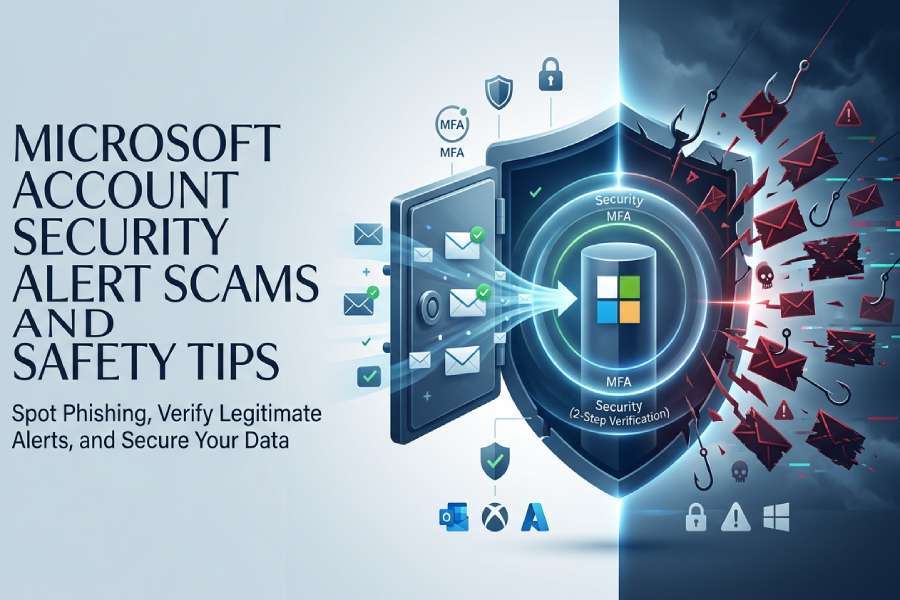
A Microsoft account security alert email is an email notification Microsoft may send when it detects important account activity, such as an unusual sign-in, password change, recovery info update, or risky sign-in attempt. These alerts are designed to help protect account security across services such as Outlook, Microsoft 365, OneDrive, OneNote, Microsoft Teams, Xbox, Windows, Microsoft Store, Microsoft Rewards, Azure, Dynamics 365, and even devices such as Surface, HoloLens, Surface Hub, PC Accessories, and PC Gaming systems.
Why Microsoft Sends Security Alerts
Microsoft may send a security notification when its systems detect suspicious activity, especially if someone tries to access your Microsoft account from a new location, browser, device, or app.
Unusual Sign-In Alerts
An unusual sign-in alert email commonly appears when Microsoft detects a recent sign-in that does not match your normal sign-in activity. For example, an Outlook sign-in from another country, a public computer, or an unfamiliar mobile device may trigger a security alert.
Account Activity Changes
You may also receive an email notification when account activity includes a password reset, changes to security settings, new recovery information, or a request to restore account access. These messages are meant to help you keep your account secure before an attacker takes control.
Where to Verify Activity Safely
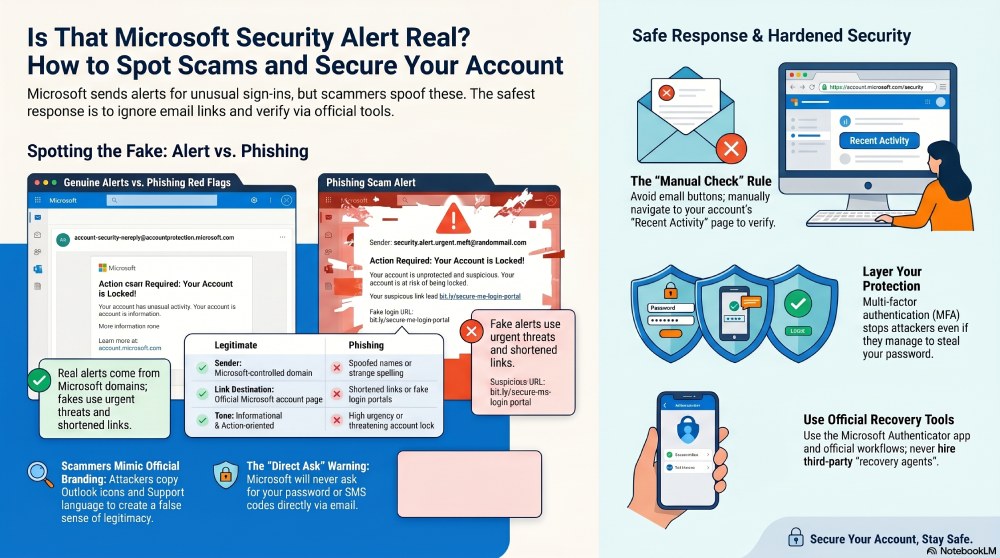
The safest place to review sign-in activity is the official recent activity page after you manually go to Microsoft website and manage your Microsoft account. Do not rely only on links inside an alert email.
How to Tell If a Microsoft Security Alert Email Is Legitimate
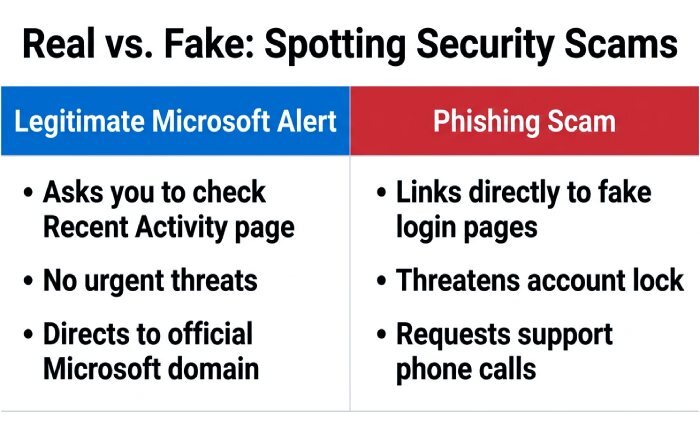
A legitimate security email should be treated seriously, but never blindly trusted. Scammers often copy Microsoft branding, the Account Team name, Outlook icons, and Microsoft Support-style language to make a fake email from Microsoft look real.
Check the Sender, Links, and Message Content
A real email notification from Microsoft typically avoids asking for your password directly. It may ask you to review account activity, confirm whether an unusual sign-in was yours, or update account security options.
Look for Trusted Email Signals
A trusted email should come from a Microsoft-controlled domain and should not contain strange spelling, urgent threats, or shortened links. Organizations implement email authentication protocols, like DMARC, to validate the authenticity of email senders and mitigate the chances of spoofing. Setting up that protection is easier with a DMARC record generator that produces a valid record for your domain. However, sender names can be spoofed, so the sender alone is not proof. If you manage a domain, you can analyze your DMARC reports to see which servers are sending mail under your name.
Avoid Clicking Suspicious Links
Instead of clicking the button in an alert email, open a browser, go directly to Microsoft, and check the recent activity page. This lets you confirm recent sign-in events, review sign-in activity, and see whether the security alert matches real account activity.
Verify Through Microsoft Own Security Tools
Microsoft provides security tools that help confirm whether a security alert is real.
Use the Recent Activity Page
The recent activity page shows recent sign-in events, successful authentication, failed sign-in attempt details, device information, and approximate location. If the unusual sign-in shown in the email notification does not appear on the recent activity page, the alert may be fake.
Check Authentication Methods
Review multi-factor authentication, 2-step verification, SMS code options, passkeys, and Microsoft Authenticator settings. If a scammer added a new method, remove it immediately.
Common Microsoft Account Security Alert Email Scams
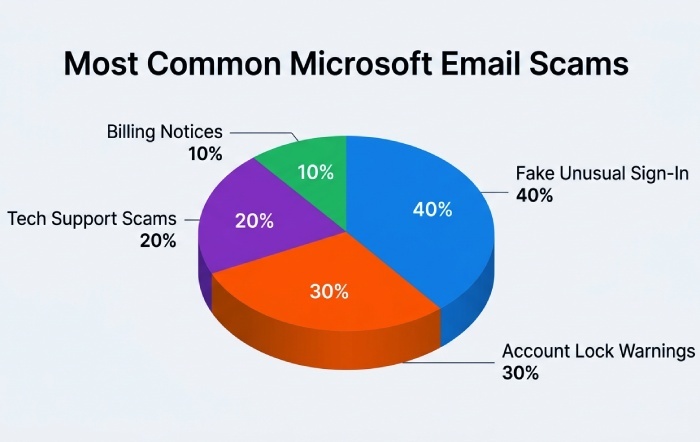
Scammers use security alert themes because people react quickly when they think their Microsoft account, privacy, or account billing information is at risk.
Fake Unusual Sign-In Messages
One common scam claims there was an unusual sign-in from another country. The email notification includes a fake Review activity button that leads to a phishing page designed to steal your password, SMS code, or multi-factor authentication approval.
Phishing Pages That Mimic Microsoft
These pages may imitate Outlook, Microsoft 365, Microsoft Edge, Microsoft Copilot, OneDrive, or Microsoft Store sign-in screens. Some also target personal accounts, Developer accounts, Education accounts, Small Business Portal users, and organizations using Entra authentication.
Fake Account Lock Warnings
Another version says your Microsoft account will be locked unless you verify account security immediately. The attacker may ask you to enter your password, approve 2-step verification, or install a malicious Authenticator App.
Technical Support and Billing Scams
Some messages pretend to be from Microsoft Support and warn of malware, expired Microsoft 365 subscriptions, Xbox charges, or suspicious account billing.
Support Scam Tactics
A Support Scam may include a phone number and urge you to call Microsoft technicians. Microsoft does not ask you to call random numbers from a security alert. Use Microsoft Support directly and report technical support scams through Microsoft official channels.
Fake Refund or Subscription Notices
Scammers may reference Surface, Windows, Microsoft Teams, Azure, Dynamics 365, or PC Gaming purchases to make the alert email feel relevant. These messages often try to steal payment details or redirect you to a fake login page.
What to Do If You Receive a Suspicious Microsoft Alert Email
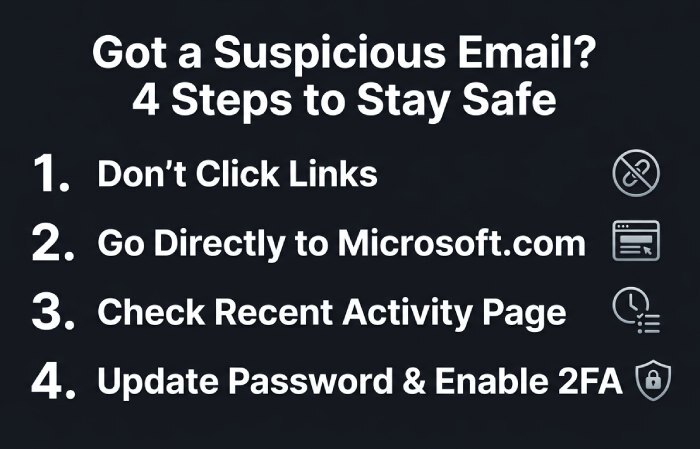
If you receive a suspicious security alert, slow down. A real threat requires action, but a scam relies on panic.
Safe Response Steps
Do Not Click Links or Download Attachments
Never open attachments from a suspicious security email. If the message includes a link to cancel an unusual sign-in, avoid it. Go directly to Microsoft in your browser.
Review Account Activity Directly
Sign in to your Microsoft account from a trusted device and open the recent activity page. Look for unfamiliar sign-in activity, failed login attempts, recent sign-in locations, and changes to recovery options.
Change Your Password If Needed
If account activity looks suspicious, change your password immediately. Use a password manager such as Microsoft Password Manager to create a strong, unique password. In Microsoft Edge, you can export passwords, import passwords, and review saved credentials when moving to a safer setup.
Report and Contain the Threat
Report the Message
Use Outlook reporting tools, Microsoft Support guidance, or Microsoft Tech Community resources to report phishing. You can also block email address entries that repeatedly send fake security alert messages.
Secure Active Sessions
Use sign out everywhere if you believe someone accessed your Microsoft account. This helps remove active sessions from browsers, apps, and devices. If you use Microsoft Authenticator, understand how to sign out from authenticator carefully before replacing a phone.
Best Practices to Protect Your Microsoft Account
Strong account security depends on layered protection: a strong password, multi-factor authentication, 2-step verification, secure recovery methods, and careful review of account activity. Businesses running Microsoft 365 should also set up DMARC in Office 365 to protect their whole domain, not just individual logins.
Strengthen Sign-In Protection
Turn On Multi-Factor Authentication
Multi-factor authentication makes it harder for attackers to access your Microsoft account even if they know your password. Use Microsoft Authenticator for approval prompts, number matching, or sign-in with mobile.
Enable 2-Step Verification
2-step verification adds another layer of authentication. With 2-step verification, a password alone is not enough; you may need a code, app approval, or other second factor. Keep backup methods current so you can restore credentials if your device is lost.
Consider Passwordless Sign-In
Passwordless sign-in reduces reliance on passwords by using Microsoft Authenticator, Windows Hello, or passkeys. You can save passkey credentials, manage saved passkeys, and use passkeys on a trusted device for stronger account security.
Maintain Recovery and Authenticator Options
Download and Configure Authenticator
Download authenticator from an official app store only. In Microsoft Authenticator, you can add accounts, back up accounts, and restore account access when moving to a new phone. Keep recovery email and phone options current for text message alert delivery if needed.
Protect Recovery Codes and Devices
Do not share an SMS code, recovery code, or multi-factor authentication approval with anyone. If an attacker asks you to approve a sign-in attempt, deny it and immediately review the recent activity page.
Keep Monitoring Account Security
Review Security Settings Regularly
Check security settings for unfamiliar devices, apps, passkeys, and authentication methods. Review account activity after travel, after using a public computer, or when you receive any unusual sign-in email notification.
Troubleshoot Problems Early
If you cannot access your Microsoft account, use Microsoft official recovery workflow to troubleshoot problems. Avoid third-party recovery agents, especially if they ask for payment, passwords, or remote access.
Keep Privacy in Mind
Your Microsoft account can connect to Outlook email, OneDrive files, OneNote notebooks, Microsoft Teams chats, Xbox profiles, Windows devices, Microsoft Copilot history, and more. Protecting sign-in activity, enabling multi-factor authentication, maintaining 2-step verification, and checking the recent activity page are essential steps to keep your account secure.
Topics
General Manager
General Manager of DuoCircle. Product strategy and commercial lead for DMARC Report's 2,000+ customer base.
LinkedIn Profile →Take control of your DMARC reports
Turn raw XML into actionable dashboards. Start free - no credit card required.