What Is A Microsoft Header Analyzer And How To Use It

Quick Answer
A Microsoft Header Analyzer is a tool that interprets email headers to reveal message routing, authentication results (SPF, DKIM, and DMARC), and delivery details. To use it, copy the email header, paste it into the analyzer, and review the report for troubleshooting insights.
A Microsoft Header Analyzer is a specialized tool that helps you examine email message headers to understand how a message was sent, routed, and authenticated. It breaks down complex technical data—such as IP addresses, timestamps, and authentication results like SPF, DKIM, and DMARC—into a readable format. By using a Microsoft Header Analyzer, you can quickly identify delivery issues, detect spoofing attempts, and improve overall email security.
What the Microsoft Header Analyzer (Message Header Analyzer) Does and Why It Matters
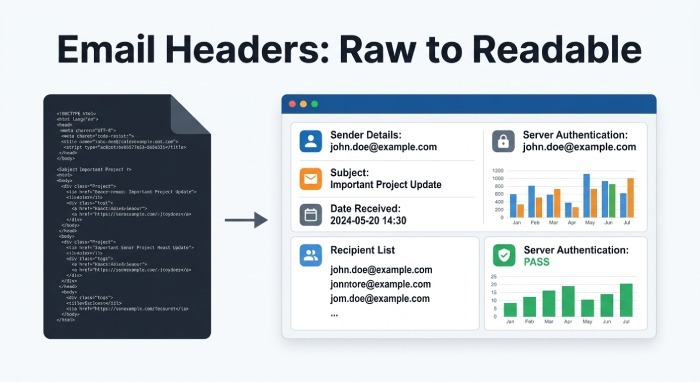
A Microsoft message header analyzer is a specialized header tool that takes raw internet message headers from an email and converts them into human readable, structured insights. Whether you’re an admin safeguarding Microsoft 365 or a help-desk analyst investigating a suspicious from address, a reliable email header analyzer helps you analyze headers, parse headers, and visualize the route a message took through mail transfer agents (MTAs). Because email headers conform to RFC822 (historic RFC 822) conventions, the data is present but dense; a header parser makes that data actionable.
Key capabilities of a message header analyzer
- Parse email headers to surface hop delays, server timestamps, and the Received chain.
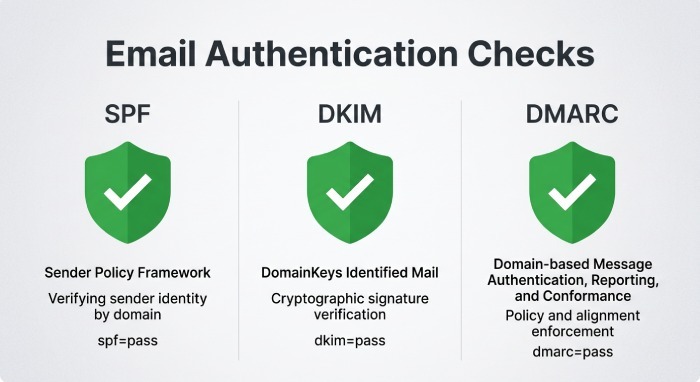
- Highlight Authentication-Results (SPF, DKIM, DMARC), ARC details, and anti-spam results such as SCL.
- Normalize odd formatting and line folding to produce header analysis results you can trust.
- Provide diagnostic information that’s easier to share, export, or copy analysis results into a ticket.
- Assist with monitoring email health and delivery troubleshooting across Outlook, outlook.com, and other clients.
When to analyze headers
- Phish and fraud investigations: confirm header authenticity, compare the from address domain with authenticated sending infrastructure, and analyze message headers for lookalike domains.
- Delivery complaints: use header analysis to pinpoint latency, Delivery issues, or where a message hit blacklists.
- Compliance and privacy inquiries: view internet message headers to validate routing, regional handling, and policy application.
- Post-incident diagnostics: analyze headers to correlate events with Microsoft Defender, account management changes, or third-party gateways.
Where to Find It in Microsoft 365 and Other Access Options
Microsoft offers multiple ways to analyze message headers, and you can combine Microsoft-native options with third-party tools for deeper diagnostics.
Access in Outlook and Microsoft 365
- Outlook for Windows (classic): open the message, choose File > Properties, and look under Internet headers. You can view internet message headers here, then paste header content into a message header analyzer.
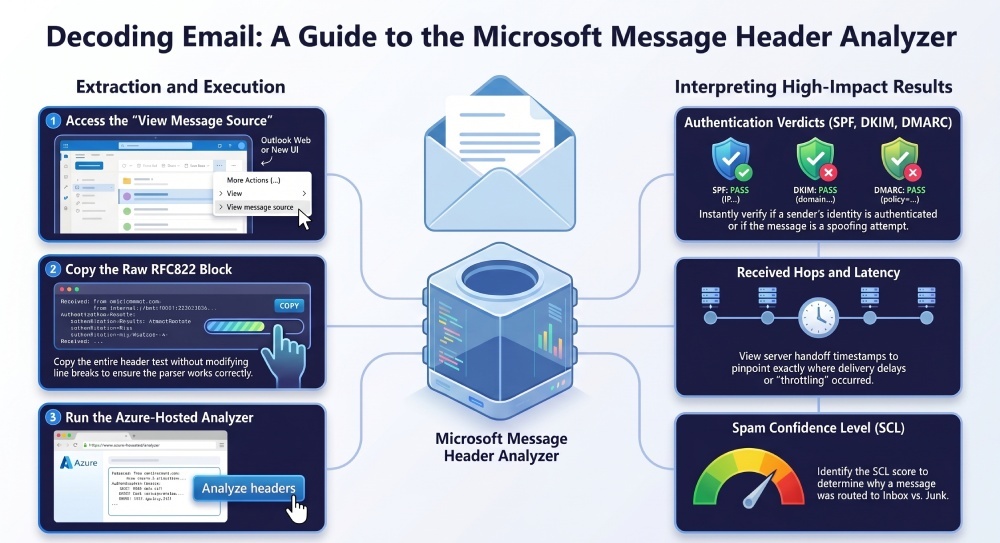
- Outlook new UI and Outlook for Mac: open the message, select More actions (…), and choose View > View message source. This exposes the full raw email headers you can copy.
- Outlook on the web and outlook.com: open the email, select More actions (…), then View > View message source. This “view message source” flow is the quickest way to get raw headers from the browser.
- Microsoft’s web-based Message Header Analyzer: the Microsoft-hosted header tool runs on Azure, where you paste header text into the input headers pane and select Analyze headers to parse headers into a readable timeline.
- Outlook add-in: many organizations deploy the Microsoft Message Header Analyzer add-in so analysts can run header analysis without leaving Outlook. It parses internet message headers in-place and shows quick verdicts.
Microsoft Graph API also exposes internetMessageHeaders for programmatic workflows. Security teams can feed these via API into SIEMs or Microsoft Copilot-driven Q & A Assist experiences to automate diagnostics. If you’re rolling out authentication for your tenant, our DMARC for Office 365 guide walks through the full setup.
Alternative header tools and APIs
- MXToolbox SuperTool: after you analyze headers, jump to MX lookup, DNS lookup, DMARC record checks, and blacklists queries to validate sender reputation. MXToolbox provides complementary diagnostics beyond header parsing.
- Exchange admin and Delivery Center experiences: message trace and Delivery Center-style views in Microsoft 365 admin give holistic context (queues, throttling) that pair well with header analysis results.
- Browsers and platforms: the Microsoft Edge browser is convenient for running the Azure-hosted analyzer, and results copy cleanly into Windows clipboard workflows, Power Platform automations, or Dynamics 365 case records.
Step-by-Step: Extracting Raw Email Headers and Running an Analysis
Getting to the raw text is simple once you know where “view message source” or “internet headers” live in each client.
Extract raw email headers in Outlook desktop, Outlook on the web, and outlook.com
- Outlook for Windows (classic):
- Open the message. 2) Select File > Properties. 3) In the Properties window, copy everything in Internet headers. This is the RFC822 header block.
- Outlook for Mac (new): open the email, choose Message > View Source (or More actions > View > View message source). Copy the full header block.
- Outlook on the web / outlook.com: open the message, click More actions (…), choose View > View message source. Copy the raw block. If available, you can also use View > View message details to access internet message headers.
Tip: Don’t modify line breaks; keep the headers intact. If you accidentally edit, use clear headers on the analyzer and recopy.
Run the header analysis and copy analysis results
- Open the Microsoft Message Header Analyzer (Azure-hosted) or the Outlook add-in.
- Paste header text into the input headers field. Many tools label this Paste header or “Headers” box.
- Click Analyze headers. The header parser will parse headers, normalize folding, and display summary tabs.
- Review the timeline of Received hops, hop delays, and authentication verdicts. Use Copy analysis results to share with your ticket or incident record.
- If needed, run supplementary checks in MXToolbox SuperTool: MX lookup, DNS lookup, DMARC and SPF record diagnostics, and blacklist monitoring to round out your diagnostics.
Interpreting Results: Received Hops, Authentication-Results (SPF/DKIM/DMARC), SCL/Spam Indicators, ARC, and Latency
A good email header analyzer makes complex RFC 822 header fields human readable:
- Received chain and hop delays: Each Received line shows a server handoff. The analyzer aligns timestamps to calculate latency between hops and identify where queues or throttling occurred. Long hop delays often indicate congestion, greylisting, or remote server issues.
- Authentication-Results: Look for SPF, DKIM, and DMARC outcomes (pass/fail/softfail/neutral). DMARC aligns visible sender domains (from address) with authenticated domains to enforce policy (none/quarantine/reject). Failing DKIM with intact SPF can still break alignment and impact DMARC, so check both identity and alignment. You can check DMARC record settings for the sending domain to confirm the published policy.
- ARC (Authenticated Received Chain): Forwarders and list servers use ARC to preserve upstream authentication context. ARC-Seal and ARC-Message-Signature entries show whether prior checks passed, which is crucial when legitimate forwards would otherwise fail DMARC.
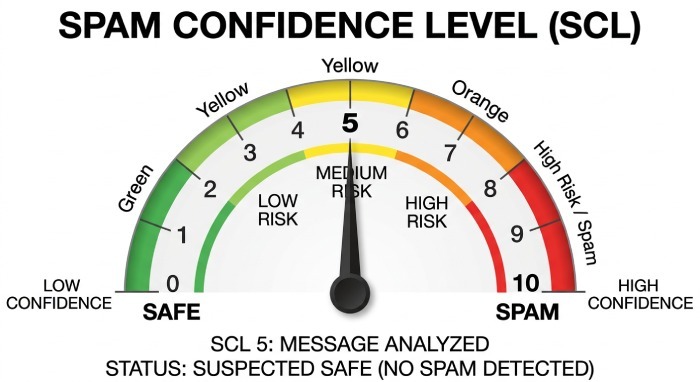
- Anti-spam results and SCL: Microsoft’s anti-spam engines assign an SCL (Spam Confidence Level) that influences delivery to Junk or Inbox. The message header analyzer surfaces SCL, BCL (bulk), and malware scanning results so you can correlate disposition with policy.
- Routing metadata and policy stamps: Look for X-MS-Exchange-Organization- fields that reveal transport rules, tenant boundaries, and regional handling relevant to privacy and compliance.
- Time coherence: The analyzer highlights clock skew or malformed dates that can impact header authenticity assessments and latency math.
Use these header analysis insights to explain user-visible outcomes in Outlook, justify delivery changes, and improve security posture.
Troubleshooting Tips, Limitations, and Best-Practice Security Considerations
- Validate clock drift: If hops show negative or impossible timings, servers’ clocks may be out of sync. Cross-check with MXToolbox SuperTool or Delivery Center traces to corroborate.
- Beware of rewritten headers: Some gateways redact or rewrite internet message headers, limiting visibility. In such cases, analyze headers at the earliest point you control (e.g., edge gateway) and preserve originals for diagnostics.
- Encoding and corruption: If your paste header action introduces smart quotes or loses line folding, use clear headers and recopy from View > View message source. Many analyzers rely on precise RFC822 formatting to parse headers accurately.
- Not all failures are equal: A DKIM fail with ARC pass on a known forwarder may still be acceptable under your DMARC policy. Balance security with deliverability.
- Combine tools: Header analysis is one layer. Use DNS lookup for SPF/DMARC records, MX lookup for routing, and blacklists checks to understand reputation. Tie results back to Microsoft 365 security policies and account management controls.
- Automate carefully: If you pull internetMessageHeaders via API or Microsoft Graph, sanitize PII to respect privacy requirements. Apply least privilege and store diagnostic information according to your organization’s security standards.
- Platform nuances: Outlook rendering doesn’t affect delivery decisions, but user reports often conflate UI issues with transport problems. Always refer to the header analysis results before changing policies.
- Microsoft ecosystem context: Alerts from Microsoft Defender for Office 365, Microsoft Teams email notifications, or Dynamics 365/Power Platform flows can trigger investigations. Keep a runbook that starts with “view internet message headers,” then analyze headers and parse headers with the Microsoft header tool.
- Browser and OS: Use Microsoft Edge or a modern browser to ensure the Azure-hosted analyzer runs smoothly. On Windows endpoints, enable clipboard protections aligned with Account Protection baselines.
- Governance: Document how you analyze message headers and how you’ll use outcomes in security, monitoring, and email health reviews. Maintain audit trails for changes to DMARC/SPF/DKIM records and transport rules.
Limitations: Header analysis can’t retroactively prove content integrity beyond what DKIM provides, and it won’t detect every advanced evasion. Still, consistently using a Microsoft message header analyzer or the Outlook email header analyzer—paired with MXToolbox SuperTool checks—gives you dependable, human readable insight irouting, authentication, and policy application that underpins resilient Microsoft 365 email operations.
General Manager
General Manager of DuoCircle. Product strategy and commercial lead for DMARC Report's 2,000+ customer base.
LinkedIn Profile →Take control of your DMARC reports
Turn raw XML into actionable dashboards. Start free - no credit card required.