How To Check SPF Records Using Nslookup PowerShell, Dig, Or Online Tools

Quick Answer
To check an SPF record, query your domain's TXT records using Nslookup, PowerShell, or Dig, or use an online SPF lookup tool. Verify that the returned TXT record starts with v=spf1 and contains the correct authorized mail servers for your domain.
Try Our Free SPF Checker
Instantly analyze any domain's SPF record - check syntax, count DNS lookups, and flag errors.
Check SPF Record →Sender Policy Framework (SPF) is a key email authentication standard that helps prevent spoofing by identifying which mail servers are authorized to send email on behalf of your domain. If you’re troubleshooting email delivery issues, verifying a new DNS configuration, or auditing your domain’s security, checking your SPF record is an essential first step. In this guide, you’ll learn how to check SPF records using Nslookup, PowerShell’s Resolve-DnsName, Dig, and online lookup tools, as well as how to interpret the results and troubleshoot common SPF problems. If you just want a quick verdict, you can run an SPF check in your browser before diving into the command line.
What SPF Records Are and Why They Matter for Email Authentication
SPF records in the Domain Name System
Sender Policy Framework, or SPF, is an email authentication mechanism that tells receiving mail servers which systems are allowed to send email for a specific domain name. An SPF policy is published as a TXT record in DNS, even though SPF itself is commonly discussed as its own record type.
A typical SPF record looks like this:
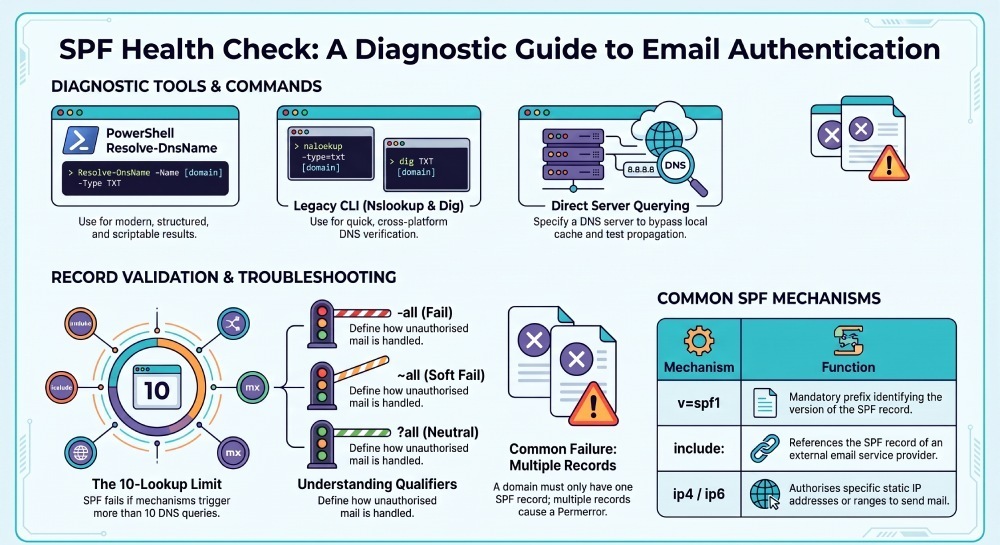
v=spf1 include:_spf.google.com ip4:203.0.113.10 -allThis means the domain authorizes mail from Google’s SPF infrastructure and from the listed IP address. The final mechanism, -all, tells receivers to fail messages from unauthorized sources. SPF matters because it supports anti-spoofing checks, improves domain reputation, and helps protect mail routing from abuse. When combined with DKIM and DMARC, SPF gives mailbox providers a stronger basis for deciding whether a message is legitimate. Once SPF is verified, pair it with a DMARC record checker to confirm the rest of your authentication stack lines up.
Although SPF is stored as TXT data, it lives alongside other DNS records such as an A record, AAAA record, MX record, PTR record, CNAME record, SRV record, and other Domain Name System entries. For example, an MX record controls mail routing, while an A record and AAAA record map a host name to an IPv4 or IPv6 IP address. SPF does not route mail; it authorizes which sending systems may use a domain in the envelope sender.
SPF and DNS query behavior
When a receiving mail server checks SPF, it performs a DNS query for the TXT record of the sending domain name. That DNS query is answered by a DNS server, usually through recursive name resolution. The DNS protocol may involve multiple lookups if the SPF record uses mechanisms such as include, a, mx, or ptr.
Because SPF depends on DNS, incorrect DNS records, an unreachable DNS server, or broken name resolution can cause authentication failures even when the SPF syntax appears correct. This is why command-line tool testing with PowerShell, Nslookup, Resolve-DnsName, or Dig is useful for DNS troubleshooting.
How to Check SPF Records from the Command Line
How to Check SPF Records with Nslookup in PowerShell
NSLookup is a classic command-line tool available in Windows, macOS, and Linux. On Windows, you can run nslookup from CMD, Windows PowerShell, PowerShell 7, or a terminal on Windows Server. It is simple, widely documented by Microsoft and TechNet-era resources, and still useful for quick DNS query testing.
To check an SPF record with nslookup in PowerShell, query the TXT record for the domain:
nslookup -type=txt example.comYou can also specify a DNS server directly:
nslookup -type=txt example.com 8.8.8.8This tells nslookup to ask the DNS server at the specified IP address instead of using the resolver configured on the machine. Specifying a DNS server is useful when comparing public DNS results with internal Windows Server DNS behavior.
If the domain has an SPF record, nslookup should return a TXT value similar to:
example.com text = "v=spf1 include:spf.protection.outlook.com -all"If no SPF policy exists, nslookup may return no TXT result or show only unrelated TXT records. Remember that SPF records are TXT records, so the command uses -type=txt, not a dedicated SPF record type.
Nslookup examples and limitations
Useful nslookup examples include:
nslookup -type=txt contoso.com
nslookup -type=mx contoso.com
nslookup -type=a mail.contoso.com
nslookup -type=aaaa mail.contoso.com
Checking the MX record can help identify the mail routing platform, while the A record or AAAA record can confirm the IP address behind a sending host name. A PTR record lookup may also help when investigating reverse DNS for an outbound mail server.
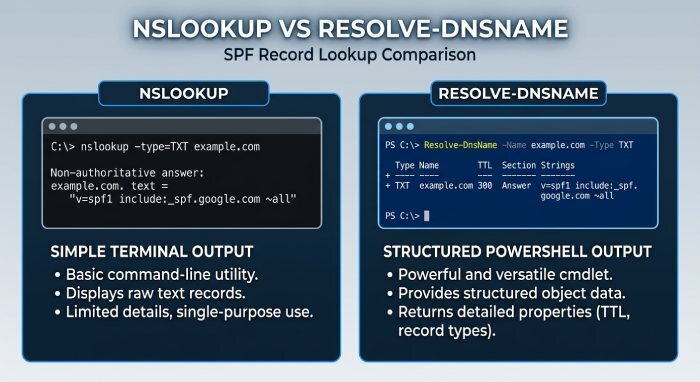
NSLookup is quick, but it returns plain text outputs rather than structured objects. That makes nslookup less convenient for automation, pipelining, filtering, and repeatable reporting in PowerShell. For interactive checks, nslookup is fine; for scripted DNS records validation, Resolve-DnsName is usually better.
Using Resolve-DnsName in PowerShell
Resolve-DnsName is a modern PowerShell cmdlet from the DnsClient module. Microsoft introduced it as a more object-oriented alternative to nslookup. Unlike nslookup, Resolve-DnsName returns structured objects, typically including fields such as Name, Type, TTL, Section, and Strings. In PowerShell, those objects can be passed through the Pipeline for filtering, exporting, or automation.
Basic SPF lookup syntax:
Resolve-DnsName -Name example.com -Type TXTTo filter specifically for SPF:
Resolve-DnsName -Name example.com -Type TXT |
Where-Object { $_.Strings -match '^v=spf1' }
You can direct the DNS query to a specific resolver with the server parameter:
Resolve-DnsName -Name example.com -Type TXT -Server 1.1.1.1The -Type option is the type parameter, and TXT is the relevant record type for SPF. The returned objects are commonly associated with Microsoft.DnsClient.Commands.DnsRecord, and the RecordType property can help distinguish TXT, MX, CNAME, A, AAAA, and other DNS records.
Resolve-DnsName parameters for precise testing
Resolve-DnsName supports several parameters that are valuable during DNS troubleshooting and name resolution analysis:
Resolve-DnsName -Name example.com -Type TXT -DnsOnly
Resolve-DnsName -Name example.com -Type TXT -NoHostsFile
Resolve-DnsName -Name example.com -Type TXT -NoRecursion
Resolve-DnsName -Name example.com -Type TXT -QuickTimeout
Resolve-DnsName -Name example.com -Type TXT -TcpOnly
These options change how PowerShell performs name resolution. For example, -DnsOnly uses DNS only, while -NoHostsFile avoids local hosts-file answers. -NoRecursion disables recursive queries, -QuickTimeout shortens waits, and -TcpOnly forces TCP only instead of the usual UDP-first DNS protocol behavior.
PowerShell also includes options related to DNSSEC and local name resolution technologies:
Resolve-DnsName -Name example.com -Type TXT -DnssecOk
Resolve-DnsName -Name example.com -Type TXT -DnssecCd
Resolve-DnsName -Name printer01 -LlmnrOnly
Resolve-DnsName -Name printer01 -LlmnrFallback
Resolve-DnsName -Name printer01 -LlmnrNetbiosOnly
Resolve-DnsName -Name printer01 -NetbiosFallback
-DnssecOk and -DnssecCd are useful when validating DNSSEC behavior, including chains that may involve records such as NSEC3. LLMNR and NetBIOS options are more relevant to local network name resolution than public SPF, but they matter when diagnosing mixed environments that use Dynamic Host Configuration Protocol, Windows Server DNS, NetBIOS naming, and local host name discovery. Older networking concepts such as Integrated Services Digital Network are unrelated to SPF, but they sometimes appear in legacy infrastructure documentation alongside DNS and name resolution topics.
As with most PowerShell cmdlets, Resolve-DnsName supports CommonParameters. Its documented inputs and outputs make it easier to build reliable automation than parsing nslookup text. Tools from vendors and communities such as PDQ often favor PowerShell because the cmdlet output can be filtered and exported cleanly.
How to Use Dig and Online Tools to Validate SPF
How to Look Up SPF Records Using Dig on macOS, Linux, or Windows
Dig is another widely used command-line tool for DNS query inspection. It is native on many macOS and Linux systems and can be installed on Windows through BIND utilities, package managers, or administrative toolsets. Like nslookup, Dig can query a specific DNS server and display the raw DNS answer.
To check an SPF record with Dig:
dig TXT example.comFor a shorter answer:
dig TXT example.com +shortTo query a specific DNS server by IP address:
dig @8.8.8.8 TXT example.comDig is excellent when you need to see authoritative answers, Time to live (TTL), response flags, or differences between DNS server responses. For example, if PowerShell Resolve-DnsName returns one SPF result but Dig against another DNS server returns a different result, you may be seeing propagation delay, split-horizon DNS, cached data, or inconsistent DNS records.
Dig examples for related DNS records
SPF often references other DNS records indirectly. These Dig examples help verify dependencies:
dig MX example.com +short
dig A mail.example.com +short
dig AAAA mail.example.com +short
dig CNAME selector.example.com +short
dig PTR 203.0.113.10.in-addr.arpa +short
The MX record shows mail routing targets, the A record and AAAA record resolve a host name to an IP address, the CNAME record identifies aliases, and the PTR record checks reverse name resolution. If an SPF record includes mx, the receiver may need additional DNS query lookups to resolve the MX hosts and their IP address values.
How to Verify SPF Records with Online Lookup Tools
Online SPF lookup tools are useful when you want an external view of your public DNS records without relying on your local resolver cache. Many tools query public DNS server infrastructure and provide explanations for common SPF syntax problems. Our own SPF lookup returns the published record and flags syntax issues in seconds.
Typical online tools can show:
- The SPF TXT record found for a domain name
- Whether multiple SPF records exist
- Whether mechanisms such as include, ip4, ip6, a, and mx are valid
- Whether DNS lookup limits are exceeded
- Which IP address ranges are authorized
- Whether the final qualifier is
~all,-all,?all, or+all
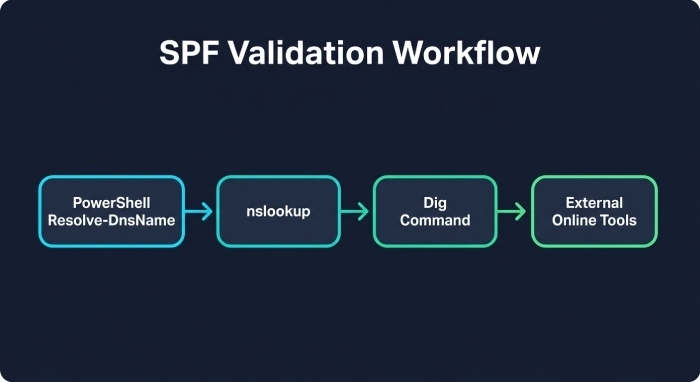
Online tools are especially helpful when validating changes after a DNS update. However, they should not replace command-line tool testing. A strong workflow is to check SPF with Resolve-DnsName in PowerShell, compare with nslookup, confirm with Dig, and then validate through an online tool from outside your network. If your checks reveal a missing or broken record, build a valid one in seconds with our free SPF record generator.
Online lookup caveats
Online tools depend on their own DNS server configuration and may show cached results. If your registrar, hosting provider, or authoritative DNS server has just been updated, a cache only view may not reflect the newest SPF record. Compare several resolvers and pay attention to TTL values.
Also remember that online tools generally test public DNS. They cannot see private internal DNS records unless those records are externally resolvable, which is usually not appropriate for public SPF.

How to Interpret SPF Results and Troubleshoot Common Errors
Reading SPF output correctly
A valid SPF result starts with:
v=spf1Common mechanisms include:
ip4:203.0.113.10
ip6:2001:db8::10
include:spf.protection.outlook.com
mx
a
-all
The ip4 and ip6 mechanisms authorize specific IP address ranges. The include mechanism references another domain name’s SPF policy. The mx mechanism authorizes IP address values associated with the domain’s MX record. The mechanism authorizes the IP address from the domain’s A record or AAAA record.
The ending qualifier is important:
-allmeans fail unauthorized senders.~allmeans soft fail.?allmeans neutral.+alleffectively allows everyone and should almost never be used.
Common SPF errors and fixes
Multiple SPF records
A domain must have only one SPF TXT record. Multiple SPF records cause SPF permerror conditions. If nslookup or Resolve-DnsName returns two separate TXT records beginning with v=spf1, merge them into a single policy.
Too many DNS lookups
SPF allows a maximum of 10 DNS lookups for mechanisms such as include, a, mx, ptr, and exists. Too many nested includes can break authentication. Use PowerShell automation, Dig, or an online analyzer to count each DNS query triggered by the SPF policy.
Wrong sender IP address
If mail is sent from an IP address not listed or indirectly authorized by SPF, the result will fail. Confirm the actual sending IP address from message headers, then update the SPF record with the correct ip4, ip6, or provider include mechanism.
DNS server or propagation problems
If one DNS server returns the updated SPF record and another DNS server returns an old value, wait for TTL expiration and verify authoritative DNS records. Use:
Resolve-DnsName -Name example.com -Type TXT -Server 8.8.8.8
nslookup -type=txt example.com 1.1.1.1
Then compare with:
dig @9.9.9.9 TXT example.com +shortThese examples help isolate whether the issue is local name resolution, recursive cache, authoritative DNS, or an incorrect zone file.
General Manager
General Manager of DuoCircle. Product strategy and commercial lead for DMARC Report's 2,000+ customer base.
LinkedIn Profile →Take control of your DMARC reports
Turn raw XML into actionable dashboards. Start free - no credit card required.