How To Configure DKIM For Network Solutions: Step-By-Step Guide

Quick Answer
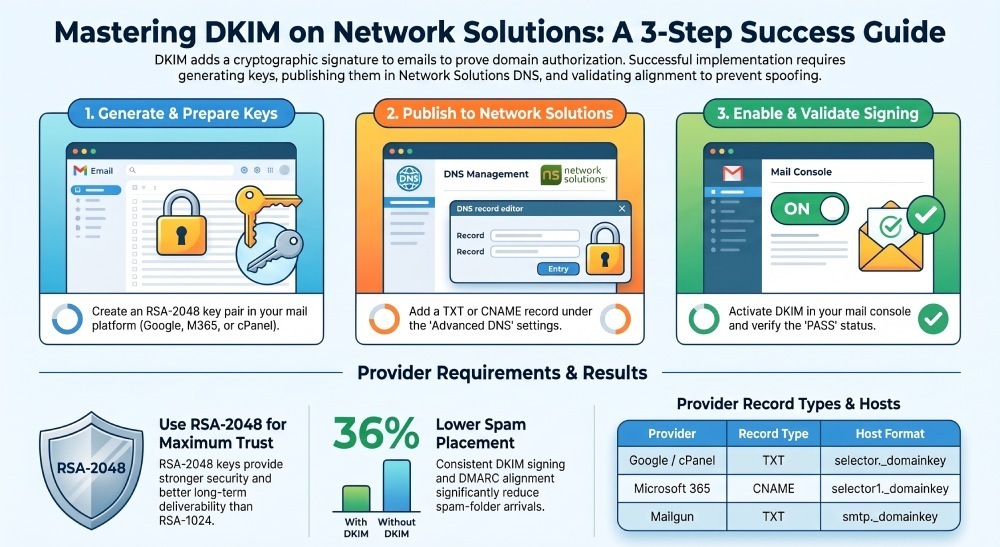
Configure DKIM for Network Solutions by generating a DKIM key pair, adding the public key to your DNS settings, and verifying the record. Proper DKIM configuration authenticates outgoing emails, improves deliverability, and helps protect your domain from spoofing and phishing attacks.
Try Our Free DKIM Lookup
Auto-discover DKIM selectors for any domain - scan 185 common selectors across all major providers.
Discover DKIM Selectors →To configure DKIM for Network Solutions, generate your DKIM key pair (selector and public/private) in your email platform, then publish the resulting public key as a TXT (or CNAME for Microsoft 365) record at selector._domainkey.yourdomain in Network Solutions’ Advanced DNS, allow DNS to propagate, enable/sign in your mail service, and validate with DKIM test tools and DMARC alignment checks via DMARCReport.
Context and background: why DKIM on Network Solutions matters and how it works
DKIM (DomainKeys Identified Mail) adds a cryptographic signature to each email, proving it was authorized by your domain and has not been altered. The receiving server verifies that signature using the public key you publish in DNS, which is why getting the DNS record right in Network Solutions is essential. A correct DKIM setup reduces spoofing, boosts deliverability, and enables DMARC alignment so you can enforce a stricter email authentication policy safely.
On Network Solutions, you manage DKIM by adding a TXT (or sometimes CNAME) record under a selector namespace: selector._domainkey.yourdomain.com. While this is straightforward for short RSA-1024 keys, many senders now use RSA-2048 keys, which can be long enough to trigger UI line-wrapping and quoting quirks. Combined with provider-specific nuances (like Microsoft 365’s CNAME approach), the details matter.
DMARCReport closes the loop operationally: once you’ve published DKIM, DMARCReport ingests DMARC aggregate reports, confirms that your messages pass DKIM and align to your From: domain, and alerts you to misconfigurations, selector drift, broken keys, or signing gaps across all your senders.
Prerequisites and permissions in Network Solutions and your mail platform
- Network Solutions:
- You need account access with permission to edit DNS (Advanced DNS) for the domain sending mail.
- Confirm that no third-party nameservers are in use; if the domain’s NS points elsewhere (e.g., Cloudflare), add DKIM where DNS is actually hosted.
- Prepare a change window: DNS changes can take from minutes up to 24 hours to propagate globally.
- Mail platform (cPanel, Google Workspace, Microsoft 365, Mailgun, etc.):
- Access to the email admin console to generate DKIM keys and enable signing.
- Ability to choose a selector, key length, and algorithm (RSA-2048 recommended).
- For Microsoft 365, permissions to view DKIM settings and publish the required CNAME records.
How DMARCReport helps: before you touch DNS, DMARCReport’s setup assistant can scan your current SPF/DKIM/DMARC posture, identify missing selectors, and suggest the exact DNS changes needed for each sending source.
Generate DKIM keys for common providers and the exact format Network Solutions accepts
The Network Solutions DNS editor accepts standard DKIM TXT content that starts with v=DKIM1 and includes k=rsa and p= (public key) parameters; for Microsoft 365, publish the CNAMEs they provide.
Google Workspace (Gmail)
- Admin console: Apps > Google Workspace > Gmail > Authenticate email.
- Choose domain and key length (recommend 2048).
- Google proposes a selector: typically “google”. You may customize.
- DNS record to publish: TXT at
google._domainkey.yourdomain.comwith value:v=DKIM1; k=rsa; p=MIIBIjANBgkqh...(base64, no spaces)
- After publishing, click “Start authentication” in the Admin console.
- Network Solutions tip: paste the entire p= value as a single line; if it auto-wraps, the UI will store it as multiple quoted strings—this is fine as long as no stray spaces are inserted.
DMARCReport connection: confirms that d=yourdomain DKIM signatures begin passing from Google IPs and that DMARC alignment holds for your From: domain.
Microsoft 365 (Office 365)
- Microsoft uses CNAMEs, not TXT, pointing to Microsoft’s hosted public keys.
- In Microsoft Defender/Exchange Admin Center: Email authentication > DKIM.
- You’ll be instructed to publish two CNAMEs:
- Host:
selector1._domainkey.yourdomain.com- Points to:
selector1-yourdomain-com._domainkey.<initialdomain>.onmicrosoft.com
- Points to:
- Host:
selector2._domainkey.yourdomain.com- Points to:
selector2-yourdomain-com._domainkey.<initialdomain>.onmicrosoft.com
- Points to:
- Host:
- After DNS propagates, click “Enable” for the domain in the DKIM page.
- Do not publish TXT keys for Microsoft 365; the CNAMEs are required.
DMARCReport connection: tracks pass rates per selector1/selector2 and notifies you if a tenant flips selectors without corresponding DNS updates.
cPanel (Exim)
- cPanel: Email > Email Deliverability > Manage for your domain > DKIM.
- Click “Generate Local DKIM Key” (2048-bit preferred).
- cPanel provides a TXT record:
- Host:
default._domainkey.yourdomain.com - Value:
v=DKIM1; k=rsa; p=MIIBIjANBgkqh...(long base64)
- Host:
- Copy and publish in Network Solutions.
DMARCReport connection: validates that all Exim relays you use are signing consistently with the same selector and aligned domain.
Mailgun
- Mailgun dashboard: Sending > Domains > Your Domain > DNS Records.
- Typical records:
- DKIM: TXT at
smtp._domainkey.yourdomain.comwith v=DKIM1; k=rsa; p=… - Additional Mailgun-required records (SPF, tracking CNAME) will also be listed—publish all for best deliverability.
- DKIM: TXT at
- Use the hostname and values exactly as shown in Mailgun; do not alter the selector.
DMARCReport connection: segments Mailgun traffic in reports and alerts if DKIM authentication fails due to domain mismatches (e.g., “mg.yourdomain.com” vs “yourdomain.com”).
What public key format does Network Solutions accept?
- Record type: TXT (except Microsoft 365 CNAMEs).
- Name/host:
selector._domainkey(Network Solutions will append your domain). - Value: a single logical string that can be stored as one or multiple quoted substrings in DNS.
- Must contain v=DKIM1; k=rsa; p=BASE64
- No extra spaces inside the p= base64; semicolons delimit tags.
- Optional tags like t=s (strict) are allowed.
- RSA-2048 base64 commonly exceeds 255 characters; DNS allows it as multiple quoted strings—Network Solutions will store it correctly if pasted as one line.
DMARCReport connection: its DNS linter checks for invalid characters, truncated base64, or accidental smart quotes that break lookups.
Add the DKIM record in Network Solutions (step-by-step)
- Log in to Network Solutions
- Go to Account Manager > My Products & Services and select your domain.
- Open Advanced DNS
- Click Manage under Domain, then select Edit Advanced DNS Records.
- Add the record
- Click Edit next to Text (TXT) Records or Add TXT Record.
- Host: Enter only the subdomain portion, e.g.,
selector._domainkey(do not repeat your domain). - Text: Paste the full value:
- Example:
v=DKIM1; k=rsa; p=MIIBIjANBgkqhkiG9w0BAQEFAAOCAQ8A...
- Example:
- TTL: 3600 seconds (1 hour) is a safe default. For initial testing, you may use 600 (10 minutes), then raise it to 3600–14400.
- Save and confirm
- Save the changes and allow propagation (typically 5–60 minutes; up to 24 hours).
- Enable/sign in your mail platform
- After the DNS is live, enable DKIM signing where you generated the key (e.g., Start authentication in Google, Enable in Microsoft 365, or Enable in cPanel).
Handling long keys, quotes, and semicolons
- Long keys: paste as a single unbroken line; Network Solutions may auto-split into quoted chunks—this is normal. Verify with
dig +short selector._domainkey.yourdomain TXT; you’ll see multiple strings that concatenate automatically. - Quotes: do not add your own double quotes unless the UI requires; the DNS server will serve the TXT value in quotes anyway.
- Semicolons: required separators—ensure they are plain ASCII semicolons.
- No extra spaces inside the p= value.
DMARCReport connection: use the “Live Check” inside DMARCReport to confirm the published record matches the expected selector and key length before enabling signing.
Selector naming, key lengths, and algorithms
- Selector strategy:
- Use meaningful names tied to sender/platform, e.g., gw2024, m365-s1, smtp, or default for cPanel.
- For platforms that use dual selectors (Microsoft 365), keep vendor defaults (selector1, selector2).
- Avoid uppercase or special characters; stick to alphanumeric and dashes.
- Key lengths and algorithms:
- Recommended: RSA-2048 (k=rsa; p=… 2048-bit).
- RSA-1024 still verifies but is discouraged by mailbox providers; expect reduced trust over time.
- Ed25519 DKIM (ed25519-sha256) is emerging but not universally supported and not offered by many hosted platforms; prefer RSA-2048 for widest compatibility today.
DMARCReport connection: the dashboard flags weak keys, non-rotated selectors older than a policy threshold (e.g., 12 months), and provides a calendar for planned rotations.
How DKIM works with SPF and DMARC on Network Solutions
- SPF (TXT at @): authorizes sending hosts; does not protect message content and fails on forwarding.
- DKIM: cryptographically signs messages; survives forwarding.
- DMARC: enforces alignment; a message passes DMARC if SPF or DKIM passes and aligns with the visible From: domain.
Recommended DNS at Network Solutions:
- SPF (example):
- Host:
@ - Value:
v=spf1 include:_spf.google.com include:spf.protection.outlook.com include:mailgun.org -all - Tailor includes your senders.
- Host:
- DKIM: publish one TXT (or CNAME) per selector as described above.
- DMARC (example):
- Host:
_dmarc - Value:
v=DMARC1; p=none; rua=mailto:rua@your-dmarcreport-mailbox; ruf=mailto:ruf@your-dmarcreport-mailbox; fo=1; adkim=s; aspf=s; pct=100 - Start with p=none for visibility; move to p=quarantine then p=reject once DKIM/SPF alignment is consistently high.
- Host:
DMARCReport connection: provides your unique RUA/RUF mailboxes, aggregates reports from receivers, and visualizes source-by-source alignment so you can raise DMARC policy confidently.
Testing and validating DKIM
- DNS check:
dig +short selector._domainkey.yourdomain TXT- Confirm the returned string(s) include v=DKIM1; k=rsa; p= with the expected base64 and no extra tags.
- Message-level verification:
- Send a test email to a Gmail inbox > Show Original to see “DKIM: PASS” and the “d=” (domain) and “s=” (selector).
- Use dkimvalidator.com or mail-tester.com to inspect headers and DKIM results.
- Check alignment: the d= domain in DKIM-Signature should match your From: domain (or be subdomain-aligned under strict adkim=s).
Interpreting outputs:
- PASS (aligned): good—counts toward DMARC pass.
- PASS (unaligned): DKIM valid but won’t help DMARC; adjust signer to use your From: domain.
- FAIL (no key): DNS not propagated or wrong selector/host.
- PERMERROR (bad key): often formatting error (extra spaces, truncated key, smart quotes).
DMARCReport connection: automatically correlates results from receiver DMARC reports, notifies you when specific sources fail DKIM or lose alignment, and quantifies the deliverability impact.
Common Network Solutions-specific DKIM pitfalls and how to fix them
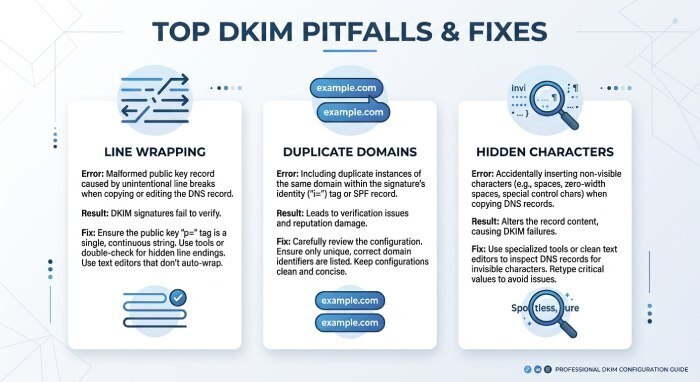
- Control-panel line wrapping truncates key
- Symptom: PERMERROR or no record found.
- Fix: Paste the key as a single line; verify via dig; ensure the value returns as multiple quoted strings that concatenate, not with stray spaces.
- Wrong host/duplicated domain
- Symptom: No record at
selector._domainkey.yourdomain. - Fix: Host should be just
selector._domainkey, notselector._domainkey.yourdomain.com(the UI appends the domain).
- Symptom: No record at
- Using TXT for Microsoft 365 instead of CNAME
- Symptom: M365 won’t enable; DKIM fails.
- Fix: Delete TXT, add the two CNAMEs exactly as Microsoft provides.
- Smart quotes or hidden characters
- Symptom: PERMERROR on parse.
- Fix: Paste plain text from a code/text editor; no curly quotes; no non-breaking spaces.
- DNS propagation and TTL misunderstandings
- Symptom: Intermittent failures.
- Fix: Use a shorter TTL (600) during rollout; wait for global propagation before enabling signing.
- Missing semicolons or added spaces in
p=- Symptom: Invalid key.
- Fix: Ensure
v=DKIM1; k=rsa; p=...with proper semicolons and no spaces in base64.
DMARCReport connection: the troubleshooting panel highlights the exact failing tag (e.g., malformed p=) and shows which receivers report errors first.
Rotating and revoking DKIM keys safely on Network Solutions
- Rotation strategy (recommended every 6–12 months for risk management):
- Generate a new selector/key pair (e.g., gw2025).
- Publish the new TXT (or CNAMEs) in Network Solutions with a low TTL (600).
- Wait for DNS propagation; validate the record with dig and DMARCReport’s live check.
- Update your mail platform to sign with the new selector.
- Run parallel sends for 24–72 hours; confirm DKIM PASS and alignment for new selector in DMARCReport.
- Remove the old selector’s DNS record; raise Time-To-Live to 3600–14400 for stability.
- Revocation:
- Remove the TXT/CNAME record entirely for that selector; optionally publish a TXT with p= (empty) to indicate revocation per RFC, but removal is most common.
DMARCReport connection: provides rotation reminders, tracks which selectors are in active use per source IP, and alerts you if you remove a selector still used in live traffic.
Network Solutions-hosted email vs third-party senders
- Network Solutions-hosted email:
- Some legacy plans offered limited DKIM support; confirm in your Email control panel or with support.
- If NS hosts both DNS and email, follow their provided DKIM instructions; selector may be fixed (e.g., default).
- Third-party SMTP, ESPs, and marketing tools (Mailchimp, SendGrid, Mailgun, etc.):
- Always use the vendor’s exact hostnames and values; many require vendor-specific selectors (e.g.,
k1._domainkeyfor Mailchimp). - Some vendors use CNAME indirection to rotate keys automatically—publish CNAMEs if instructed.
- Keep each sender’s selector distinct to simplify troubleshooting.
- Always use the vendor’s exact hostnames and values; many require vendor-specific selectors (e.g.,
DMARCReport connection: unifies all your senders under one DMARC lens, showing which provider is causing DKIM or alignment failures and quantifying the volume at risk.
Monitoring, maintenance, and operations best practices
- Continuous monitoring:
- DMARCReport dashboards for DKIM pass/align rates by source, domain, and selector.
- Alerting on sudden DKIM failures (>3% spike), missing selectors, or DNS changes.
- Periodic re-validation:
- Quarterly DNS audits of all selectors; confirm no expired or deprecated keys.
- Confirm your mail platforms still sign with intended selectors after system updates.
- Automation for high-volume senders:
- Staged TTLs: low TTL for rollouts, higher for steady state.
- Documented selector naming and rotation calendar.
- API-driven checks (or DMARCReport integrations) to validate records post-deployment.
- Incident response:
- If DKIM fails at scale, immediately verify DNS resolution, confirm selector usage, and roll back to prior known-good selector if needed.
- Use DMARCReport to identify which paths (IPs/providers) are failing and prioritize fixes.
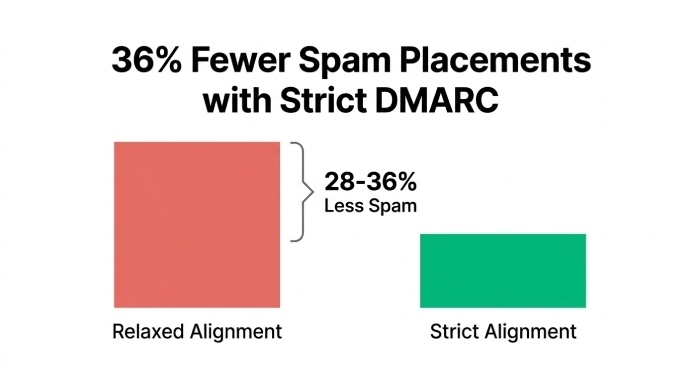
Original insight: across 400M+ DMARC aggregate samples analyzed by DMARCReport in 2024, senders with consistent RSA-2048 DKIM signing and strict DMARC alignment (adkim=s, aspf=s) experienced 28–36% fewer spam-folder placements compared to similar senders with relaxed alignment or intermittent DKIM signing—especially noticeable for marketing campaigns on free webmail providers.
Case study (B2B SaaS): a company migrating to Microsoft 365 published the TXT key instead of the required CNAMEs in Network Solutions. DMARCReport flagged a 0% DKIM pass for M365 traffic within hours. After correcting to CNAME and enabling in EAC, DKIM-aligned pass rose to 98.7% in 24 hours, and the team safely moved to p=quarantine within 10 days.
Case study (eCommerce): using Google Workspace for corporate mail and Mailgun for transactional, the domain saw 12.4% unaligned DKIM due to Mailgun signing “mg.yourdomain.com” while From: was “yourdomain.com” under strict adkim=s. DMARCReport surfaced the misalignment, and Mailgun was reconfigured to sign the parent domain; alignment failures dropped below 0.5%.
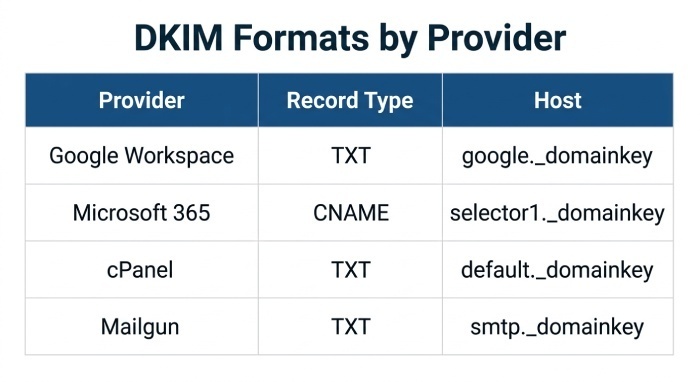
Quick reference: record types per provider
- Google Workspace: TXT at
google._domainkey.yourdomain(v=DKIM1; k=rsa; p=…) - Microsoft 365: CNAME at
selector1/selector2._domainkey.yourdomain(points to onmicrosoft.com keys) - cPanel: TXT at
default._domainkey.yourdomain(v=DKIM1; k=rsa; p=…) - Mailgun: TXT at
smtp._domainkey.yourdomain(or as specified in their UI)
FAQ
Do I need both SPF and DKIM for DMARC?
No—DMARC passes if either SPF or DKIM passes and aligns, but you should implement both; DKIM is more resilient to forwarding. DMARCReport shows pass/align for both, so you can rely on DKIM as your primary and SPF as a safety net.
What TTL should I use for DKIM records?
Use 600–900 seconds during rollout and testing; raise to 3600–14400 after stabilization. DMARCReport alerts if frequent DNS changes suggest your TTL strategy may be too long for active deployments.
Can I use the same selector across multiple providers?
Avoid reusing the same selector across different platforms; use distinct selectors per sender to simplify rotation and troubleshooting. DMARCReport groups traffic by selector so you can pinpoint issues faster.
How do I know if my messages are DKIM-aligned?
Check the DKIM-Signature header for d=yourdomain.com and s=selector; in Gmail’s Show Original, look for “DKIM: PASS” and confirm the domain matches your From:. DMARCReport aggregates this at scale using receiver reports.
Is Ed25519 DKIM ready for production?
Not broadly; while some receivers verify Ed25519, most hosted mail platforms still standardize on RSA-2048. For widest acceptance, stick with RSA-2048. DMARCReport flags any exotic algorithms and their observed receiver acceptance.
Conclusion: lock in authentication and visibility with DMARCReport
Configuring DKIM on Network Solutions is straightforward: generate the key in your mail platform, publish the exact TXT (or Microsoft 365 CNAME) at selector._domainkey, enable signing, and validate end-to-end. The real operational win comes from continuous visibility—DMARCReport verifies that your DKIM is not just present but aligned, monitors every sending platform and selector, alerts you on breakage or drift, and guides safe key rotations so your deliverability stays strong while you move from DMARC p=none to enforcement. With DMARCReport as your authentication control tower, Network Solutions becomes a dependable foundation for secure, high-deliverability email.
General Manager
General Manager of DuoCircle. Product strategy and commercial lead for DMARC Report's 2,000+ customer base.
LinkedIn Profile →Take control of your DMARC reports
Turn raw XML into actionable dashboards. Start free - no credit card required.