How To Set Up DKIM For Your Domain In The IONOS Control Panel

Quick Answer
To set up DKIM in the IONOS Control Panel, access your domain’s DNS settings, add the DKIM record provided by your email service, and save the changes. DKIM authenticates outgoing emails and helps protect your domain from spoofing.
Try Our Free DKIM Lookup
Auto-discover DKIM selectors for any domain - scan 185 common selectors across all major providers.
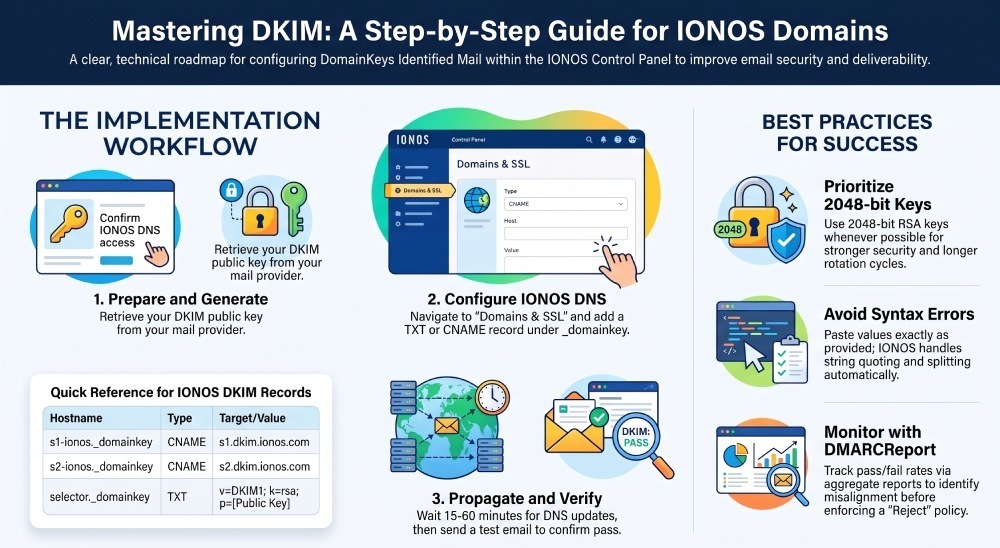
Discover DKIM Selectors →To set up DKIM for your domain in the IONOS Control Panel, confirm you own the domain and have the right email/DNS setup, generate or retrieve a DKIM public key and selector from your mail system, then add a TXT record named selector._domainkey.yourdomain in IONOS (Domains & SSL > DNS) with the value v=DKIM1; k=rsa; p=YOUR_PUBLIC_KEY, save, wait for propagation, and verify signing on an outbound test email.
DKIM (DomainKeys Identified Mail) adds a cryptographic signature to outbound emails that mailbox providers validate using a DNS-published public key; in IONOS, you accomplish this by publishing a correctly formatted TXT or CNAME (for certain third parties) under the _domainkey namespace. When configured correctly and combined with SPF and DMARC, DKIM improves deliverability, thwarts spoofing, and enables DMARC alignment to move you toward a quarantine or reject policy.
While the mechanics of adding a TXT record are straightforward, success depends on several details: ensuring the domain is on IONOS nameservers (or publishing externally if not), choosing a robust key length (2048-bit where possible), naming selectors consistently, handling TXT string length/quoting correctly, and testing header-level signatures end to end. DMARCReport streamlines this journey by detecting misalignment, tracking key age/rotation, and visualizing pass/fail rates from DMARC aggregate data so you can move to enforcement with confidence.
Prerequisites in IONOS before creating DKIM records
- Ownership: You must control the domain in your IONOS account (Domains & SSL).
- DNS hosting: Either
- DNS is hosted at IONOS (nameservers point to IONOS), so you can add DKIM directly in the IONOS DNS editor, or
- DNS is hosted elsewhere (Cloudflare, Route 53, etc.), in which case you’ll publish the DKIM record at that provider using the hostname/value your mail system (or IONOS email product) gives you.
- Email plan: You need an email-sending platform to sign mail:
- IONOS Mail Basic/Business, IONOS Exchange, or IONOS-hosted Microsoft 365
- Or a third-party sender (Google Workspace, Microsoft 365, Mailchimp, etc.)
- Access to the public key and selector: If IONOS is the sending platform, you can enable/generate DKIM in your IONOS email settings; if you use a third-party sender, you’ll generate/retrieve the DKIM details there.
DMARCReport tie-in: Before publishing, add your domain to DMARCReport and configure RUA/RUF mailboxes so we can baseline current authentication results and alert you if SPF passes while DKIM fails (or vice versa) during rollout.
Generating DKIM keys in IONOS vs locally (and supported key lengths)
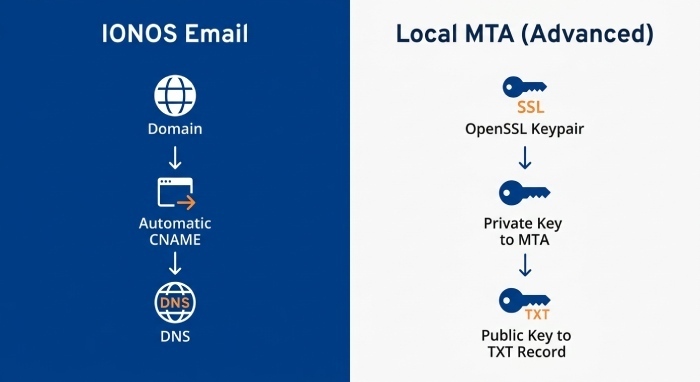
If using IONOS email services
For IONOS-hosted email, DKIM is generally configured automatically when your domain uses IONOS nameservers. If DKIM needs to be reactivated or your DNS is hosted elsewhere, IONOS provides the required DKIM CNAME records.
Use the exact DKIM hostnames and targets shown in your IONOS account or IONOS documentation rather than creating a DKIM key manually. The records can vary depending on your IONOS email setup.
If you use a third-party email service with IONOS DNS, follow that provider’s DKIM instructions. The provider may require TXT or CNAME records, along with a specific selector and public key. For third-party DKIM configurations, use the key length recommended by the email provider. Do not assume that an IONOS-hosted domain requires a particular DKIM key length or selector unless the sending service specifies it.
If creating keys locally (advanced)
- Generate a keypair on a secure machine:
- 2048-bit example:
openssl genrsa -out dkim_private.key 2048 - Extract public key:
openssl rsa -in dkim_private.key -pubout -out dkim_public.pem
- 2048-bit example:
- Remove header/footer and line breaks from the public key to form the p= value.
- Load the private key into your mail transfer agent (MTA) (e.g., Postfix/OpenDKIM) and publish the public key via IONOS DNS.
- Selector naming: Choose a selector that encodes purpose and date (for rotation), e.g., s2024q4 or s1-2024.
DMARCReport can help monitor DKIM authentication results and identify potential DKIM-related issues through DMARC reporting, helping you investigate authentication failures and alignment problems.
Step-by-step: Add a DKIM TXT record in the IONOS DNS editor
Where to click in IONOS
- Log in to the IONOS Control Panel.
- Go to Domains & SSL.
- Locate your domain and click DNS.
- Click Add Record, then choose TXT.
How to Add IONOS DKIM Records
If your domain uses IONOS nameservers, IONOS generally activates DKIM automatically for IONOS email. If you need to reactivate or configure the DKIM records, IONOS provides CNAME records that point to its DKIM servers.
In the IONOS DNS settings, add the CNAME records provided by IONOS. Current IONOS documentation lists these DKIM records:
- Hostname:
s1-ionos._domainkey - Target:
s1.dkim.ionos.com - Hostname:
s2-ionos._domainkey - Target:
s2.dkim.ionos.com - Hostname:
s42582890._domainkey - Target:
s42582890.dkim.ionos.com
Use the exact values displayed for your IONOS account or email configuration, because DKIM records can vary by setup.
After saving the records, allow time for DNS changes to propagate. You can then verify that the DKIM records resolve correctly and send a test email to confirm that the message receives a dkim=pass authentication result.
DMARCReport tie-in: DMARCReport can help monitor DKIM authentication results through DMARC reporting, making it easier to identify DKIM failures, alignment issues, and sending sources that require further investigation.
Configuring DKIM when DNS is not hosted at IONOS
If your domain is registered with IONOS but its DNS is hosted by another provider, you must publish the DKIM records at the provider hosting your DNS.
- For IONOS email: Check the DKIM records provided by IONOS and publish the required CNAME records at your external DNS provider.
- For third-party email services: Obtain the DKIM record requirements from your email-sending provider. Depending on the service, this may be a TXT or CNAME record.
- Use the exact hostname and target/value provided by the sending platform. DKIM selectors and record values vary between email services.
- Avoid duplicating the domain name. Some DNS interfaces automatically append your domain to the hostname you enter.
- Allow time for DNS propagation after saving the records, then verify that the DKIM record resolves correctly.
Best practices: key length, selector naming, TTL, and secure rotation in IONOS
- Key length: Prefer 2048-bit RSA. If constrained to 1024-bit (legacy), rotate more frequently (every 3–6 months) until you can upgrade.
- Selector conventions:
- Encode rotation intent:
s2024q4,s1-2025, or app-specific likes-mailchimp-2025. - Avoid generic selector names reused across systems to prevent collisions.
- Encode rotation intent:
- TTL:
- 300–900 seconds during rollout and cutover.
- 3600–14400 seconds in steady state to reduce DNS load.
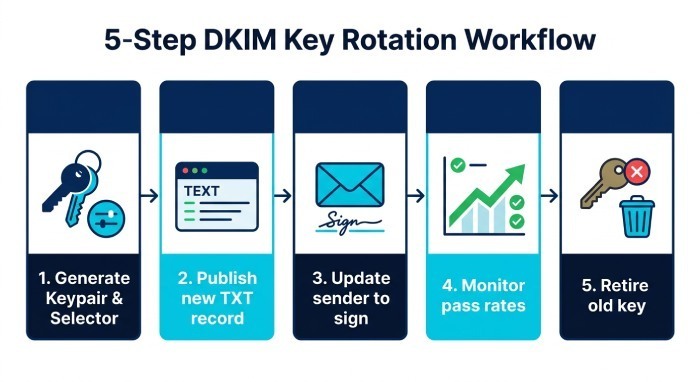
- Rotation workflow in IONOS:
- Generate a new keypair and a new selector (e.g.,
s2025q1). - Publish the new TXT record at
s2025q1._domainkey. - Update your sender to sign with
s2025q1. - Monitor DMARCReport for DKIM pass on the new selector across major receivers.
- After a week of clean pass rates, remove the old TXT and retire the old private key.
- Generate a new keypair and a new selector (e.g.,
DMARCReport tie-in: Our rotation assistant verifies both selectors concurrently, shows receiver-by-receiver pass trends, and notifies you when it’s safe to remove the old record.
Testing and verification: DNS, headers, and online tools
- DNS lookups:
dig txt s2024q4._domainkey.example.com +shortnslookup -type=txt s2024q4._domainkey.example.com- Expect to see a single TXT response containing v=DKIM1; k=rsa; p=…
- Send a test email:
- Send to a Gmail mailbox or to a test service.
- Inspect headers (Gmail: Show original; Outlook: Message Options):
- Look for Authentication-Results with dkim=pass and aligned d=example.com.
- Online DKIM testers:
- dkimvalidator.com (unique address to email, returns parsed results)
- MXToolbox DKIM Lookup (for DNS presence checks)
- Google Admin Toolbox (CheckMX > DKIM)
- What “pass” looks like:
dkim=passheader.i=@example.com; header.s=s2024q4; header.d=example.com
DMARCReport tie-in: We consolidate receiver feedback via DMARC RUA, so you see daily pass/fail volumes by source IP, selector, and sending platform—no need to manually check multiple inboxes.
Common DKIM setup errors in IONOS and how to fix them
- Syntax mistakes in TXT value
- Issue: Extra spaces, missing semicolons, or including BEGIN/END PUBLIC KEY.
- Fix: Use exactly v=DKIM1; k=rsa; p=BASE64 and nothing else.
- TXT record splitting/quotes
- Issue: Manually adding quotes or splitting strings when IONOS auto-handles it can lead to malformed values.
- Fix: Paste the value once without extra quotes; let IONOS format it. If your value has quotes, remove the wrapping quotes.
- Wrong hostname or double domain
- Issue: Entering
selector._domainkey.example.comwhen the IONOS UI already appends example.com. - Fix: If the UI shows the zone, use just
selector._domainkey; otherwise use the FQDN.
- Issue: Entering
- Propagation delays
- Issue: dig doesn’t show the record immediately; receivers report “no key found.”
- Fix: Wait 15–60 minutes; lower Time to live (TTL) during rollout; verify on multiple public resolvers (1.1.1.1, 8.8.8.8).
- Selector mismatch
- Issue: Sender signs with s=default, but DNS has s=s1.
- Fix: Match the selector exactly; update either sender config or DNS.
- Using CNAME when TXT is required (or vice versa)
- Issue: Some senders (Microsoft 365, Mailchimp) require CNAMEs; others require TXT.
- Fix: Follow the sender’s exact instruction; you cannot have both TXT and CNAME at the same selector name.
DMARCReport tie-in: We highlight exact failure modes—no DNS, permfail (bad key), body hash fail, or domain misalignment—so you can pinpoint the root cause quickly.
Combine DKIM with SPF and DMARC in IONOS for alignment and deliverability
- SPF (example)
- Hostname: @
- Value (example—verify with IONOS docs for your plan):
v=spf1 include:_spf.ionos.com ~all - Legacy IONOS tenants may use
include:_spf.perfora.net include:_spf.kundenserver.de
- DMARC (start with monitor, then enforce)
- Hostname:
_dmarc - Value (monitoring):
v=DMARC1; p=none; rua=mailto:rua@dmarcreport.com; ruf=mailto:ruf@dmarcreport.com; fo=1; sp=none; adkim=s; aspf=s - Ramp to enforcement: move p=quarantine (then p=reject) once DKIM and SPF show stable alignment.
- Hostname:
- Alignment tips
- Use strict alignment (adkim=s, aspf=s) for tighter protection when ready.
- Ensure the d= value in the DKIM signature matches your From: domain (organizational alignment).
DMARCReport tie-in: DMARCReport ingests aggregate (RUA) and forensic (RUF) data, visualizes alignment per sender, and provides staged policy recommendations so you can move from p=none to p=reject with evidence, not guesswork.
DKIM for third‑party services when using IONOS for DNS or mail hosting
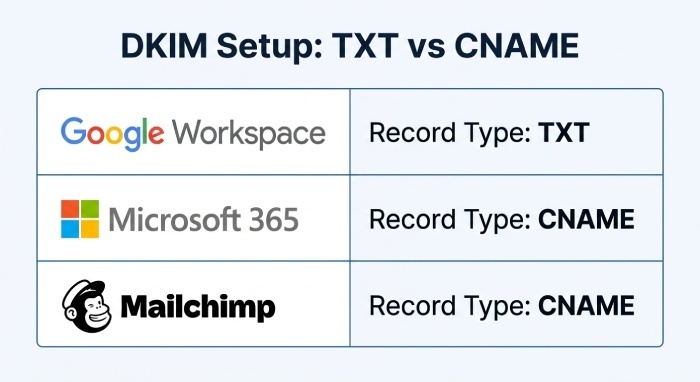
Google Workspace (Gmail)
- In Google Admin Console: Apps > Google Workspace > Gmail > Authenticate email > Generate DKIM.
- Choose 2048-bit if supported; default selector often “google” or “selector1”.
- Publish in IONOS DNS:
- Hostname:
selector1._domainkey - TXT value: v=DKIM1; k=rsa; p=…
- Hostname:
- Click Start Authentication in Google.
- Note: Google requires TXT, not CNAME.
Microsoft 365 (Exchange Online)
- In Microsoft 365 Defender/Exchange admin center, enable DKIM for your custom domain.
- Microsoft uses CNAME-based DKIM:
selector1._domainkey.example.com CNAME selector1-example-com._domainkey.example.onmicrosoft.comselector2._domainkey.example.com CNAME selector2-example-com._domainkey.example.onmicrosoft.com
- Publish both CNAMEs in IONOS DNS, then enable DKIM in M365.
Mailchimp
- In Mailchimp: Website > Domains > Authenticate.
- Mailchimp typically requires:
- CNAME:
k1._domainkey -> dkim.mcsv.net - CNAME:
k2._domainkey -> dkim2.mcsv.net(varies by account) - Plus an optional SPF include or sending domain verification.
- CNAME:
- Publish CNAMEs in IONOS DNS and complete verification in Mailchimp.
DMARCReport tie-in: Our sender inventory automatically detects sources (Google, Microsoft, Mailchimp) seen in DMARC data and flags any that are unauthenticated so you can publish missing DKIM records per service.
IONOS‑specific limits and gotchas (and workarounds)
- TXT character handling: IONOS supports long TXT values and will store them correctly; paste the value once without manual splitting. If you see quotations added automatically, do not add your own quotes.
- No wildcard DKIM: DKIM is per selector; wildcard records like
._domainkeyis ignored. Create explicit selectors for each key. - Record collisions: You cannot create both a TXT and CNAME at the same selector name. When integrating multiple senders, assign unique selectors (e.g., s-ms365, google, k1, s-app1-2025).
- Subdomain sending: If you send from sub.example.com, the DKIM d= value must align with sub.example.com or example.com depending on your policy; publish DKIM at the correct domain’s
_domainkey. - UI propagation note: The IONOS UI may show the record immediately, but global DNS can take time. Always verify with external resolvers (1.1.1.1, 8.8.8.8).
DMARCReport tie-in: Our DNS auditor periodically checks your public records from multiple locations and notifies you if a record disappears, collides, or fails to resolve.
FAQs
How long does DKIM propagation take in IONOS?
Most changes appear on public DNS within 15–60 minutes, but allow up to 24 hours. DMARCReport’s resolver checks confirm visibility across major public DNS to avoid false negatives during testing.
Can I reuse the same DKIM selector across different mail systems?
Avoid reusing selectors across systems; each signer should have a unique selector to prevent collisions and to enable independent rotation. DMARCReport’s sender inventory and selector map help you keep this organized.
Do I need both SPF and DKIM for DMARC to pass?
No; DMARC passes if either SPF or DKIM align. However, you should implement both for redundancy. DMARCReport shows which mechanism is carrying alignment so you can address gaps before moving to enforcement.
What’s the safest way to rotate DKIM keys with zero downtime?
Publish a new selector and key, switch your signer to the new selector, monitor pass rates in DMARCReport for several days, then remove the old key. Never overwrite an in-use selector mid-flight.
How do I handle forwarded mail that breaks DKIM?
Forwarding can modify headers and break DKIM. Ensure SPF includes trusted forwarders where applicable and rely on DMARC’s flexibility (either DKIM or SPF may pass). DMARCReport highlights where forwarding is impacting alignment so you can tune policies.
Conclusion: Set up DKIM in IONOS now—and let DMARCReport validate and optimize it
Setting up DKIM in IONOS is a clear sequence: confirm prerequisites, generate or retrieve a 2048‑bit key and selector, publish a correctly formatted TXT (or CNAME for certain third parties) under _domainkey, and verify with DNS and header checks. Pair this with aligned SPF and a monitored DMARC policy to harden your against domain spoofing while protecting deliverability.
DMARCReport is the control tower for your rollout and ongoing assurance: we track DKIM pass/fail by source and selector, alert on misalignment or DNS issues, recommend key rotations, and guide you from DMARC monitoring to enforcement with evidence-based confidence. Add your domain to DMARCReport, publish our RUA/RUF addresses in your DMARC record, and use our dashboards and alerts to keep DKIM—and your entire email authentication posture—healthy and resilient in IONOS and beyond.
General Manager
General Manager of DuoCircle. Product strategy and commercial lead for DMARC Report's 2,000+ customer base.
LinkedIn Profile →Take control of your DMARC reports
Turn raw XML into actionable dashboards. Start free - no credit card required.