SPF Record Qualtrics: How To Set Up And Configure SPF For Qualtrics

Quick Answer
To set up an SPF record for Qualtrics, add Qualtrics’ authorized sending domains or IP addresses to your domain’s SPF record. This verifies legitimate Qualtrics emails, helps prevent spoofing, and improves email deliverability.
Qualtrics enables organizations to send survey invitations, notifications, and other communications from their own domains. To help ensure these emails are trusted and reach recipients’ inboxes, configuring the correct SPF record is an important part of email authentication. An SPF record identifies the authorized servers that can send emails on behalf of your domain and helps reduce spoofing and delivery issues. In this guide, we’ll explain how to set up and configure an SPF record for Qualtrics and how SPF works alongside DKIM and DMARC to improve email security and deliverability.
Why SPF Matters for Qualtrics Email Deliverability
As organizations increasingly rely on digital communication, ensuring optimal email deliverability for Qualtrics survey invitations, collaboration emails, and project notifications becomes critical. The Sender Policy Framework (SPF) record is a foundational email authentication protocol that helps verify which mail servers have authority to send emails on behalf of your domain. Without a correctly configured SPF record, legitimate emails sent by Qualtrics on your behalf may be blocked or routed to spam by major email providers such as Google (Gmail) and Yahoo. This has a direct impact on Customer Experience and Employee Experience initiatives, especially when using custom FROM addresses in Qualtrics.
SPF helps protect organizations against email spoofing by identifying the mail servers authorized to send messages on behalf of a domain. For Qualtrics, correctly configuring SPF helps receiving mail servers verify that emails sent through an authorized Qualtrics sending service are permitted by your domain’s email authentication policy. When combined with DKIM and DMARC, SPF provides an additional layer of email authentication that can help improve message trust, reduce spoofing risks, and support reliable delivery of Qualtrics survey invitations, notifications, and other automated emails.
Prerequisites: Domain Access, DNS Provider, and Qualtrics Email Settings
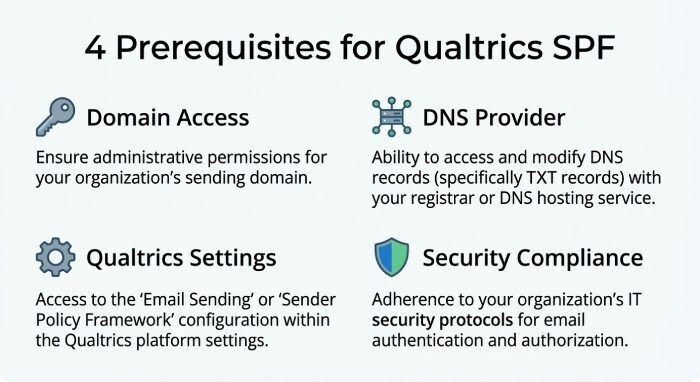
Before adding or updating an SPF record for Qualtrics, certain prerequisites must be met to ensure a smooth process and compliance with your organization’s security requirements.
Domain Administrator Access
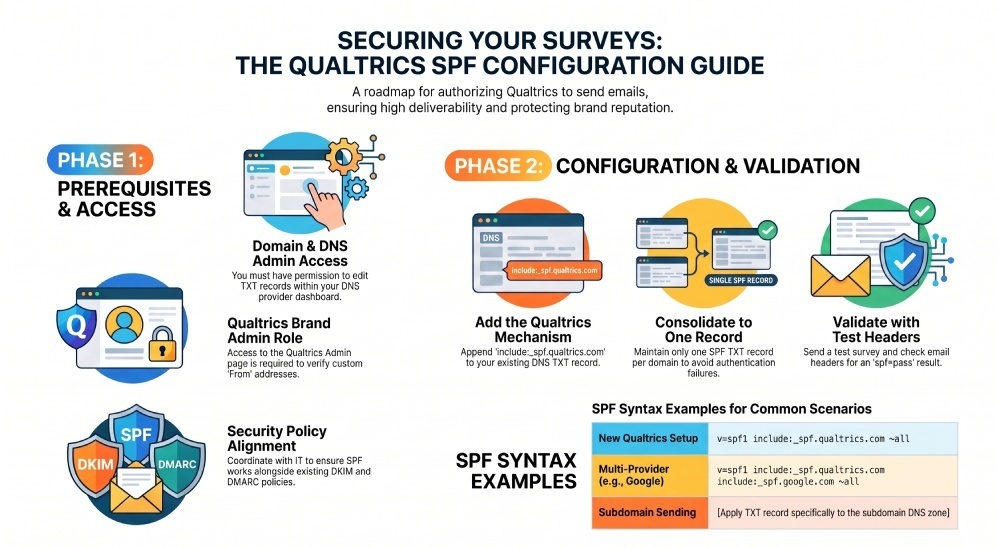
You must have administrator privileges for your organization’s custom email domain or relevant subdomain. This typically means having access to your DNS provider’s dashboard—where public TXT records, MX records, and other DNS configurations are managed. If you are not the domain administrator, coordinate closely with your IT team or appointed Brand Administrator.
DNS Provider and DNS Record Management
Identify your domain provider (such as GoDaddy, Cloudflare, or Namecheap) that manages your DNS zone. You’ll need to directly edit your domain’s public DNS records, including existing SPF records (TXT type), MX records, and potentially related CNAME entries for validated MX and DKIM key setups.
Qualtrics Account and Organization Settings
Within Qualtrics, ensure you have access to the admin page or organization settings as a Brand Administrator or Account Executive. Before configuring a custom FROM address or custom FROM domain, it’s vital to review current mail settings, verify which domains and addresses will be used, and check default FROM addresses (such as noreply@qemailserver.com or bounces@bounces.qemailserver.com). Certain email features, like activating a custom local-part (the address before the @ symbol), may require additional steps such as verifying the domain and updating relevant security settings.
Security and Compliance
Engage your IT team and, if applicable, organization’s Security department, to review Qualtrics platform security requirements, including mandatory use of DKIM key pairing, appropriate key size and selector for cryptographic security, and active DMARC policies (such as p=none policy for monitoring, or more restrictive enforcement).
How to Create or Update an SPF Record for Qualtrics
Identifying the Correct SPF Mechanism
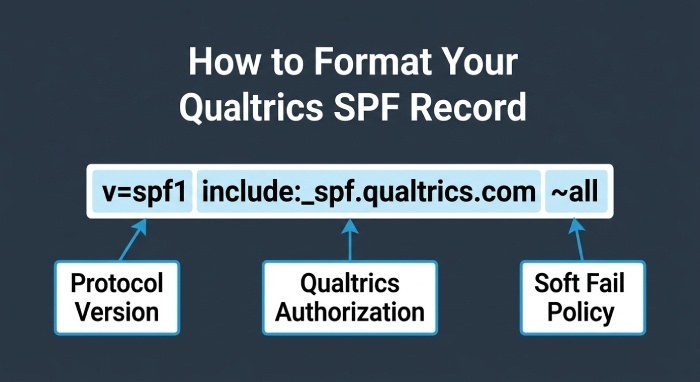
Qualtrics sends emails on behalf of your organization from its email servers and subdomains such as qemailserver.com, qualtrics-survey.com, or qualtrics-research.com. To authorize these, your domain’s SPF record must include a reference to Qualtrics’ outbound mail servers using the mechanism include:_spf.*qualtrics*.com.
Steps for Adding or Modifying an SPF TXT Record
- Locate the Public TXT Record for SPF:
- Log in to your domain provider’s admin dashboard.
- Navigate to the DNS configuration section, where you can view or edit public DNS records.
- Look for an existing SPF record. This typically appears as a TXT record starting with “v=spf1”.
- Update or Create the SPF Record:
-
If an SPF record already exists, simply append
include:_spf.qualtrics.combefore the ~all or -all mechanism. -
If no SPF record exists, create a new TXT record with the following value:
v=spf1 include:_spf.qualtrics.com ~all -
For organizations using multiple email providers, consolidate all authorized providers into a single SPF record:
v=spf1 include:_spf.qualtrics.com include:_spf.google.com include:spf.yourprovider.com ~all -
Avoid having multiple SPF records for the same domain, as this can cause authentication failures and impact email deliverability.
-
- Save and Propagate Changes:
- Save the updated TXT record within your DNS settings.
- DNS propagation may take up to 48 hours to update publicly, depending on your DNS provider.
Special Considerations for Custom Email Domains and Subdomains
If Qualtrics is configured to send from a custom FROM address using your branded domain or subdomain (e.g., surveys@demodomain.com), the SPF record must be added to the DNS zone of the custom domain. If you’re sending from a subdomain (mail.qualtrics.demodomain.com), the relevant TXT record must be applied there.
Ensuring Correct Syntax and Parameters
Double-check the syntax of your public TXT record. Avoid exceeding the SPF lookup limit (10 DNS lookups per record), as this can cause SPF checks to fail when sending to large providers like Google or Yahoo.
Validating Your Qualtrics SPF Record and Avoiding Common Errors
SPF Validation Tools
After updating your SPF record, validation is essential. Tools such as MX Toolbox and Postmaster Tools by Google can check that your DNS record has propagated and your Sender Policy Framework setup is correct. Enter your domain, and use the “SPF Record Lookup” feature to verify the current SPF value.
Inspecting Qualtrics Email Headers
Send a test survey invitation through Qualtrics to an address at Gmail or Yahoo. Examine the full email headers of the received message. Look for:
- Return-Path (Envelope-Sender): Check the Return-Path in the full email headers of a test Qualtrics email, as the address can vary by configuration.
- Mail-From: Confirms the origin matches your SPF policy.
- SPF and DKIM Authentication Results: Look for spf=pass and dkim=pass results, confirming successful email authentication.
Common SPF Misconfigurations with Qualtrics
- Multiple SPF Records: Maintain only one SPF TXT record per hostname.
- Missing Include: Failing to add
include:_spf.qualtrics.comwill cause SPF checks to fail for Qualtrics-sent emails. - Incorrect Wildcards or Mechanisms: Overly broad (e.g., +all) or incorrect mechanisms can cause spoofing vulnerabilities or undeliverable emails.
- Propagation Lag: DNS propagation delays can create a temporary window of failed SPF checks—be patient and verify after full propagation.
Best Practices for Maintaining SPF, DKIM, and DMARC with Qualtrics
Ongoing Maintenance of DNS and Mail Settings
- Regular Reviews: Periodically review your SPF record as your email distribution practices and Qualtrics features evolve. Update your TXT record whenever you authorize new mail sources.
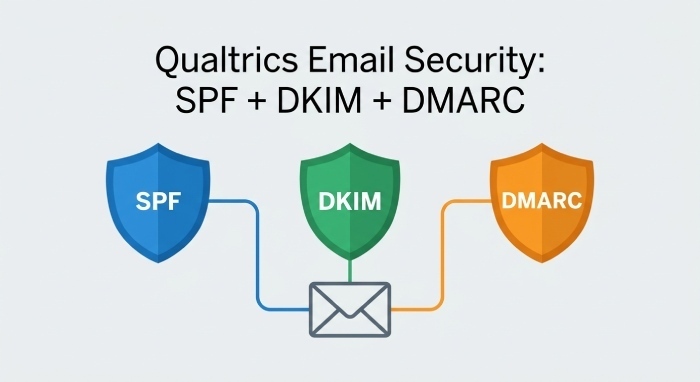
- DKIM Configuration: Pair SPF with DKIM key signing. Generate a DKIM key in Qualtrics, and publish the appropriate selector and key size as a public TXT record within your DNS.
- DMARC Enforcement: Implement a DMARC record specifying your enforcement policy (e.g., p=none, p=quarantine, or p=reject). DMARC works with SPF and DKIM to prevent spoofed emails from your domain.
- Validated MX and Mail Servers: Ensure MX records point only to your authorized inbound mail servers, and that all outbound mail sources (such as Qualtrics) are explicitly included in your SPF setup.
Enhancing Security with Brand Administrator Oversight
- Access Control: Restrict who can manage organization settings and update mail settings for SPF, DKIM, and DMARC configurations within Qualtrics and your domain provider.
- Activation and Verification: Each time a new custom FROM domain or subdomain is introduced for Qualtrics, follow the process to activate domain usage and verify ownership via Qualtrics’ admin page.
- Email Authentication Monitoring: Use Postmaster Tools, DMARC aggregated reports, and bounce logs from bounces@bounces.qemailserver.com to monitor ongoing deliverability and detect unauthorized sending attempts.
Collaboration and Support
- Work With Your IT Team: Engage your IT team or designated domain administrator to ensure DNS changes align with your broader email provider strategy.
- Leverage Qualtrics Support: If complex security requirements, DNS issues, or advanced SMTP relay needs arise, contact Qualtrics Support for guidance specific to your brand ID and mail configuration.
- Document Changes: Keep a record of DNS modifications, SPF/DKIM/DMARC keys, and related validation steps to maintain compliance and facilitate troubleshooting across departments.
Consistent application of Sender Policy Framework best practices, combined with robust DKIM and DMARC policies, is central to achieving high email deliverability, protecting your organization’s email reputation, and delivering on critical Qualtrics-driven initiatives in Customer Experience and Employee Experience programs.
General Manager
General Manager of DuoCircle. Product strategy and commercial lead for DMARC Report's 2,000+ customer base.
LinkedIn Profile →Take control of your DMARC reports
Turn raw XML into actionable dashboards. Start free - no credit card required.