Web.com SPF and DKIM Configuration: A Complete Setup Guide

Quick Answer
To configure Web.com email authentication, add include:spf.cloudus.oxcs.net to your SPF record. Use one SPF record per domain, combine other legitimate senders, and use SPF alignment with DMARC when DKIM is unavailable.
Try Our Free DKIM Lookup
Auto-discover DKIM selectors for any domain - scan 185 common selectors across all major providers.
Discover DKIM Selectors →Setting up email authentication is an important step toward protecting your domain and improving the reliability of messages sent through Web.com. Proper authentication helps receiving mail servers determine whether your messages are coming from an authorized source and reduces the chances of legitimate emails being treated as suspicious.
Web.com provides domain registration, website hosting, email services, and other online solutions. If you use Web.com for business email, configuring the appropriate DNS records is an important part of establishing a secure email environment.
This guide explains how to configure SPF for Web.com, what to know about DKIM support, and how these authentication methods work with DMARC.
What Are SPF and DKIM?
SPF and DKIM are email authentication mechanisms that help receiving servers verify the legitimacy of messages.
SPF
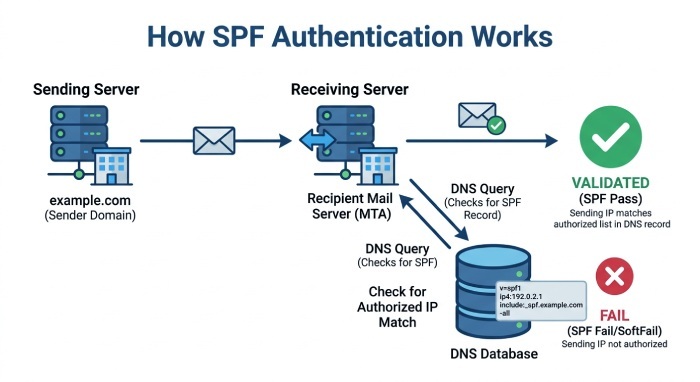
Sender Policy Framework (SPF) uses a DNS TXT record to identify the mail servers that are permitted to send messages on behalf of your domain.
When a receiving server gets an email, it can compare the sending server’s IP address against the servers authorized by your SPF record.
For Web.com email, the SPF configuration uses the following include mechanism:
include:spf.cloudus.oxcs.net
If you are creating a dedicated SPF record for Web.com, the complete value is:
v=spf1 include:spf.cloudus.oxcs.net ~all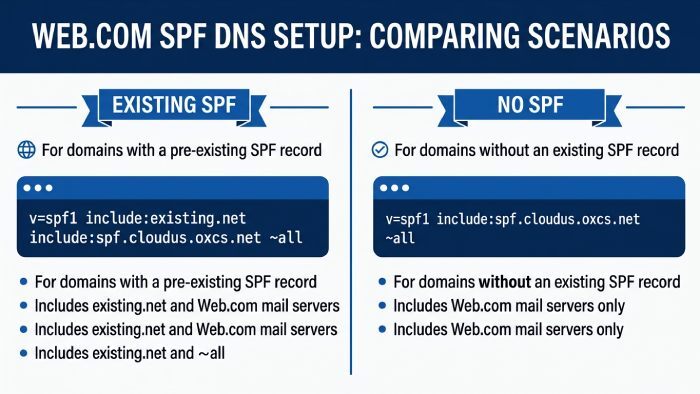
DKIM
DomainKeys Identified Mail (DKIM) adds a cryptographic signature to outgoing email. The receiving mail server retrieves the corresponding public key from DNS and uses it to verify that the message was authorized and has not been improperly altered in transit.
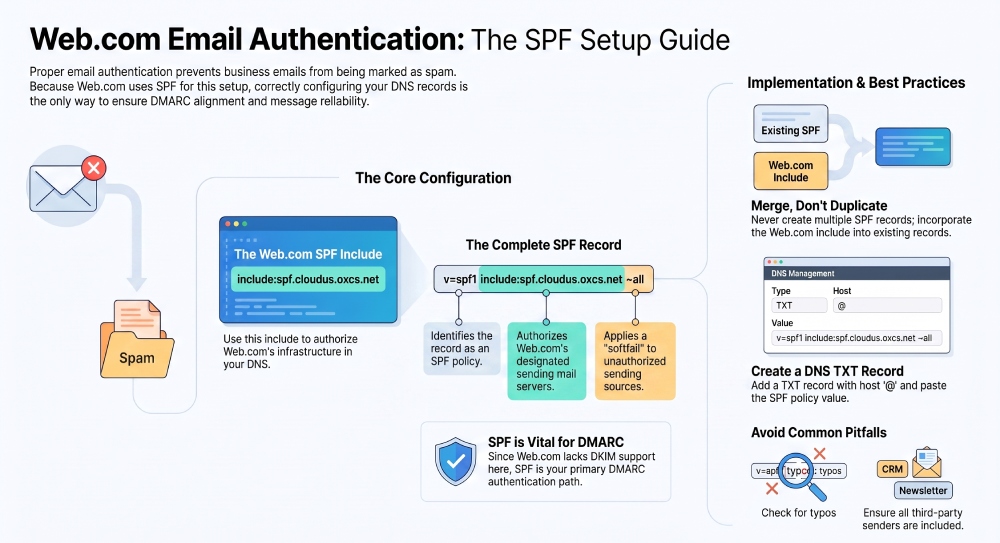
Web.com’s email service does not provide a DKIM record for this setup. As a result, SPF becomes especially important when you want Web.com mail to satisfy DMARC authentication requirements.
Web.com SPF Record
For a domain that sends email exclusively through Web.com’s mail infrastructure, an SPF record can look like this:
v=spf1 include:spf.cloudus.oxcs.net ~allThe v=spf1 portion identifies the record as an SPF policy.
The include:spf.cloudus.oxcs.net mechanism authorizes Web.com’s designated sending infrastructure.
The ~all mechanism applies a softfail to sources that are not included in the SPF policy.
How to Add Web.com’s SPF Record to DNS
 Before publishing anything, check whether your domain already has an SPF record. You should not create multiple independent SPF TXT records for the same domain. If another email provider is already authorized, Web.com’s SPF mechanism should generally be incorporated into the existing record.
Case 1: Your Domain Already Has an SPF Record
Suppose your current SPF record looks like this:
v=spf1 include:secureserver.net ~allYou can incorporate Web.com’s authorization into the same record:
v=spf1 include:secureserver.net include:spf.cloudus.oxcs.net ~allThe exact final record depends on every service that legitimately sends email for your domain.
For example, if your organization uses Web.com, a marketing platform, a CRM, and another email provider, all authorized sending services need to be represented appropriately within the SPF policy.
Case 2: Your Domain Does Not Have an SPF Record
If your domain has no SPF policy yet, you can create a TXT record using:
v=spf1 include:spf.cloudus.oxcs.net ~allThe record is normally published at the root of your domain.
Step-by-Step Web.com SPF Configuration
Follow these general steps to publish the SPF record.
Step 1: Open Your DNS Management Panel
Sign in to the provider responsible for managing your domain’s DNS records.
This could be Web.com itself or another DNS hosting provider, depending on where your domain’s nameservers are configured.
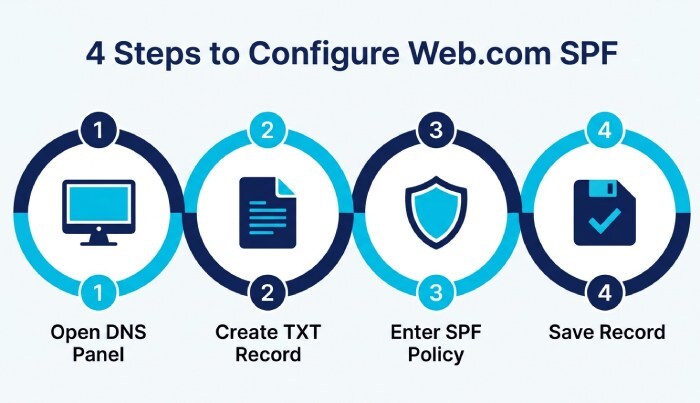
Step 2: Create a TXT Record
Choose the option to add a new DNS record and select:
Record Type: TXT
The name or host field varies between DNS providers.
Some platforms expect:
@
Others may require your domain name or automatically append the domain to the host value.
Step 3: Enter the SPF Policy
Place the Web.com SPF value in the TXT record’s content or value field:
v=spf1 include:spf.cloudus.oxcs.net ~allMake sure there are no unnecessary quotation marks or additional characters beyond what your DNS provider requires.
Step 4: Save the DNS Record
Save the new TXT record.
DNS changes may not become visible everywhere immediately. The time required for DNS propagation can vary depending on caching and the provider’s configuration.
What If You Already Use Other Email Services?
This is one of the most important considerations when modifying SPF.
Do not simply replace an existing SPF record with Web.com’s record if other systems also send mail for your domain.
For example, an existing record could be:
v=spf1 include:example-email-service.com ~allIf Web.com also sends legitimate messages, the policy may need to become:
v=spf1 include:example-email-service.com include:spf.cloudus.oxcs.net ~allThe correct configuration depends on the services your organization actually uses.
Adding unnecessary senders can weaken the accuracy of your SPF policy, while leaving out legitimate services can cause SPF failures.
SPF and DMARC: How They Work Together
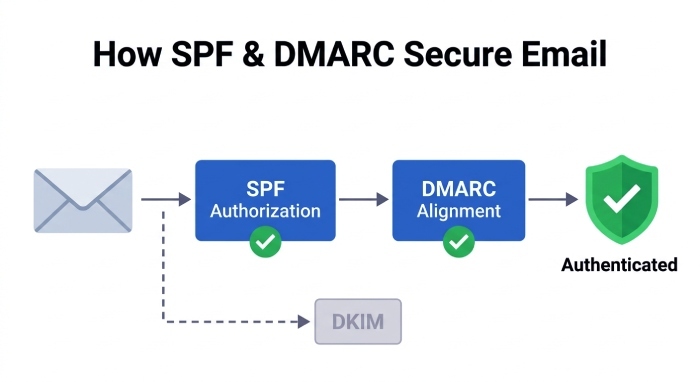 SPF and DMARC are related but serve different purposes.
SPF determines whether the server sending an email is authorized by the domain’s SPF policy.
DMARC adds another layer by checking whether the authenticated identity is appropriately aligned with the domain visible to the recipient.
Because Web.com does not provide DKIM authentication in this setup, SPF authentication and alignment become particularly important for DMARC.
A message can therefore achieve DMARC authentication through SPF even when there is no DKIM signature, provided the SPF authentication result and domain alignment satisfy the DMARC requirements.
Do You Need to Create a New DMARC Record?
If your domain already has a DMARC record, do not publish another one simply because you are configuring Web.com email.
A domain should have a single applicable DMARC policy at its _dmarc DNS location.
If you do not have DMARC configured yet, establishing a policy is worth considering because it allows you to define how receiving servers should handle messages that fail authentication and provides visibility into email authentication activity.
Common Web.com SPF Configuration Mistakes
Even a simple SPF setup can fail if the DNS record is incorrectly configured. Watch for these common problems.
Publishing Multiple SPF Records
Having separate SPF TXT records can cause SPF evaluation problems. Combine the necessary authorization mechanisms into one SPF policy instead of creating separate records for different providers.
Overwriting an Existing SPF Policy
Replacing an existing record without checking which services currently send email can break legitimate mail streams.
Always review your current SPF configuration before making changes.
Entering the Wrong Hostname
The DNS host/name field is provider-dependent. One DNS platform may expect @, while another may automatically append the domain name.
Follow the format required by your DNS management interface.
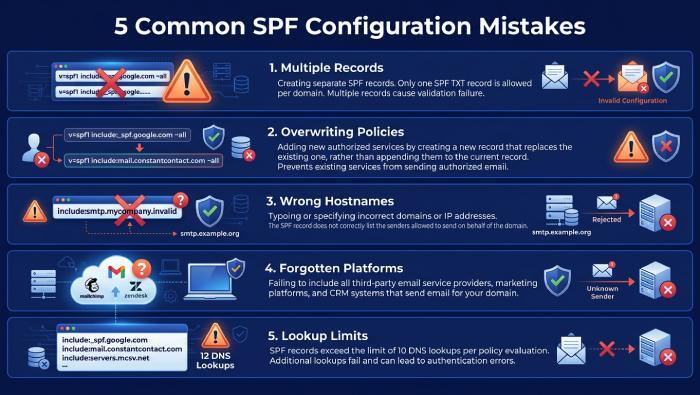
Forgetting Other Sending Platforms
Your website, CRM, newsletter service, help desk, transactional email platform, and other applications may all send mail. Make sure every legitimate sender is accounted for in your SPF strategy.
Exceeding SPF DNS Lookup Limits
SPF policies have a limit on DNS-based lookups. Large organizations that authorize many third-party services can eventually encounter lookup-limit problems.
Keep your SPF record as efficient as possible and avoid adding services that do not actually send email for your domain.
How to Check Your Web.com SPF Record
After publishing the record, verify that it is publicly available in DNS.
You can use an SPF lookup or DNS inspection tool to check your domain and confirm that the expected Web.com authorization is present.
Look for a record containing:
include:spf.cloudus.oxcs.net
If your existing SPF policy contains other services, verify that they remain present as well.
How to Troubleshoot SPF Failures
If messages sent through Web.com are failing SPF authentication, review the following areas:
- Check whether an SPF record exists.
- Confirm that the Web.com include is present.
- Make sure you have only one SPF policy.
- Review whether other legitimate senders are included.
- Check the DNS host/name field.
- Allow time for DNS changes to propagate.
- Inspect the authentication results of a delivered message.
A message header can provide useful information about whether SPF passed, failed, or produced another authentication result.
Does Web.com Require DKIM for DMARC?
No. DKIM is valuable for email authentication, but DMARC does not require both SPF and DKIM to pass.
For Web.com email, SPF can provide the authentication mechanism needed for DMARC when the SPF result is properly aligned with the domain used in the message.
That said, organizations using multiple email platforms may benefit from DKIM wherever their providers support it. Having both SPF and DKIM can provide greater flexibility and resilience for email authentication.
Final Thoughts
Configuring SPF is a fundamental step when using Web.com email with a custom domain. The key Web.com authorization is:
include:spf.cloudus.oxcs.net
For a domain without an existing SPF policy, the record can be published as:
v=spf1 include:spf.cloudus.oxcs.net ~allIf an SPF record already exists, incorporate the Web.com include into that existing policy rather than creating another SPF record.
Since Web.com’s setup does not provide DKIM authentication, SPF authentication and alignment are especially important when using DMARC. Once your DNS changes have propagated, verify the configuration and monitor your email authentication results to ensure legitimate Web.com messages are being authenticated successfully.
General Manager
General Manager of DuoCircle. Product strategy and commercial lead for DMARC Report's 2,000+ customer base.
LinkedIn Profile →Take control of your DMARC reports
Turn raw XML into actionable dashboards. Start free - no credit card required.