What Happens If I Open Spam Email? Risks, Safety Tips & What You Should Know

Quick Answer
Opening a spam email alone is usually not enough to infect your device. The real risks arise if you click malicious links, download attachments, enable macros, or share personal information. Delete suspicious emails, avoid interacting with them, and report them as spam.
Opening a spam email is usually not dangerous by itself, especially on modern email services like Gmail or Outlook. However, risks appear when you interact with the message—such as clicking links, downloading attachments, or entering personal information. Spam emails are often used for phishing, malware distribution, and tracking users to confirm active email addresses. While most are filtered automatically, some still reach your inbox. Understanding what happens when you open spam and how to respond safely can help you avoid scams, protect your data, and keep your accounts secure.
What Happens When You Open a Spam Email?
Opening a spam email is not always an immediate disaster, but it can expose you to risk depending on how your email client handles images, scripts, attachments, and links. In modern services like Gmail, Outlook, Yahoo Mail, and Apple Mail, simply viewing a message is usually safer than it was years ago because major providers use sandboxing, spam filters, and security scanning. Still, the danger of opening spam is real when the message contains tracking pixels, phishing links, or a malicious attachment.
Opening vs. Interacting With the Message
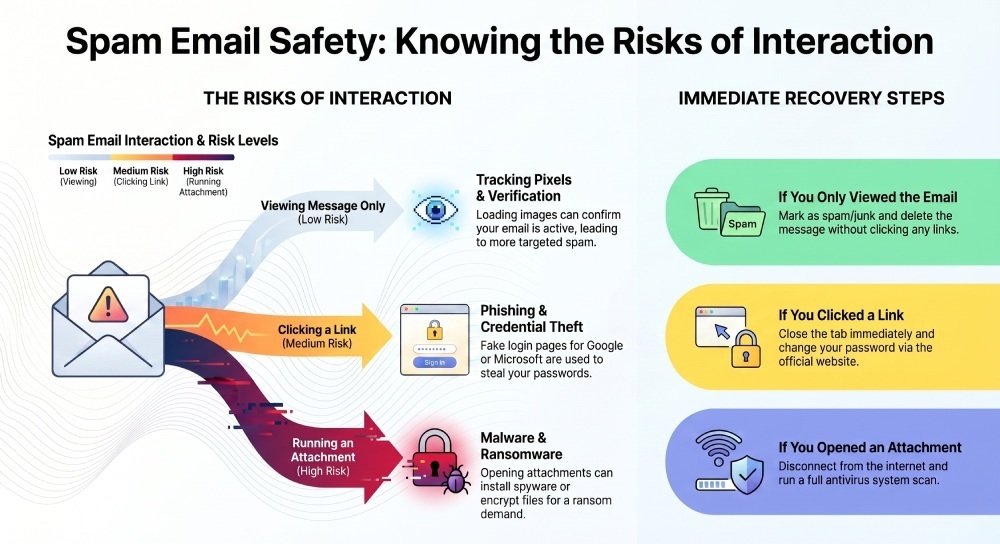
If you only open spam emails and do nothing else, the main risk is usually tracking. However, if you start clicking links, choose to download attachment files, enable images, or reply to spam, the risk increases significantly. A phishing email may imitate Microsoft, Google, LinkedIn, YouTube, Cloudflare, a bank, or a delivery company to trick you into entering login credentials or payment details.
A single spam email may include a forged email header, fake branding, urgency-based language, and links that lead to credential theft pages. Some messages also contain QR codes that send users to phishing sites from a mobile device, such as an Android phone or iPhone, where it may be harder to inspect the URL.
Key Risks: Phishing, Malware, Tracking Pixels, and Scams
Spam is not just annoying; it is a common delivery channel for phishing scams, malware, ransomware, and identity theft attempts. Scammers and cybercriminals use spam because it is cheap, scalable, and effective.
Phishing Emails and Credential Theft
A phishing email is designed to make you believe it came from a trusted source. It may say your Gmail account is locked, your Microsoft password expired, your YouTube channel has a copyright issue, or your LinkedIn profile needs verification. The goal is to steal personal information, passwords, payment data, or other sensitive data.
Many phishing links lead to convincing login pages that look like Google, Microsoft, or Apple. If you enter your credentials, hackers may use them to access your inbox, reset other accounts, or trigger a wider data breach. Once attackers control your email, they can search for tax documents, bank alerts, password resets, and private files.
Malware, Ransomware, and Malicious Attachments
A malicious attachment can contain malware, a macro-enabled document, a fake invoice, a compressed file, or an executable disguised as something harmless. If you open spam email and then run an attachment, your device safety may be at risk. Some files install spyware, a trojan horse virus, or a remote-access tool.
More severe attacks involve ransomware, which can encrypt your files and demand payment. A trojan horse may silently create a backdoor, allowing attackers to monitor activity, steal cookies, or capture browser sessions from Safari, Google Chrome, or Firefox. Users on Windows are frequent targets, but macOS, Android, iPhone, and even Linux users can still be exposed to phishing and credential theft.
Tracking Pixels and Automatic Image Loading
Another overlooked risk is automatic image loading. Some spam messages contain invisible tracking pixels. When your email client loads the image, it may tell scammers that your inbox is active. This process is known as sender tracking or tracking via images.
Depending on the system, the sender may receive your IP-related location, time opened, device type, or a user-agent header. That information can help them confirm valid email address status and perform email address verification for future attacks. Gmail often proxies images through Google servers, which reduces some exposure, but automatic image loading can still confirm engagement. In Apple Mail, Outlook, and Yahoo Mail, privacy settings matter. If possible, block images, disable images, or avoid selecting “display images” for unknown senders.
What to Do Immediately If You Opened Spam or Clicked a Link
If you accidentally open a spam email, stay calm and assess what happened. The response depends on whether you merely viewed it, clicked a link, entered information, or opened a malicious attachment.
If You Only Opened the Email
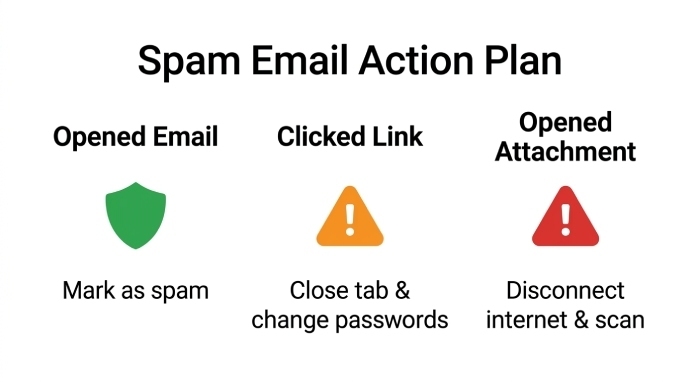
If you opened a spam email but did not click anything, download anything, or enable images, your risk is usually limited. Still, you should delete spam, then mark as spam or mark as junk so your provider’s email filters and spam filters improve over time. Do not unsubscribe from a clearly fraudulent message, because that may confirm your address is active.
Also check whether your email client allows automatic image loading. If it does, consider turning it off. Disabling images is a simple privacy online improvement that reduces tracking from future suspicious email campaigns.
If You Clicked a Link
If you were clicking links in a phishing email, close the browser tab immediately. Do not enter passwords, authentication codes, or payment details. If you did enter information, change passwords right away from a trusted website or app—not from the link in the email.
For important accounts, secure your account by enabling multi-factor authentication and reviewing recent login activity. Gmail and Google accounts, Microsoft accounts, Apple IDs, LinkedIn, and banking accounts all provide security dashboards. If the phishing page requested card numbers or identity documents, monitor for identity theft and consider services such as Aura, especially if family identity theft is a concern.
If You Opened an Attachment
If you open a malicious attachment, disconnect the device from the internet. Use a network disconnect, unplug Ethernet, or disconnect Wi-Fi to stop possible communication with a command-and-control server. Then run a full system scan. Good antivirus software can help detect viruses, quarantine malware, and identify suspicious behavior.
If you suspect ransomware, do not keep working on the device. Preserve evidence, avoid plugging in backup drives, and use clean backups only after the system is verified. Ideally, backup files regularly to an external drive or secure cloud storage so one incident does not become a permanent data loss event.
How to Protect Yourself From Spam Emails in the Future
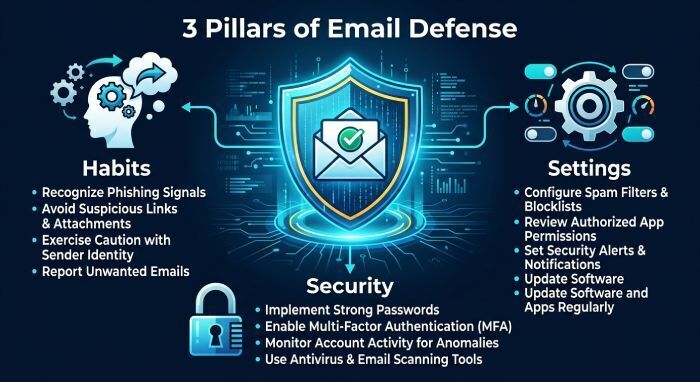
Preventing harm from spam requires a layered approach: safer habits, stronger account security, and smarter settings in your email client.
Strengthen Your Email and Account Security
Use unique passwords and a password manager. Turn on multi-factor authentication for Gmail, Outlook, Yahoo Mail, Apple ID, Microsoft, and other critical accounts. This helps protect account access even if a password is stolen during a data breach or phishing attack.
Review forwarding rules and recovery email addresses periodically. Attackers sometimes add hidden mail forwarding after compromising an inbox. Also review connected apps, browser extensions, and account sessions. This is especially important after clicking links in a phishing email or after a known company data breach.
Improve Spam and Privacy Settings
Train your inbox by using mark as spam or mark as junk instead of just deleting suspicious messages. Strong email filters reduce future exposure to phishing links, fake invoices, and scam campaigns. Do not rely only on the subject line; scammers often rotate domains, spoof brands, and use a forged email header to appear legitimate. If you own a domain, aggregate DMARC reports reveal when attackers are spoofing your brand in exactly this way.
Turn off automatic image loading where possible. In Gmail, Apple Mail, Outlook, and Yahoo Mail, look for privacy or image-loading settings. Choosing to block images or disable images by default helps limit sender tracking and tracking via images. Avoid clicking “display images” unless you trust the sender.
Build Safer Daily Habits
Before clicking links, hover over them on desktop or long-press carefully on a mobile device to preview the URL. Be cautious with shortened links, QR codes, urgent payment demands, and unexpected attachments. Never open a malicious attachment or enable macros in a document from an unknown sender.
If a message claims to be from Google, Microsoft, Cloudflare, YouTube, or your bank, navigate directly to the official website instead of following the email link. Use Google Chrome, Firefox, or Safari with security updates enabled. Keep your operating system, apps, browser, and antivirus software current so they can better detect viruses and block known threats.
When to Worry: Warning Signs Your Account or Device May Be Compromised
You should take the situation seriously if anything unusual happens after you open a spam email, especially if you interact with the message. The risk is higher if you were clicking links, entered credentials, or opened a malicious attachment.
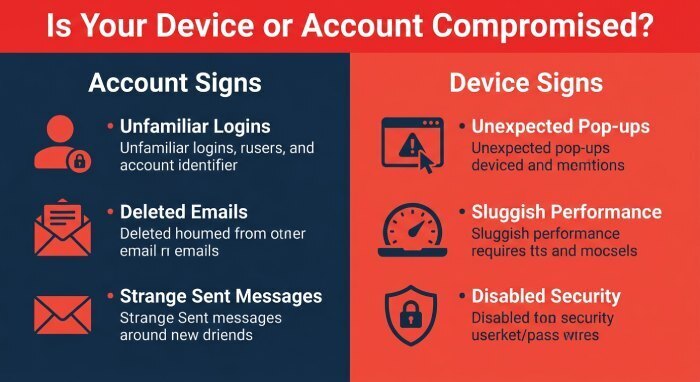
Account Warning Signs
Watch for password reset emails you did not request, login alerts from unfamiliar locations, sent messages you did not write, or contacts saying they received strange emails from you. These may indicate that hackers accessed your inbox. A compromised account can lead to a broader data breach, financial fraud, or identity theft.
Also be cautious if your email rules changed, messages disappeared, or security notifications were deleted. Attackers often try to hide their activity so they can continue collecting sensitive data.
Device Warning Signs
Your device may be infected if it becomes slow, displays pop-ups, redirects your browser, installs unknown apps, disables security tools, or behaves strangely after you open a file. These can indicate malware, a trojan horse virus, spyware, or ransomware activity.
Run a full scan computer check with trusted antivirus software to detect viruses. If the scan cannot remove the threat, consider professional help or restoring from a clean backup. For severe infections, disconnect Wi-Fi, avoid logging into sensitive accounts, and use a separate trusted device to change passwords.
When to Report the Message
You should report phishing when a suspicious email impersonates a company, asks for credentials, includes phishing links, or attempts financial fraud. Gmail, Outlook, Yahoo Mail, and Apple Mail all provide reporting tools. Reporting helps providers improve detection, protect other users, and reduce the impact of future phishing scams.
Protect your inbox with DMARC, SPF, and DKIM to stop email spoofing and phishing attacks. If you own a domain, our guide to DMARC policy explained shows how to shut down spoofing at the source. Reaching full DMARC compliance ensures spoofed messages are rejected before they reach you.
The most important rule is simple: if you open a spam email, do not panic—but do not interact with it. Avoid clicking links, never trust a suspicious attachment, limit automatic image loading, and take quick action if your account or device shows signs of compromise.
General Manager
General Manager of DuoCircle. Product strategy and commercial lead for DMARC Report's 2,000+ customer base.
LinkedIn Profile →Take control of your DMARC reports
Turn raw XML into actionable dashboards. Start free - no credit card required.