Email Header Outlook: How To View Email Headers In Outlook

Quick Answer
To view email headers in Outlook, open the email, access File > Properties (classic Outlook) or View > View Message Details (new Outlook/web), then review the internet headers. These headers help verify email authentication, trace delivery paths, and troubleshoot email issues.
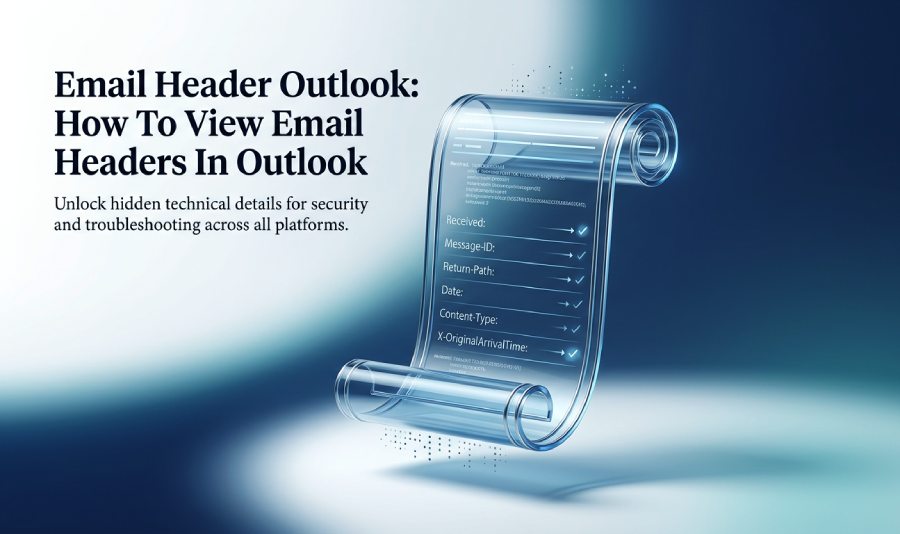
An email header is the technical record attached to every email message as it moves from sender to recipient. In Outlook, the visible message shows the sender, recipient, subject line, date, and body, but the full internet message headers reveal much more: routing paths, mail server timestamps, DMARC, authentication clues, content format, and unique identifiers.
These internet message headers are useful in Outlook for Microsoft 365, Outlook 2024, Outlook 2021, Outlook 2019, Outlook 2016, Outlook.com, and the New Outlook because they help determine where a message came from, which email servers handled it, and whether the message may be suspicious. Microsoft preserves this header information so administrators, security teams, and advanced users can investigate delivery problems, spam, spoofing, and phishing.
Email header vs visible message details
The normal message details you see in the Reading Pane are simplified. They typically include the From field, the sender’s address, the recipient, the subject line, and perhaps a carbon copy or blind carbon copy indicator if you were included in the Bcc field. The complete email header, however, includes fields such as Return-Path, Message-ID, Thread-Index, MIME-Version, Content-Type, and sometimes X-OriginalArrivalTime.
In practical terms, when you view message details, you see what Outlook presents for daily reading. When you view message headers, you inspect the underlying delivery trail.
Why Microsoft 365 and Exchange preserve header information
Microsoft 365, Exchange Server, Exchange Server 2016, and Exchange Server 2019 use header data to track delivery, filtering, authentication, and message flow. The same applies whether the user opens mail in Outlook for Microsoft 365, Outlook 2024, Outlook 2021, Outlook 2019, Outlook 2016, Outlook.com, or New Outlook for Windows.
For example, a header might reference systems such as Microsoft SMTPSVC, Microsoft MimeOLE, Mail.litwareinc.com, or Mail.proseware.com. In test scenarios, you might see addresses from domains like proseware.com, litwareinc.com, or cpandl.com, or sample names such as Anton Kirilov and Kelly J. Weadock.
How to View Email Headers in Outlook for Desktop
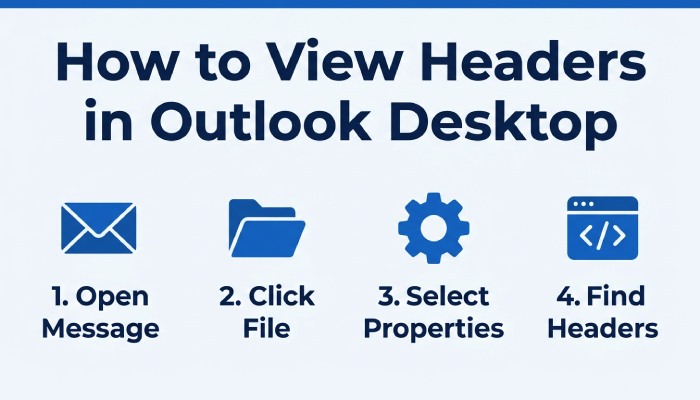
In desktop Outlook, the method depends on whether you are using Classic Outlook, Outlook for Microsoft 365, Outlook 2024, Outlook 2021, Outlook 2019, or Outlook 2016. The overall workflow is similar: open the message, access its properties, and copy the Internet message headers from the Internet headers box.
Steps for Outlook for Microsoft 365, Outlook 2024, Outlook 2021, Outlook 2019, and Outlook 2016
To view an email header in the desktop version of Outlook:
- Open the message in its own window. Do not rely only on the Reading Pane.
- Go to the File menu.
- Choose Properties, or in some versions, select Properties from the message options area.
- In the properties dialog, locate the Internet headers box.
- Select the full contents of the box.
- Use copy header text for analysis, archiving, or support.
This process works across Outlook for Microsoft 365, Outlook 2024, Outlook 2021, Outlook 2019, and Outlook 2016. The layout may vary slightly, but the Internet message headers are still available through message properties in the Outlook desktop email client.
Copying the Internet headers box safely
When you copy the email header, make sure you capture the entire Internet headers box, not just the first few lines. For readability, you can copy to Notepad or copy to Word before sending it to an administrator or security analyst.
Avoid editing the Internet message headers unless you are redacting sensitive data. Even small changes can remove important server information, authentication results, or evidence showing when message transfer occurred.
Notes for Classic Outlook and Microsoft Office Outlook
In Classic Outlook and older Microsoft Office Outlook builds, the path may look slightly different, but the goal is the same: open the message, access the message properties, and review the internet message headers. Users of Outlook 2016, Outlook 2019, Outlook 2021, Outlook 2024, and Outlook for Microsoft 365 should all be able to inspect an email header from the message window.
You usually cannot see the final routing header while you compose an email, because many fields are created only after the message leaves your mailbox and passes through mail transport systems.
How to View Email Headers in Outlook on the Web and New Outlook
The steps are different in Outlook.com, Outlook on the web, and the New Outlook, but Microsoft still exposes the same core Internet message headers.
Outlook.com, Outlook on the web, and New Outlook for Windows steps
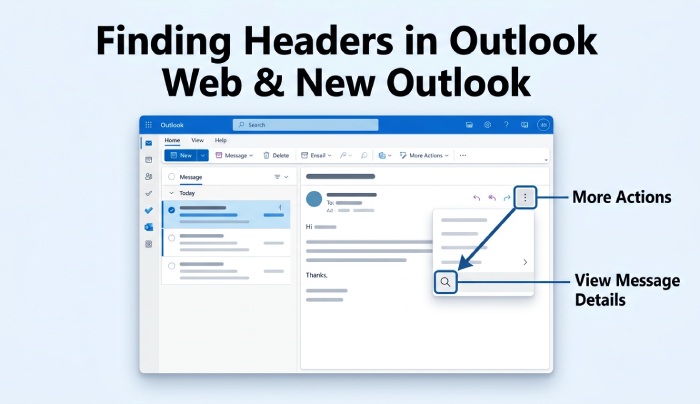
To view an email header in Outlook.com, Outlook on the web, or New Outlook for Windows:
- Open the message.
- Select More actions, often shown as three dots.
- Choose an option such as View, View message source, or View message details, depending on the interface.
- Copy the displayed internet message headers for review.
In Outlook.com, the message details panel may show the full raw header or a source view. In Outlook on the web, especially with Microsoft 365 or Exchange mailboxes, the wording can differ depending on tenant configuration. In the New Outlook, Microsoft has been aligning the Windows experience more closely with Outlook.com and web-based Outlook, so users of New Outlook should look under More actions if they need to view message headers.
This web-based process applies to Outlook.com, New Outlook, and many Microsoft 365 mailboxes accessed through Outlook on the web. It is especially useful on Windows devices where the user may not have Classic Outlook installed, or when working alongside services such as OneDrive and Microsoft Teams.
How to Read Key Email Header Fields for Sender, Routing, and Authentication Details
Once you have the email header, the next step is understanding what the most important fields mean. Full internet message headers can look intimidating, but they are structured records of message handling.
Sender, recipient, subject line, and addressing fields
Start with the visible identity fields:
- From field: The display name and apparent sender’s address.
- To: The primary recipient.
- Cc: The carbon copy recipients.
- Bcc: The blind carbon copy recipients are generally not visible to other recipients, though the Bcc field may be relevant in your own sent items.
- Subject: The subject line of the message.
Be careful: the From field can be spoofed. A message may appear to come from Kelly J. Weadock at litwareinc.com, while the routing data shows another origin. Likewise, a sample sender such as Anton Kirilov at proseware.com may not match the true transport path.
Routing, server, and content fields
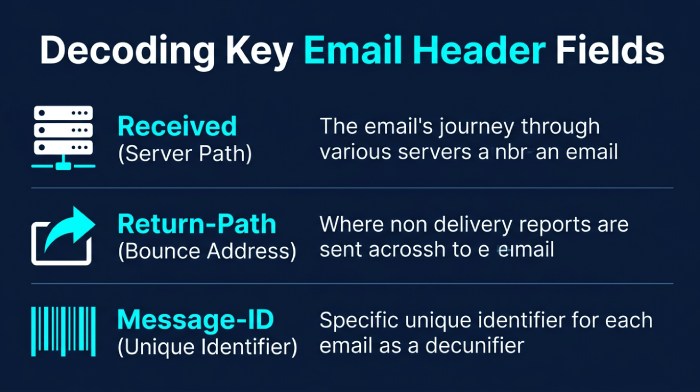
Routing lines often begin with “Received.” These show each server involved in message transfer. For example, a message may travel through Mail.litwareinc.com, Mail.proseware.com, Microsoft 365 filtering, and an Exchange Server mailbox server before arriving in Outlook.
Important fields include:
- Return-Path: The bounce address used if delivery fails.
- Message-ID: A unique identifier assigned by the sending system.
- Thread-Index: A Microsoft field used by Outlook to group conversation threads.
- MIME-Version: Indicates the MIME standard used.
- Content-Type: Shows whether the content is plain text, HTML, or multipart.
- X-OriginalArrivalTime: Often used in Microsoft environments to record when the message first arrived.
- Microsoft SMTPSVC or SMTPSVC references: Common in headers generated by Microsoft mail systems.
These fields help confirm whether the message transfer occurred through expected infrastructure, such as Exchange Server 2016, Exchange Server 2019, Microsoft 365, or an authorized outbound gateway. If you run Microsoft 365, setting up DMARC for Office 365 adds an authentication layer that these headers will reflect.
Practical Uses of Outlook Email Headers: Troubleshooting, Spam Checks, and Phishing Investigation
Outlook headers are most valuable when something looks wrong. In Outlook for Microsoft 365, Outlook 2024, Outlook 2021, Outlook 2019, Outlook 2016, Outlook.com, and New Outlook, an email header can help answer critical questions:
- Did the message really come from the claimed domain?
- Which servers handled it?
- Was the message delayed during transport?
- Did authentication pass or fail?
- Should the sender be trusted, blocked, or reported?
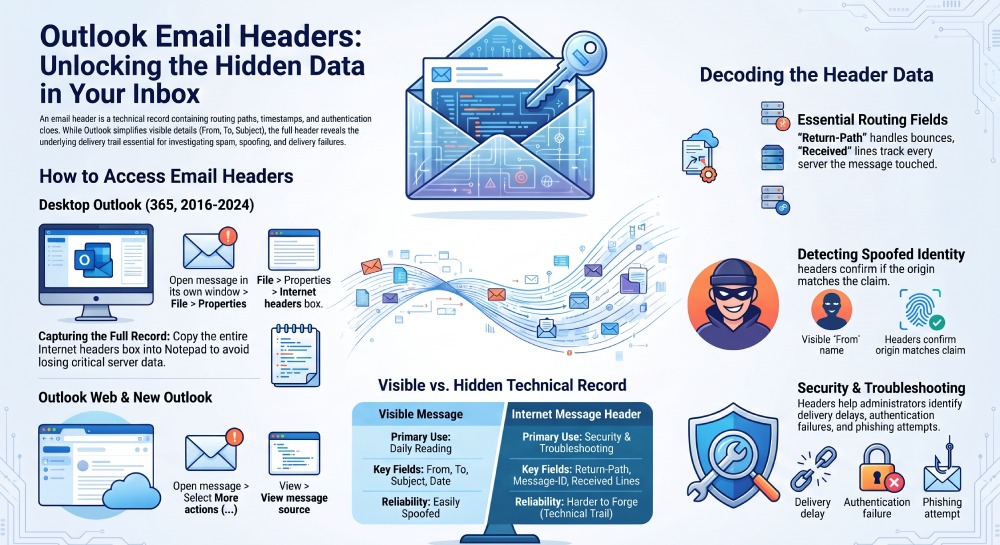
For troubleshooting, administrators use internet message headers to identify delivery delays, malformed formatting, routing loops, and server handoff problems. A support team may ask you to copy header content and paste it into a ticket so they can inspect server information and determine where the delay occurred.
For security, headers help detect spam, phishing, and spoofing. If the From field says one thing but the Return-Path, Received lines, or Message-ID suggest another source, the message deserves closer inspection. In Outlook, users can also manage blocked senders or use Microsoft’s options to block or unblock senders, but header review provides stronger evidence before taking action. You can also analyze email headers with an automated analyzer to read the authentication results at a glance.
In Outlook.com, New Outlook, and Outlook on the web, the ability to view message details is useful for quick investigations without installing a desktop client. In Classic Outlook, the properties dialog remains a dependable way to access the same technical header record. Whether you are using Outlook for Microsoft 365, Outlook 2024, Outlook 2021, Outlook 2019, or Outlook 2016, learning how to read an email header gives you a clearer view of sender identity, routing history, and message authenticity.
Instead of manually reviewing complex email headers, you can use DMARCReport’s Email Header Analyzer to extract SPF, DKIM, DMARC, routing information, and authentication results in a readable format. This helps administrators quickly identify spoofed messages, delivery issues, and authentication failures. You can also verify your domain’s policy with our free DMARC checker.
General Manager
General Manager of DuoCircle. Product strategy and commercial lead for DMARC Report's 2,000+ customer base.
LinkedIn Profile →Take control of your DMARC reports
Turn raw XML into actionable dashboards. Start free - no credit card required.