ipconfig /flushdns: Clear DNS Cache on Windows, Mac & Linux

Quick Answer
Flushing your DNS cache is one of the quickest ways to fix common internet issues like outdated website data, connection errors, or incorrect IP resolution. The Domain Name System stores temporary records to speed up browsing, but these cached entries can sometimes become stale or corrupted. In this guide, you’ll learn how to use ipconfig /flushdns on Windows and clear DNS cache on Mac, Linux, and popular browsers to ensure your system fetches fresh and accurate data.
Related: Free DMARC Checker ·How to Create an SPF Record ·SPF Record Format

Flushing your DNS cache is one of the quickest ways to fix common internet issues like outdated website data, connection errors, or incorrect IP resolution. _The Domain Name System stores temporary records to speed up browsing, but these cached entries can sometimes become stale or corrupted. _In this guide, you’ll learn how to use ipconfig /flushdns on Windows and clear DNS cache on Mac, Linux, and popular browsers to ensure your system fetches fresh and accurate data.
The most common mistake we see during DMARC setup is jumping straight to p=reject without monitoring first, says Vasile Diaconu, Operations Lead at DuoCircle. Start at p=none, analyze your reports for at least a full quarter - you need to catch monthly, quarterly, and annual email senders that only fire periodically. Then fix any legitimate senders that fail before enforcing. We walk every customer through this sequence.
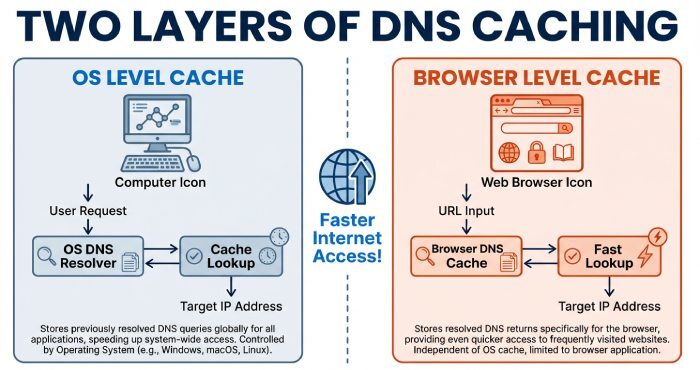
Why and when to flush your DNS cache The Domain Name System translates a hostname (like example.com) to an IP address so your device can reach the correct server. To speed lookups, your operating system and browsers keep a DNS cache containing recent resource data with a TTL (time to live). While this
cache accelerates browsing , it can become stale or corrupted. A timely flush DNS action clears those entries so new queries reach your configured DNS server and fetch fresh records.
Common symptoms that a DNS cache flush fixes include:
-
You see an outdated website version after a migration or content delivery network (CDN) change.
-
A domain moves to a new IPv4 or IPv6 address but your system still uses the old IP address.
-
Intermittent resolution failures after switching Wi‑Fi, VPNs, or network settings.
-
Malicious redirection or DNS poisoning indicators (DNS cache poisoning can send you to rogue hosts).
-
Sign-in loops or service endpoints changing (for example, after Microsoft Office 365 or identity provider updates).
When does a DNS flush help?
-
Immediately after DNS changes on **authoritative servers or registrar updates.
-
After changing the local DNS server (e.g., moving from ISP DNS to a privacy resolver).
-
When troubleshooting a broken network connection alongside a release IP address and renew IP address cycle.
-
After toggling DoH/DoT or proxy settings that can confuse resolution paths.
-
When browser DNS cache behaviors (e.g., Chrome DNS cache) conflict with the OS cache.
Many reputable sources - university IT pages (such as the UCSD ITS Service Desk or the University of Mount Olive), vendor knowledge bases (e.g., Pearson), and training guides (freeCodeCamp) - routinely recommend a DNS flush command as a first step in DNS troubleshooting to resolve DNS issues safely and quickly.
Windows: Use ipconfig /flushdns
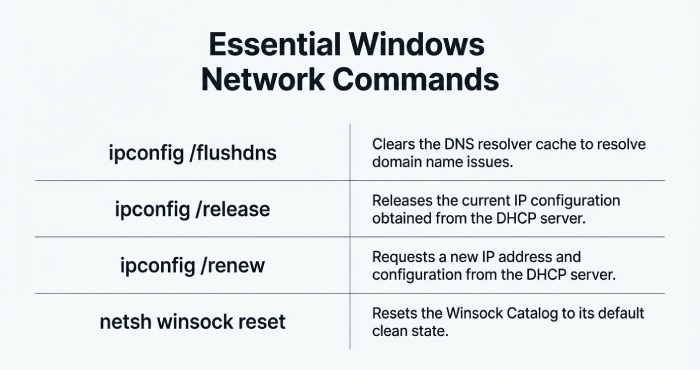
The canonical Windows DNS flush command is ipconfig /flushdns. You can run it in the Windows command prompt or in PowerShell, and it applies system‑wide.
Run the DNSflush command and related fixes
-
Open an elevated shell
-
Press Start, type Command Prompt, right-click it, and choose run as administrator. You can also open Windows PowerShell (Admin). Using the Windows command prompt with elevated rights ensures system services can be controlled.
-
Execute the core commands
-
Flush the resolver cache:
- Verify cache entries (optional):
- Renew your IP configuration (optional but often helpful):
- ipconfig /renew Running ipconfig /release will release IP address leases, and ipconfig /renew will renew IP address details from DHCP, complementing a DNS cache clear if your network settings changed.
-
Re-register and reset networking (if needed)
-
Re-register dynamic DNS for domain-joined machines:
- Reset the Winsock catalog (useful after malware cleanups or socket errors):
- Optionally reset the TCP/IP stack:
Notes:
-
All of these commands can be issued in the Windows command prompt or in an elevated Command Prompt window.
-
ipconfig /flushdns is safe to run repeatedly. It simply forces new lookups by clearing the DNS cache.
Verify results and fix common errors
- Confirm the flush:
- “Could not flush the DNS Resolver Cache: Function failed…” usually indicates:
- You didn’t run the Windows command prompt as an administrator. Re-open and run as administrator.
- Name still resolves to the old IP address?
-
Check hosts file overrides: C:Windows\System32\drivers\etc\hosts.
-
Confirm your DNS server settings in Windows Settings
Network & Internet. Corporate images may enforce DNS through policy.
- Socket or stack problems:
- Mixed IPv4/IPv6 issues:
Guidance like this appears across Microsoft support, university IT help (e.g., UCSD ITS Service Desk), and enterprise runbooks because these steps resolve a large share of practical DNS issues on Windows.
macOS and Linux: Flush DNSvia _Terminal
Apple and Linux distributions maintain DNS caches differently. Use Terminal (Mac) or your Linux shell to flush DNS quickly.
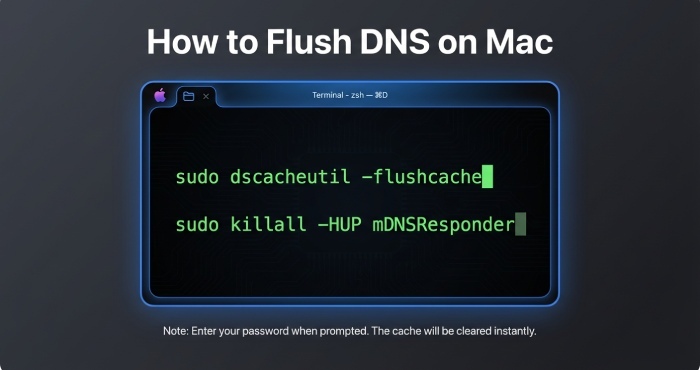
macOS (Apple) On modern macOS versions, the system resolver relies on mDNSResponder and the dscacheutil interface.
-
Open Terminal (Mac).
-
Run:
- sudo killall -HUP mDNSResponder These commands clear the DNS cache and signal mDNSResponder to reload. There’s no success message; test resolution afterward.
Older versions (OS X Yosemite era) used discoveryutil:
- sudo discoveryutil mdnsflushcache
Tips:
- Safari primarily uses the system resolver; there’s no dedicated Safari DNS cache page. If web apps still show stale lookups, flush DNS again and consider **clearing browser caches. - You typically do not need to restart computer, but doing so can help after significant network service changes.
Linux (systemd-resolved, nscd, dnsmasq, NetworkManager)
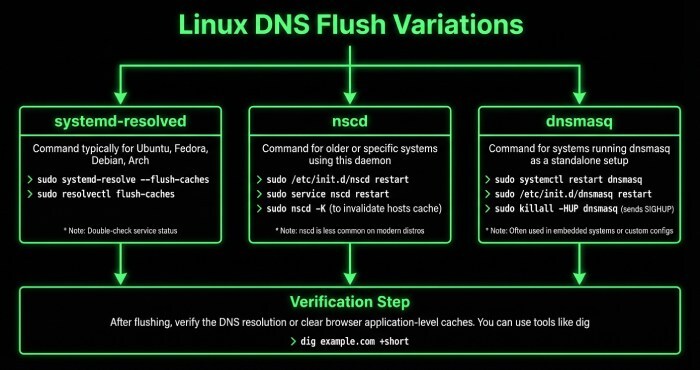
Linux varies by distribution and enabled services:
- systemd-resolved:
-
or: sudo systemd-resolve -flush-caches
-
Check stats: resolvectl statistics
- nscd (Name Service Cache Daemon):
- or: sudo systemctl restart nscd
- dnsmasq:
- NetworkManager caching plugin:
- or restart the network service depending on your distro.
After a flush DNS action on Linux, retest with dig or nslookup to confirm fresh answers and updated TTL values. If your resolver path includes DoH/DoT or corporate proxies, ensure their caches aren’t serving stale resource data.
Browsers and post-flush verification
Some browsers maintain their own caches independent of the OS. Clearing the browser DNS cache can be the final step to fully clear DNS cache across layers, especially with DNS over Hypertext Transfer Protocol (HTTP) enabled.
Google Chromeand Microsoft Edge
-
Open Google Chrome (or Chromium-based Edge).
-
Visit chrome://net-internals/#dns (Edge: edge://net-internals/#dns).
-
Click Clear host cache to purge the Chrome DNS cache.
-
Then visit chrome://net-internals/#sockets and “Flush socket pools” to reset active connections that might pin old endpoints.
-
If you use Secure DNS (DoH) in Chrome, temporarily disable it under Settings
Privacy and Security to avoid conflicting resolution paths during DNS troubleshooting. Re-enable it after validation.
These steps ensure the browser DNS cache doesn’t resurrect stale entries even after you run ipconfig /flushdns at the OS level.
Firefox and Safari
- Firefox:
- If testing with DoH, toggle network.trr.mode or disable DoH temporarily in Settings
General > Network Settings to compare behavior against the system resolver.
- Safari (Mac):
Empty Caches, but DNS resolution itself clears via macOS commands.
If a site still loads an outdated website version, test in a Private/Incognito window to isolate caching and cookies.
Verify and troubleshoot after flushing
- Query authoritative answers:
- Compare DNS server paths:
- Consider upstream caches:
- VPN, proxies, and DoH:
- Hosts file overrides:
- Windows: C:Windows\System32\drivers\etc\hosts Remove unintended static mappings that force a wrong IP address.
- Application and service endpoints:
- When to expand scope:
- Documentation and support:
By clearing every layer - the OS DNS cache, the browser DNS cache, and, if necessary, resetting Winsock/TCP/IP - you create a clean slate for the Domain Name System to resolve your domain queries accurately and securely , minimizing exposure to DNS poisoning and ensuring cache expiration works as designed - while email authentication protocols like DMARC, SPF, and DKIM further protect your domain from spoofing and phishing attacks. Once those records are in place, reviewing your RUA reports confirms the protections are working across every receiver.
Topics
Content Specialist
Content Specialist at DMARC Report. Writes vendor-specific email authentication guides and troubleshooting walkthroughs.
LinkedIn Profile →Take control of your DMARC reports
Turn raw XML into actionable dashboards. Start free - no credit card required.