Setting DKIM for Microsoft 365 domain

Quick Answer
DKIM (RFC 6376) signs email messages cryptographically, and unlike SPF, the signature survives email forwarding - which is why DMARC alignment via DKIM is more reliable than SPF alignment for forwarded mail. Setting DKIM for Microsoft 365 domain Setting DKIM for Microsoft 365 domain
Related: Free DMARC Checker ·How to Create an SPF Record ·SPF Record Format

Try Our Free DKIM Lookup
Auto-discover DKIM selectors for any domain - scan 185 common selectors across all major providers.
Discover DKIM Selectors →
DKIM (RFC 6376) signs email messages cryptographically, and unlike SPF, the signature survives email forwarding - which is why DMARC alignment via DKIM is more reliable than SPF alignment for forwarded mail.
DKIM is the authentication protocol that survives email forwarding, says Brad Slavin, General Manager of DuoCircle. When SPF fails because a forwarder’s IP isn’t in the original record, DKIM alignment is the only path to DMARC pass. That’s why we monitor DKIM alongside SPF in every DMARC Report dashboard.
Microsoft highly encourages its users to deploy DKIM in tandem with SPF and DMARC for **holistic and efficient protection against phishing and spoofing of emails. DKIM digitally signs all outgoing emails, preventing malicious actors from altering messages in transit. When properly configured, DKIM adds a cryptographic signature to outgoing emails, which helps recipients to verify their authenticity.
In this guide, we’ll walk you through the step-by-step process of enabling DKIM for your Microsoft 365 domain to enhance email security, improve deliverability, and strengthen your domain’s reputation. Let’s get started!
DKIM for MOERA users
If you are a Microsoft Online Email Routing Address or MOERA domain user, then you don’t have to worry about DKIM configurations. This is because Microsoft itself takes care of MOERA domains using 2048-bit strong public and private keys. All the outgoing emails are signed using this cryptographically **secured key pair **that helps the receiving server verify if someone has tampered with the email content in transit.
DKIM for custom domain users
**Microsoft automatically signs outgoing emails, but you still have to ensure the following for optimum protection against email-based menaces-
-
For DKIM authentication to succeed under DMARC, the domain used to sign the email must match the domain in the From address.
-
When using third-party email providers (such as bulk mailing services), configure DKIM on a subdomain instead of the primary domain. This helps safeguard your main domain’s reputation from potential issues with these services. Keep in mind that each domain requires a separate DKIM setup.
-
Avoid publishing DKIM records for unused or parked domains, as this could allow attackers to exploit them for spoofed emails that pass DKIM validation.

- For comprehensive email security, implement SPF and DMARC alongside DKIM to create a robust authentication framework for your domain. Our guide to SPF vs DKIM vs DMARC explains how the three protocols complement each other.
How Do You Configure DKIM signing in Microsoft 365?
If you enable DKIM signing for a custom domain, the signing process switches from using the .onmicrosoft domain to the custom domain . For this process, you can use a domain or subdomain.
Before proceeding with the steps, ensure that your custom domain or subdomain appears in the DKIM tab of the email authentication settings page.
Verify DKIM Settings in the **Details Flyout When you access the details flyout, check for the following:
-
The ‘Sign messages for this domain with DKIM signatures’ toggle should be set to Disabled.
-
The ‘Status’ should display ‘Not signing DKIM signatures for this domain.’
-
The ‘Create DKIM keys’ option should not be visible.
-
The ‘Rotate DKIM keys’ option should be present but grayed out.
If everything matches, proceed with the next steps.
Enable DKIM in the Defender Portal
-
Open the Defender portal.
-
Navigate to **Email & collaboration
Policies & rules > Threat policies > Email Authentication Settings**.
-
Click on the DKIM tab and select the custom domain you want to configure by clicking anywhere in the row (except the checkbox).
-
In the details flyout, locate the ‘Sign messages for this domain with DKIM signatures’ toggle, which is currently set to ‘Disabled.’ Also, take note of the ‘Last checked date.’
-
An error message will appear, displaying the values needed to create two CNAME records at your domain registrar. Then, you need to create the following CNAME records for your domain.
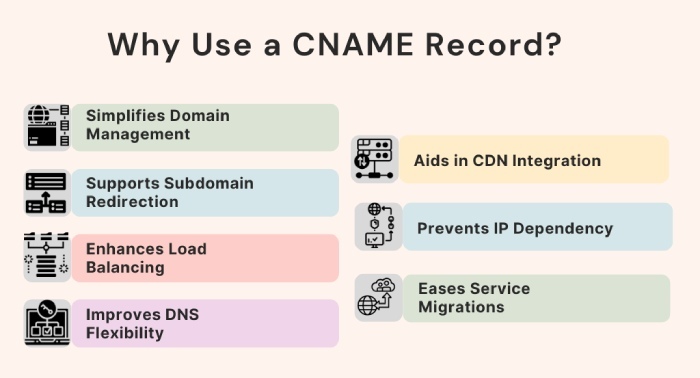
**Hostname: **selector1.domainkey
Points to address or value: _selector1-yourdomain-com._domainkey.yourdomain.onmicrosoft.com **Hostname: **selector2.domainkey
Points to address or value: _selector2-yourdomain-com._domainkey.yourdomain.onmicrosoft.com
-
Copy the details from the **error dialog and click ‘OK.’ - Keep the **domain details flyout open.
-
In a new browser tab or window, go to your **domain registrar’s platform and create **two CNAME records using the copied information.
-
Wait a few minutes to allow Microsoft to detect the newly added CNAME records.
-
Return to the **details flyout from step 5 and enable the **‘Sign messages for this domain with **DKIM signatures’ toggle.
-
A confirmation **dialog box will appear - click ‘OK’ to close it.
-
In the details flyout, verify the following:
-
The ‘Sign messages for this domain with DKIM signatures’ toggle is now Enabled.
-
The **Status displays ‘Signing DKIM signatures for this domain.’ - The ‘Rotate DKIM keys’ option is now available and no longer grayed out.
-
The ‘Last checked date’ has been updated from what you noted earlier.
Configuring DKIM for Microsoft can get confusing. Contact us for help.
Topics
Content Specialist
Content Specialist at DMARC Report. Writes vendor-specific email authentication guides and troubleshooting walkthroughs.
LinkedIn Profile →Take control of your DMARC reports
Turn raw XML into actionable dashboards. Start free - no credit card required.