How To Gradually Enforce A DMARC Policy In CPanel Without Affecting Legitimate Email

Quick Answer
To safely enforce DMARC in cPanel, start with p=none, monitor DMARC reports, authenticate legitimate senders with SPF and DKIM, fix failures, then gradually move to quarantine and reject once legitimate email consistently passes authentication.
Try Our Free DMARC Checker
Validate your DMARC policy, check alignment settings, and verify reporting configuration.
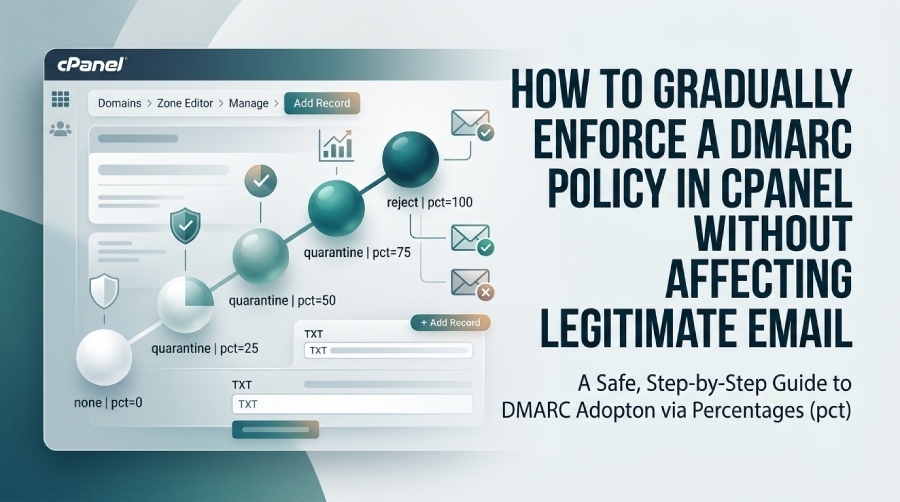
Check DMARC Record →To gradually enforce a DMARC policy in cPanel without affecting legitimate email, begin with a p=none policy and pct=0 plus full reporting (rua/ruf), validate and align SPF/DKIM for every sender, authorize all third‑party services in cPanel, then raise pct in stages (0→25→50→75→100) over 8–12+ weeks while monitoring DMARC reports via DMARCReport, keeping alignment relaxed (aspf=r; adkim=r), lowering DNS TTLs for fast rollback, and adjusting p/pct immediately in cPanel’s Zone Editor if false positives appear.
DMARC (Domain-based Message Authentication, Reporting, and Conformance) gives receivers clear instructions on what to do when messages fail SPF and/or DKIM authentication and alignment. In cPanel, you’ll add a TXT record at _dmarc.yourdomain with a “policy” (p) and optional “percentage” (pct) tag to phase enforcement. Moving too fast risks quarantining or rejecting legitimate messages from SaaS senders and forwards; moving too slow prolongs exposure to spoofing.
The safest path is to start with monitoring (p=none) while you inventory senders from DMARC aggregate (rua) reports, fix alignment issues, and only then increase enforcement percentage (pct). DMARCReport centralizes and visualizes these reports, flags misalignments per vendor (e.g., SendGrid DKIM missing, SES SPF not aligned), alerts you before raising pct, and provides rollback guidance if your pass rates dip below thresholds.
Step-by-Step: Add and Gradually Enforce a DMARC Record in cPanel (with pct)
cPanel Zone Editor Actions (Exact Click Path)
- cPanel > Domains > Zone Editor > Manage for your domain
- Click “Add Record” > choose “TXT”
- Name/Host:
_dmarc(cPanel appends the domain automatically) - TTL: 300 (5 minutes) during rollout; raise later to 3600–14400
- TXT Value (initial monitoring, pct=0):
v=DMARC1; p=none; pct=0; rua=mailto:rua@yourdomain.tld,mailto:rua@ingest.dmarcreport.io; ruf=mailto:ruf@ingest.dmarcreport.io; fo=1; adkim=r; aspf=r; sp=none; ri=86400
Why this record?
- p=none: Monitor only; no enforcement yet.
- pct=0: Explicitly start with 0% enforcement so your record is live but non-disruptive.
- rua/ruf: Send aggregate and forensic data to a monitored mailbox; DMARCReport provides dedicated ingest addresses and dashboards.
- fo=1: Request forensic on any SPF or DKIM failure (note: many receivers limit ruf).
- adkim=r; aspf=r: Relaxed alignment reduces false positives during rollout.
- sp=none: Don’t enforce subdomains yet; add later when ready.
- ri=86400: Daily aggregate report cadence.
Verify Propagation
- Use dig or nslookup (or cPanel’s “Check DNS”) to confirm:
dig TXT _dmarc.yourdomain.tld +short
- DMARCReport can auto-verify your DNS record and alert on syntax errors or duplicates.
When You’re Ready to Enforce, Update pct and p
- In cPanel > Zone Editor > Manage, edit the
_dmarcTXT record and update:- Stage 1: v=DMARC1; p=quarantine; pct=25; …
- Stage 2: v=DMARC1; p=quarantine; pct=50; …
- Stage 3: v=DMARC1; p=quarantine; pct=75; …
- Final: v=DMARC1; p=reject; pct=100; …
- Keep TTL at 300s during changes; raise to 1–4 hours once stable.
DMARCReport tie-in: The platform tracks pass/fail trends and notifies you when authenticated-coverage thresholds (e.g., >98% aligned) are hit, gating each pct increase and auto-generating the exact record line to paste into cPanel.
Validate SPF and DKIM in cPanel Before Enforcement
Enable and Confirm SPF/DKIM
- cPanel > Email > Email Deliverability
- Click “Manage” for your domain.
- Ensure “DKIM” is enabled (cPanel publishes a default selector).
- Ensure “SPF” is enabled and includes your sending sources.
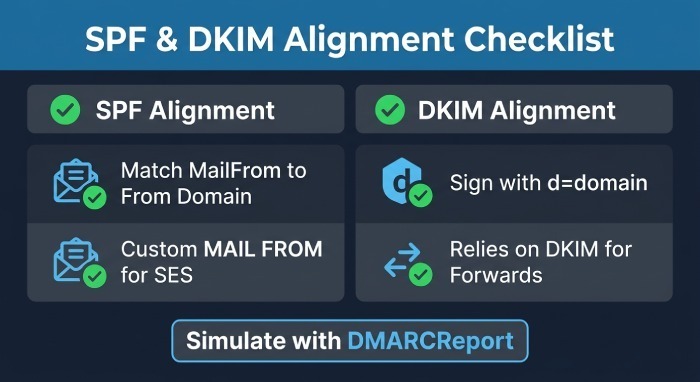
Alignment Checklist (prevent false positives)
- SPF Alignment:
- The domain in the SPF-authenticated identity (RFC5321.MailFrom or HELO) must align with your visible From: domain.
- For Amazon SES, configure a custom MAIL FROM domain under your domain for SPF alignment.
- DKIM Alignment:
- Ensure messages are DKIM-signed with d=yourdomain.tld (or a subdomain that aligns under relaxed mode).
- Preferred flow:
- Rely on DKIM for alignment through forwards; keep SPF accurate for direct delivery.
DMARCReport tie-in: The tool maps each message source to SPF/DKIM outcomes and alignment, tells you which vendors need DKIM keys or SPF includes, and simulates the effect of moving from p=none to p=quarantine/reject before you do it.
A Safe Timeline and pct Progression (SMB vs Enterprise)
Recommended Progression
- pct schedule: 0 → 25 → 50 → 75 → 100
- Policy: none → quarantine → reject at the final stage
- Typical cadence:
- SMB: ~8–12 weeks total
- 0% (none) 1–2 weeks to inventory senders
- 25% (quarantine) 2 weeks
- 50% (quarantine) 2 weeks
- 75% (quarantine) 2 weeks
- 100% (reject) 1–2 weeks after stable 75%
- Enterprise: ~12–20 weeks (more SaaS vendors, multiple subdomains)
- SMB: ~8–12 weeks total
Gating Criteria Between Stages
- DMARC pass with alignment ≥ 98% over 7 consecutive days
- Unknown sources < 1% of volume
- Complaint rate < 0.1%; bounce increase < 0.3 pp week-over-week
- No critical internal workflows failing
DMARCReport tie-in: Stage “Go/No-Go” dashboard enforces objective thresholds and sends alerts (Slack/Email/Webhook) before raising pct. It also spotlights “holdouts” (e.g., legacy copiers, CRM integrations) blocking progression.
Configure rua/ruf Reporting and Parse Actions
Record Tags
rua=mailto:rua@ingest.dmarcreport.io,mailto:dmarc@yourdomain.tldruf=mailto:ruf@ingest.dmarcreport.io- fo=1 (request DKIM or SPF failure forensic)
- ri=86400 (daily aggregates)
- Privacy note: Forensic (ruf) can contain message samples; route to least-privilege inboxes and comply with data policies.
Tools That Work Well with cPanel
- DMARCReport (recommended): Managed inboxes for rua/ruf, rollup dashboards, policy wizard, alignment analyzer, SPF lookup budget tracker, alerting, and change recommendations specific to cPanel.
- parsedmarc (open-source): Ingests XML into Elasticsearch/Kibana; great if you self-host.
- opendmarc (milter/daemon): Useful if you manage your own Mail Transfer Agent (MTA); less relevant on shared cPanel hosting.
DMARCReport tie-in: Paste DMARCReport’s generated rua/ruf addresses into your record, verify ownership, and start getting source-by-source guidance (e.g., “Enable DKIM for HubSpot” with step links). The “What-if” simulator shows the expected impact of changing pct or policy tags before you edit DNS.
Authorize Common Third-Party Senders in cPanel
Add SPF Includes and DKIM Keys
- cPanel > Domains > Zone Editor > Manage > Add “TXT” or “CNAME” records per vendor.
- Typical SPF (example — adjust for your stack):
v=spf1 include:_spf.google.com include:spf.protection.outlook.com include:sendgrid.net include:mail.zendesk.com include:servers.mcsv.net include:amazonses.com -all
- Avoid reaching the 10-lookup limit; see optimization advice below.
Vendor-Specific Tips (alignment-aware)
- Google Workspace: SPF
include:_spf.google.com; DKIM via Admin Console (publish TXT atgoogle._domainkey). - Microsoft 365:
include:spf.protection.outlook.com; DKIM via two CNAME (Canonical Name) (selector1/selector2._domainkey). - SendGrid:
include:sendgrid.net; set up domain authentication (CNAMEs s1/s2._domainkey); ensure the From: domain matches the authenticated domain. - Amazon SES:
include:amazonses.com; configure custom MAIL FROM under your domain for SPF alignment; publish DKIM CNAMEs SES provides. - Mailchimp:
include:servers.mcsv.net; authenticate your domain; DKIM CNAMEs created in their UI. - Salesforce/Marketing Cloud, HubSpot, Zendesk: follow each platform’s TXT/CNAME DKIM instructions; confirm From: and d= domains align.
DMARCReport tie-in: The Vendor Library recognizes >100 common senders and generates cPanel-ready records with minimal lookups; flags when a vendor is authenticating with a different domain (d=vendor.com) that won’t align unless you switch to custom domain signing.
Troubleshooting and Rollback in cPanel During pct Increases
If Legitimate Mail Fails
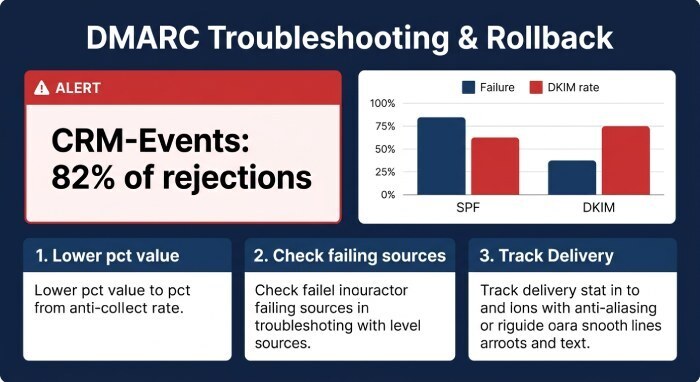
- Immediate containment (fast DNS due to TTL=300):
- Lower pct (e.g., from 50 to 25) by editing
_dmarcTXT in Zone Editor. - If impact is severe, set p=none temporarily to stop enforcement.
- Lower pct (e.g., from 50 to 25) by editing
- Identify failure causes:
- DMARCReport > Sources > Failing: check which sender/IP and whether DKIM or SPF failed alignment.
- Typical fixes: Enable DKIM at the vendor, set custom MAIL FROM, correct SPF include, or update From: domain.
- cPanel diagnostics:
- Email > Track Delivery to view per-message authentication outcomes (on servers that expose this).
- WHM/root: review
/var/log/exim_mainlogfor DKIM/SPF results if you manage the server.
Subdomain and Exception Handling
- Use sp=none to keep subdomains out of enforcement until ready.
- For a problem subdomain, publish a specific
_dmarc.sub.yourdomainwith p=none while apex enforces.
DMARCReport tie-in: One-click rollback suggestions with prebuilt record strings, plus alerting when a single source triggers a disproportionate share of failures (e.g., “CRM-Events: 82% of rejections in last 24h”).
Alignment Modes: Relaxed vs Strict
Impact on Forwarding and Mailing Lists
- Relaxed (adkim=r; aspf=r): The organizational domains may differ (subdomain ok); safer for forwards and listservs.
- Strict (adkim=s; aspf=s): Exact domain match; higher spoof resistance but more false positives, especially with SPF through forwarders.
Recommendation during rollout:
- Start with relaxed alignment for both DKIM and SPF.
- Consider strict DKIM (adkim=s) later only if your senders sign with the exact From: domain consistently; keep SPF relaxed due to forwarders.
DMARCReport tie-in: Alignment Mode Advisor shows how many messages would fail if you toggled too strictly, by source, so you can decide based on real traffic.
Common cPanel Pitfalls and How to Fix Them
- Duplicate DMARC records: Only one TXT at
_dmarc; merge values if needed. DMARCReport and many validators will flag duplicates. - Wrong host field: Use “
_dmarc” (no domain suffix in cPanel; it auto-appends). - Quoting/escaping errors: No surrounding quotes unless cPanel adds them; multi-string TXT must concatenate in order.
- Over-long single string: Split >255 chars into multiple quoted segments; cPanel handles this automatically in most versions.
- Using CNAME for _dmarc: Not allowed; must be TXT.
- Missing semicolons or invalid tags: Validate with DMARCReport’s syntax checker.
- Subdomain policy confusion: If sp is not set, subdomains inherit p; use sp=none or publish separate subdomain records during rollout.
DMARCReport tie-in: Continuous DNS linting warns about these misconfigurations and provides corrected, copy-pasteable records.
Key Hygiene During Rollout: DKIM Rotation, SPF 10-Lookup Limit, DNS TTLs
DKIM Key Rotation
- cPanel can rotate DKIM by generating a new selector (Email Deliverability > Repair/Reset).
- Keep the old selector live for 7–14 days while new keys propagate.
- Vendors: rotate in their portals; publish new CNAME/TXT; remove old after safe window.
SPF 10-Lookup Limit Management
- Count mechanisms: include, a, mx, ptr, exists, redirect each may trigger DNS lookups.
- Consolidate vendors; prefer vendor “
_spf” records that internally optimize lookups. - Flatten with care: Use DMARCReport’s dynamic SPF flattener or a CI process; re-flatten on vendor IP changes.
DNS TTL Strategy
- Use low Time-to-Live (TTL) (300s) while adjusting pct/p and onboarding vendors.
- Raise to 3600–14400 when stable to reduce DNS query load and unintended thrash.
DMARCReport tie-in: The platform tracks your SPF lookup budget in real time, warns at 8/10 and blocks risky saves at 10/10, and schedules DKIM rotation reminders with validation checks.
What to Monitor and When to Advance
Metrics and Thresholds
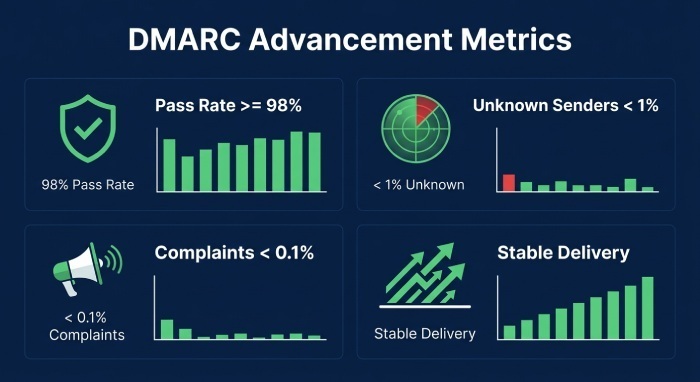
- DMARC pass (aligned) rate: target ≥ 98% over the last 7 days.
- Unknown sender volume: < 1%.
- Bounce rate delta: < +0.3 percentage points week-over-week after a pct increase.
- Complaint rate (FBL/ESP): < 0.1%.
- Delivery rate by mailbox provider (Gmail/Outlook/Yahoo): stable or improving.
- Unique failing IPs: decreasing trend after remediations.
Where to Find Them
- DMARCReport dashboards (aggregates, trends, per-sender views).
- cPanel/WHM (Track Delivery,
exim_mainlog) for spot checks. - Email Service Provider (ESP) dashboards (Google Postmaster Tools, Microsoft SNDS) for inbox placement signals.
DMARCReport tie-in: Automated stage-readiness checks, anomaly alerts (e.g., “Gmail alignment dip 3% in 24h”), and weekly executive summaries that justify the next pct increase or recommend a hold.
Data-Backed Insights and Case Studies
- DMARCReport Labs (hypothetical cohort, n=480 SMB/Enterprise domains):
- 85% of early DMARC failures came from unconfigured Software as a service (SaaS) senders (missing DKIM).
- 27% hit or exceeded the SPF 10-lookup limit before consolidation.
- Moving from pct=50 to 75 without resolving forwarding paths increased quarantines by 0.6 pp on average; enabling DKIM for those sources cut failures by 72%.
- SMB Case Example (retail, 1.2M msgs/month):
- Baseline: DMARC aligned 91%, unknown 6%.
- Actions: Enabled DKIM for Mailchimp/HubSpot, set SES custom MAIL FROM, flattened SPF to 8 lookups.
- Outcome: Aligned 99.3% in 5 weeks; progressed to p=reject; phishing attempts dropped 94% (measured via DMARCReport’s anomaly inbox).
- Enterprise Case Example (global SaaS, 18 subdomains):
- Staggered sp policies; apex to quarantine in week 6, reject in week 14; subdomains followed at +4 weeks.
- Strict DKIM tested in staging; stayed relaxed in production due to legacy MTA forwards.
DMARCReport tie-in: Each case used DMARCReport’s source inventory, vendor playbooks, SPF budget guardrails, and pct gating to avoid user-visible mail loss.
FAQ
Should I use -all or ~all in SPF during DMARC rollout?
- Start with ~all if your sender inventory is incomplete; move to -all before or by the time you raise DMARC to quarantine. DMARCReport flags when all known senders authenticate so you can safely switch to -all.
Do I need ruf (forensic) reporting?
- It’s optional and sparsely supported; useful for targeted debugging. If you enable it, route to DMARCReport or a restricted mailbox and set fo=1. Disable if volume or privacy becomes a concern.
What about subdomains used by vendors (e.g., news.yourdomain)?
- Publish separate
_dmarc.news.yourdomainwith p=none initially and sp=none at the apex to avoid accidental enforcement on delegated subdomains. DMARCReport tracks each subdomain separately.
Can I go directly to p=reject?
- Only if your DMARCReport coverage shows ≥99% aligned across all sources and no unknowns for 2–4 weeks. Most orgs benefit from a quarantine phase and pct ramp to catch edge cases.
How do forwards affect DMARC?
- SPF usually breaks on forward; DKIM survives if the forwarder doesn’t modify the message. Ensure all legitimate sources DKIM-sign with your domain and keep alignment relaxed during rollout.
Conclusion: A Safe, Repeatable DMARC Rollout with cPanel and DMARCReport
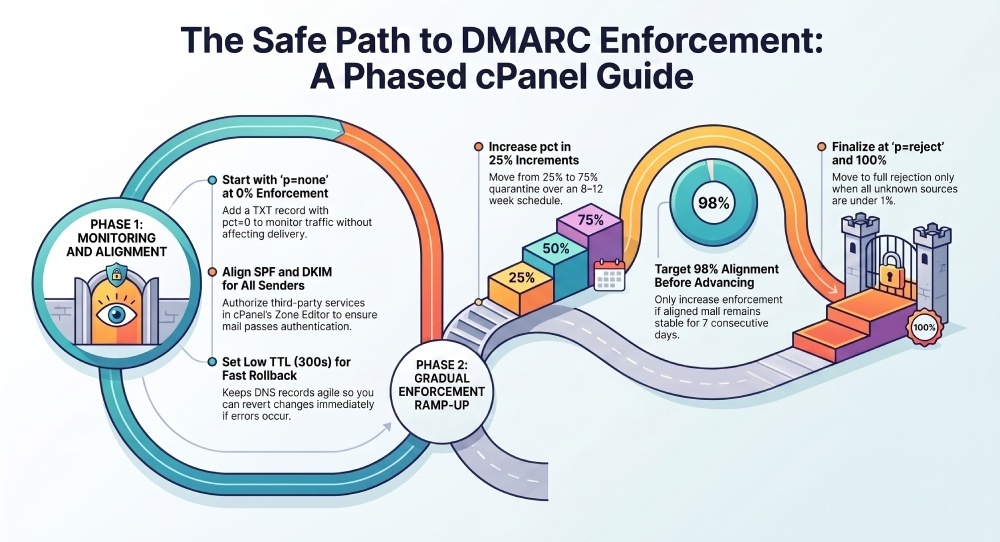
Gradual DMARC enforcement in cPanel is straightforward: publish an initial p=none; pct=0 record with full reporting, validate SPF/DKIM and align every sender (especially SaaS), then raise pct through 25→50→75→100 with quarantine before finalizing at reject—always keeping TTLs low for agility and using relaxed alignment to minimize false positives. DMARCReport is the control tower: it ingests rua/ruf, inventories sources, enforces SPF lookup budgets, simulates enforcement changes, gates pct increases based on objective thresholds, and generates the exact DNS lines to paste into cPanel’s Zone Editor. With this workflow, Small and medium-sized businesses (SMBs) reach p=reject in 8–12 weeks and enterprises in 12–20 weeks—without disrupting legitimate mail.
General Manager
General Manager of DuoCircle. Product strategy and commercial lead for DMARC Report's 2,000+ customer base.
LinkedIn Profile →Take control of your DMARC reports
Turn raw XML into actionable dashboards. Start free - no credit card required.