How To Configure SMTP2GO SPF: Setup, Configuration, And Best Practices

Quick Answer
To configure SMTP2GO SPF, add the SPF record provided by SMTP2GO to your domain’s DNS settings. Verify the record, avoid multiple SPF records, and check for syntax errors to improve email authentication, prevent spoofing, and support reliable email delivery.
Configuring SMTP2GO email authentication correctly helps receiving mail servers verify messages sent through your domain. SMTP2GO typically handles SPF and DKIM when you verify your sender domain and publish the three CNAME records provided in your account. In this guide, you’ll learn how to configure these records, verify authentication, troubleshoot common issues, and understand how SPF, DKIM, and DMARC work together.
What SMTP2GO SPF Is and Why It Matters for Email Deliverability
SMTP2GO SPF configuration is the process of authorizing SMTP2GO to send email on behalf of your sender domain. SPF, or Sender Policy Framework, is an email authentication standard that allows receiving email servers to check whether a sending mail server is permitted to send messages for a domain.
A properly configured SPF record helps mailbox providers such as Google, Yahoo, and Gmail distinguish legitimate mail from forged messages. When SMTP2GO sends email for your domain, the receiving server performs an SPF check against your domain’s DNS. If SMTP2GO is included as one of the authorized sending servers, the result should be an SPF pass. If not, the message may produce an SPF fail, be routed to spam filtering, or be rejected depending on your DMARC policy enforcement.
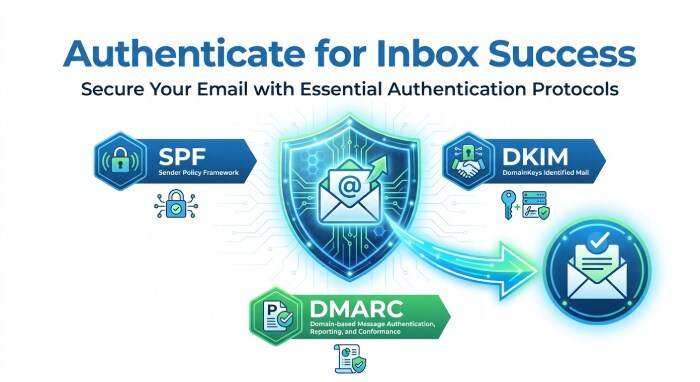
SPF is only one part of email authentication. SMTP2GO also supports DKIM, which stands for DomainKeys Identified Mail, and DMARC, which builds on SPF and DKIM alignment. Together, Sender Policy Framework, DKIM, and DMARC improve email deliverability, reduce email spoofing, and support online reputation protection.
Prerequisites: Domain Access, DNS Records, and SMTP2GO Account Settings
Before editing your SPF record, make sure you have access to both SMTP2GO and your DNS provider. This may be Cloudflare, GoDaddy, Namecheap, Route 53, or another platform that manages your domain’s DNS.
You will need:
- Access to your SMTP2GO account at smtp2go.com
- Permission to manage Verified Senders or verified senders inside SMTP2GO
- Access to your domain’s DNS settings
- The current SPF record, usually published as a TXT record
- Any SMTP2GO-provided CNAME record values for DKIM, tracking, domain verification, or Return-Path configuration
- Knowledge of other sending services already in use, such as Google Workspace, Microsoft 365, CRMs, email-to-fax services, or email-to-SMS services
In SMTP2GO, domain verification typically requires adding DNS records to prove control of the sender domain. These records may include a CNAME record for DKIM, a CNAME record for Return-Path, and sometimes a TXT record or other CNAME record for domain verification. The SPF record itself is usually a TXT record containing SPF mechanisms such as include.
Understanding SPF, DKIM, Return-Path, and CNAME Records
SPF and DKIM solve different parts of email authentication. Sender Policy Framework checks whether the envelope sender is being sent through an authorized source. DKIM adds a cryptographic digital signature to the message using a private key held by the sender and a public key published in DNS. Receiving email servers validate the DKIM signature by looking up the public key, often through a DKIM CNAME record.
The Return-Path is also important. SMTP2GO may use a custom Return-Path domain to handle bounces and tracking. This is commonly related to VERP, or Variable Envelope Return-Path, which helps identify which recipient caused a bounce. A Return-Path CNAME record can support alignment, bounce processing, and cleaner email headers.
Key DNS record types used with SMTP2GO
The most common SMTP2GO DNS records include:
- SPF record type: Usually a TXT record containing v=spf1
- DKIM: Often configured with one or more CNAME record entries
- Return-Path: Often configured with a CNAME record pointing to an SMTP2GO-managed host
- Domain verification: May require a TXT or CNAME record depending on SMTP2GO’s instructions
Step-by-Step Guide to Adding or Updating Your SMTP2GO SPF Record
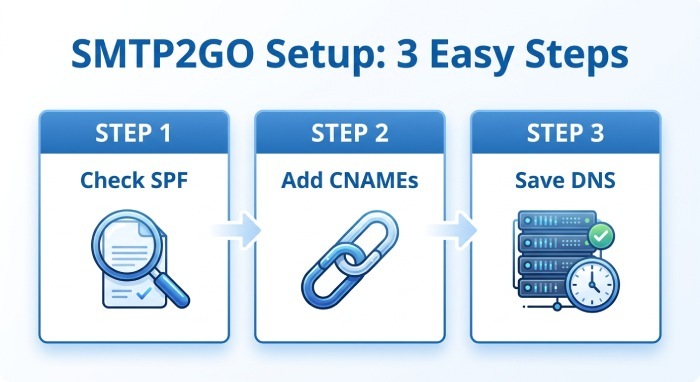
1. Check your existing SPF record
Log in to your DNS provider and open the DNS settings for the sender domain. Look for a TXT record that begins with:
v=spf1There should be only one SPF record for the root domain. Multiple SPF records can cause SPF validation errors and may result in SPF fail. If you already use Google Workspace, your SPF record may include something like:
v=spf1 include:_spf.google.com ~allIf you also send through SMTP2GO, you need to update the existing SPF record rather than create a second one.
2. Add the SMTP2GO CNAME records
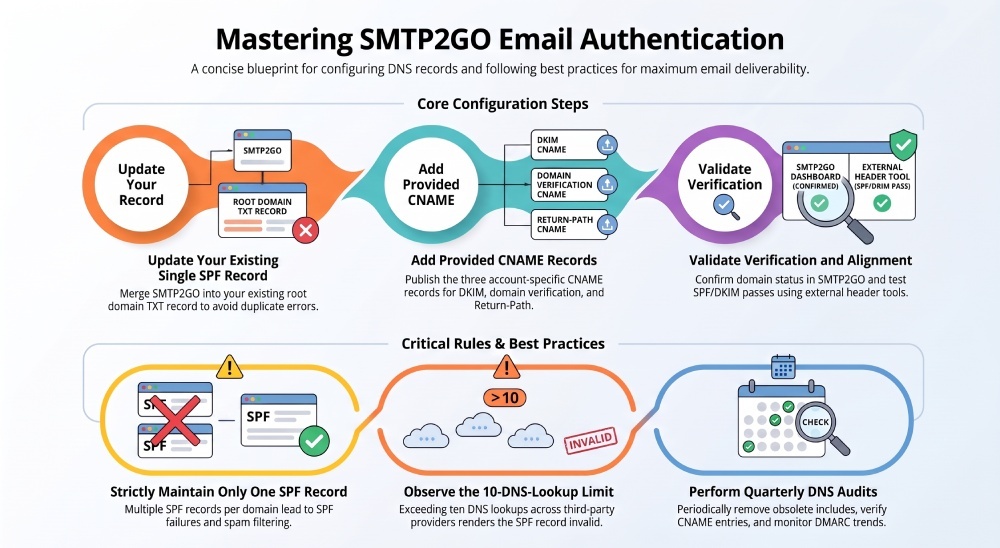
SMTP2GO generally handles SPF authentication through a CNAME record associated with your sender domain’s Return-Path. When you add and verify a sender domain in SMTP2GO, the platform provides three CNAME records for SPF, DKIM, and email tracking. This setup means you generally do not need to add an SMTP2GO-specific include to your existing SPF TXT record.
To configure the records:
- Log in to your SMTP2GO account and navigate to Sending → Verified Senders → Sender domains.
- Add your sending domain if it has not already been added.
- Copy the three CNAME records displayed in your SMTP2GO account.
- Open your domain’s DNS management panel and add each CNAME record exactly as provided.
- Return to SMTP2GO and check the domain verification status.
Do not copy example CNAME values from another domain. Use the exact hostnames and targets generated for your own account.
3. Save the TXT record in your DNS settings
In Cloudflare, GoDaddy, Namecheap, Route 53, or another DNS provider, save the updated TXT record. The name or host field is often @ for the root domain, though this depends on the DNS provider interface.
After saving, wait for DNS propagation. Some changes appear within minutes, while others may take several hours depending on TTL values and resolver caching.
Configuring SMTP2GO Domain Verification, DKIM, and Return-Path
1. Add your domain in Verified Senders
In SMTP2GO, go to the Verified Senders area and add your sender domain or sending address. SMTP2GO will generate the DNS records required for domain verification. These commonly include DKIM records, Return-Path records, and sometimes tracking or verification records.
Domain verification ensures that SMTP2GO knows you control the sender domain. Without domain verification, your messages may still be sent, but email authentication may be incomplete, and mailbox provider trust may be lower.
2. Publish DKIM CNAME records
SMTP2GO may provide one or more DKIM CNAME record entries. Add each CNAME record exactly as shown in your DNS settings. DKIM improves email security by adding a digital signature to outgoing mail. This helps prevent tampering and supports email spoofing prevention.
Because DKIM relies on a private key and public key pair, you do not create the key manually in most SMTP2GO setups. SMTP2GO manages the private key, while the public key is exposed through DNS using the CNAME record target.
3. Configure Return-Path alignment
The Return-Path domain is used for bounce handling and may appear in email headers. A properly configured Return-Path helps SMTP2GO process bounces using VERP and can improve alignment for DMARC evaluations. If SMTP2GO provides a Return-Path CNAME record, add it in your domain’s DNS exactly as instructed.
Testing and Troubleshooting SPF Authentication Issues
Use SPF and email authentication testing tools
After updating your SPF record, test the configuration with tools such as MXToolbox, dmarcian, DMARCLY, PowerDMARC, About My Email, or mail-tester.com. These tools can check SPF validation, DKIM status, DMARC alignment, and DNS lookup behavior.
You can also send a test message to Gmail and inspect the original email headers. Gmail will show whether SPF, DKIM, and DMARC passed. If you see SPF pass and DKIM pass, your SMTP2GO email authentication is likely configured correctly.
Common SPF problems
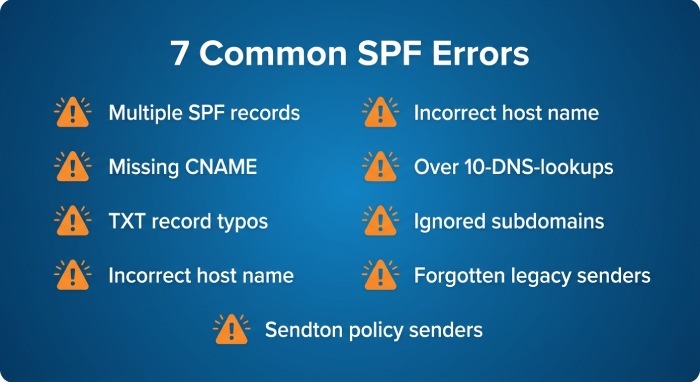
Common issues include:
- Multiple SPF records for the same domain
- Missing or incorrectly configured SMTP2GO CNAME records
- Typographical errors in the TXT record
- Incorrect host name in DNS settings
- Exceeding the 10-DNS-lookup limit
- Using a subdomain but only authenticating the root domain
- Forgetting legacy senders such as smtpcorp.com, marketing tools, or internal mail server systems
The 10-DNS-lookup limit is especially important. Each SPF include can trigger additional DNS lookups. If your SPF record includes too many third-party platforms, receiving email servers may treat SPF as invalid.
Best Practices for Maintaining SPF and Avoiding DNS Conflicts
Maintain one SPF record per domain. If you use SMTP2GO, Google Workspace, and another mailbox provider, merge all approved services into a single Sender Policy Framework TXT record.
Recommended practices include:
- Review your SPF record every quarter
- Remove unused SPF include entries
- Keep SMTP2GO domain verification records active
- Do not delete DKIM or Return-Path CNAME record entries unless instructed
- Confirm that verified senders in SMTP2GO match active sender addresses
- Use DMARC reports to identify unauthorized senders
- Monitor SPF pass and SPF fail trends
- Keep DNS settings documented for audits and migrations as needed. This can isolate transactional traffic from marketing campaigns and protect your main email reputation. If you use a subdomain for transactional email, such as mail.example.com, configure SPF, DKIM, DMARC, CNAME record entries, and Return-Path records for that subdomain
Improving Sender Reputation with SMTP2GO Authentication
Strong email authentication improves trust with receiving email servers, but it is only part of deliverability. Your content, bounce rate, complaint rate, and sending consistency also affect email reputation.
SMTP2GO helps with server authorization, bounce tracking, and verified senders, but you should also monitor engagement. Gmail Promotions placement, the promotions tab, and mailbox provider filtering can be influenced by authentication, message quality, and recipient behavior.
For best results:
- Authenticate every sender domain with SPF, DKIM, and DMARC
- Keep the SMTP2GO SPF record accurate
- Use a custom Return-Path when available
- Verify DKIM CNAME record entries after DNS changes
- Test new campaigns with a mail tester before large sends
- Watch for phishing attacks that abuse lookalike domains
- Use DMARC policy enforcement gradually, moving from monitoring to quarantine or reject
A clean Sender Policy Framework setup, complete SMTP2GO domain verification, valid DKIM, and properly configured Return-Path records give your mail the strongest chance of passing email authentication checks and reaching the inbox.
General Manager
General Manager of DuoCircle. Product strategy and commercial lead for DMARC Report's 2,000+ customer base.
LinkedIn Profile →Take control of your DMARC reports
Turn raw XML into actionable dashboards. Start free - no credit card required.