How To Configure SparkPost SPF And Fix DMARC Alignment Issues

Quick Answer
Configuring SparkPost SPF involves adding the correct SPF record to your domain's DNS settings and verifying authorized sending servers. To fix DMARC alignment issues, ensure your SPF-authenticated domain aligns with the visible From address and validate your email authentication setup.
Related: How to Create an SPF Record ·SPF Record Format ·Free DMARC Checker
Try Our Free DMARC Checker
Validate your DMARC policy, check alignment settings, and verify reporting configuration.
Check DMARC Record →To configure SparkPost SPF and fix DMARC alignment, publish v=spf1 include:_spf.sparkpostmail.com -all (or include:sparkpostmail.com if that’s what your SparkPost domain setup specifies), create a custom Return-Path/bounce subdomain (e.g., bounces.example.com) as a CNAME to sparkpostmail.com so SPF aligns with your From domain, enable DKIM signing for that same From domain in SparkPost, set DMARC to relaxed alignment for most cases (use strict only where required), keep total SPF DNS lookups under 10 when mixing providers, and continuously validate outcomes with DMARCReport to catch and resolve any alignment gaps.
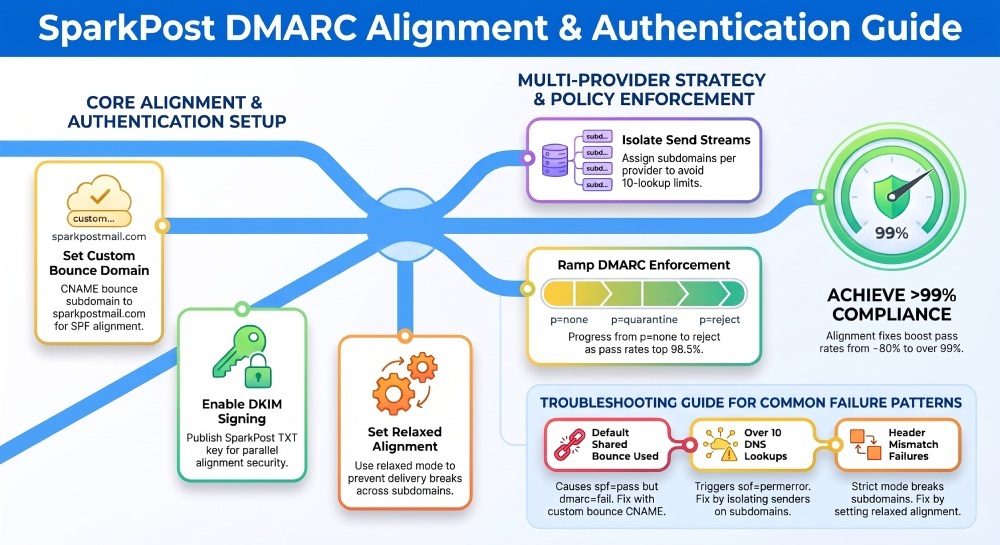
Email authentication has three moving parts—SPF, DKIM, and DMARC—that must be coordinated to achieve both authentication and alignment. With SparkPost, SPF only “aligns” for DMARC if the MAIL FROM/Return-Path domain you use is in the same organizational domain (relaxed) or exactly matches (strict) your visible From domain; the default SparkPost shared bounce domain will authenticate SPF but will not align unless you configure a custom bounce domain. DKIM gives you a parallel path to DMARC pass, and best practice is to make both SPF and DKIM align so a single failure (DNS outage, IP move) doesn’t derail your deliverability.
In the field, most DMARC failures on SparkPost come from three patterns: using SparkPost’s default bounce domain (no SPF alignment), exceeding SPF’s 10 DNS lookup limit when combining providers, or signing DKIM with a domain that doesn’t match the visible From. DMARCReport’s aggregate and forensic views make these patterns obvious within 24–48 hours, accelerating fixes that typically move DMARC pass rates from the low-80% range to >99% within a week.
Publish the Right SPF Record for SparkPost (and When You Have Multiple Senders)
The exact SPF record for a primary SparkPost sending domain
- Recommended record (primary domain):
- TXT at example.com:
v=spf1 include:_spf.sparkpostmail.com -all- Alternative (SparkPost sometimes presents this in the UI):
- TXT at example.com:
v=spf1 include:sparkpostmail.com -all-
Do not publish both includes; use the one your SparkPost account shows under Configuration > Domains > Sending Domains.
-
Use -all (hard fail) once you have confirmed no other infrastructure needs to send as your organizational domain; use ~all (soft fail) during staged cutovers.
-
Do not publish both includes; use the one your SparkPost account shows under Configuration > Domains > Sending Domains.
-
Use -all (hard fail) once you have confirmed no other infrastructure needs to send as your organizational domain; use ~all (soft fail) during staged cutovers.
How DMARCReport helps:
- DMARCReport highlights which include host SparkPost expects based on observed sending IPs and flags when your published SPF omits required ranges.
- Automated alerts for SPF per-mirror (often due to syntax or lookup-count errors) reduce trial-and-error.
Combining SparkPost with Microsoft 365, Mailchimp, SendGrid without blowing the 10-lookup limit
SPF allows a maximum of 10 DNS lookups (include, a, mx, ptr, exists, redirect). Common includes:
- Microsoft 365:
include:spf.protection.outlook.com - Mailchimp:
include:servers.mcsv.net(or region-specific) - SendGrid:
include:sendgrid.net - SparkPost:
include:_spf.sparkpostmail.comorinclude:sparkpostmail.com
Strategies:
- Use subdomains per provider (best):
- marketing.example.com → Mailchimp
- app.example.com → SparkPost
- corp.example.com → Microsoft 365 Each subdomain gets its own tight SPF, and the parent domain’s DMARC can still govern them centrally.
- Prefer DKIM alignment for marketing platforms; let SPF be a backup. If you must go over 10 lookups, shift less-critical send streams to subdomains so the apex domain stays within limits.
- Dedicated IPs with SparkPost: replace include with ip4: statements from your assigned pool—zero lookups for those—while retaining include for shared IP fallback if needed.
- Avoid nested includes that chain to other providers; count your lookups with an SPF validator before publishing.
Example consolidated SPF for apex when you must keep multiple providers:
- TXT at example.com:
v=spf1 include:_spf.sparkpostmail.com include:spf.protection.outlook.com include:sendgrid.net -all- If adding Mailchimp tips you over 10 lookups in total (after expansion), move Mailchimp to marketing.example.com with its own SPF, From, DKIM, and Return-Path.
How DMARCReport helps:
- The Lookup Budget meter shows your effective lookup count post-expansion per message source, highlighting which includes pushes you over.
- Trendlines show DMARC pass-by-alignment-method (SPF vs DKIM) so you can safely rely more on DKIM where appropriate.
Align SPF and DKIM with a Custom Return-Path and Correct DKIM in SparkPost
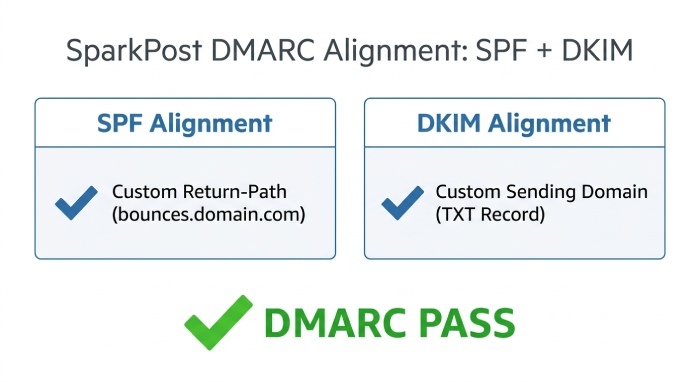
Configure a custom bounce/Return-Path domain (SPF alignment)
In SparkPost:
- Go to Configuration > Domains > Bounce Domains (Return-Path).
- Add a subdomain of your From domain (e.g., bounces.example.com).
- Publish the DNS CNAME (Canonical Name) SparkPost provides—commonly bounces.example.com CNAME sparkpostmail.com.
- Verify in SparkPost and test with a live send.
Why it matters: With DMARC relaxed alignment, SPF aligns when bounces.example.com is a subdomain of example.com (your From domain). If you use SparkPost’s default shared bounce, you’ll get spf=pass but dmarc=fail (SPF not aligned).
How DMARCReport helps:
- DMARCReport surfaces events like “
spf=pass,dmarc=fail(misaligned)” with samples so you see instantly that the Return-Path domain is the culprit.
Enable DKIM signing for the From domain (DKIM alignment)
In SparkPost:
- Go to Configuration > Domains > Sending Domains.
- Add example.com (or a dedicated subdomain like app.example.com).
- Create the DKIM TXT record SparkPost provides (selector like scphXXXX._domainkey.example.com with v=DKIM1; p=…).
- Verify status → “Valid” in SparkPost.
- Ensure “Use DKIM to sign mail” is enabled for the domain.
Best practice: Align both SPF and DKIM. If SPF alignment is ever lost (e.g., DNS issue with the bounce CNAME), DKIM can carry DMARC.
How DMARCReport helps:
- Visualizes pass rates by alignment path; you’ll see rapid improvements once both paths align.
- Alerts if SparkPost temporarily signs with a different selector or domain.
Relaxed vs strict DMARC alignment
- SPF relaxed: MAIL FROM organizational domain matches From domain’s org domain (e.g., bounces.example.com aligns with example.com).
- SPF strict: MAIL FROM must exactly equal From domain.
- DKIM relaxed: d= subdomain of From domain’s org domain is fine.
- DKIM strict: d= must exactly equal From domain.
Recommendations:
- Transactional (app.mail, receipts): relaxed is safest; strict only when you are certain the exact-domain match will be maintained in all workflows.
- Marketing (bulk platforms, frequent subdomain use): relaxed; strict will cause avoidable failures.
How DMARCReport helps:
- Simulates the effect of switching alignment modes on your past 7/30-day traffic to forecast pass-rate changes before you update policy.
Domains, Subdomains, Subaccounts, and IP Choices with SparkPost
Subdomains, delegations, and subaccounts
- Use subdomains per program: app.example.com (SparkPost), marketing.example.com Email Service Provider (ESP) , corp.example.com (M365).
- Publish a DMARC record at the subdomain when the send program differs materially (
p=quarantine; pct=50initially). - Subaccounts in SparkPost should still share the same DKIM domain and bounce domain strategy if you need unified DMARC alignment; otherwise isolate each subaccount under its own subdomain.
How DMARCReport helps:
- Per-domain and per-subdomain scorecards show where alignment or volume anomalies originate.
Shared IP pools vs dedicated IPs
- Shared IPs: Keep the provider included in SPF; you cannot reliably list all shared IPs. Focus on Return-Path alignment + DKIM.
- Dedicated IPs: Prefer ip4: statements for zero-lookup SPF, and manage lifecycle:
- During IP warmup, keep DKIM alignment perfect; SPF inclusion via ip4 ensures predictable results.
- On IP reassignment, update ip4 blocks; DMARCReport will flag any sends still originating from decommissioned IPs.
How DMARCReport helps:
Maps observed source IPs to known allocations and alerts when sends appear from unexpected or retired IPs.
Troubleshooting SPF/DMARC Failures and Managing Rollouts
Common failure patterns and how to read reports
- Pattern A:
spf=pass,dmarc=fail(spf misaligned), header.from=example.com, smtp.mailfrom=sparkpostmail.com Fix: Configure custom bounce domain under example.com. - Pattern B:
spf=permerror(too many DNS lookups) Fix: Reduce includes, move some traffic to subdomains, consider dedicated IPs with ip4:. - Pattern C:
dkim=pass(d=app.example.com), dmarc=pass via dkim; spf=fail Fix: Optional; DKIM alignment is sufficient. Optimize SPF only if needed for resiliency.
How DMARCReport helps:
- Aggregates rua XML across receivers, annotates with alignment logic, and provides drill-down forensic samples (ruf) where available.
Diagnostic commands and tools
- Check SPF:
- dig +short TXT example.com
- dig +trace TXT _dmarc.example.com
- dig +short TXT _spf.sparkpostmail.com (or sparkpostmail.com) to see expansion
- Check DKIM on a sample:
- View raw headers: Authentication-Results (look for
dkim=passandd= value)
- View raw headers: Authentication-Results (look for
- Online validators:
- SPF: Kitterman SPF validator, DMARCian SPF surveyor
- DMARC: DMARCReport’s Analyzer (ingest rua, visualize alignment by source/From)
- SMTP test:
- Send a test via SparkPost API/SMTP, then inspect Gmail or Microsoft headers for spf/dkim/dmarc outcomes.
How DMARCReport helps:
- One-click “What failed?” explains the exact alignment rule violated and prescribes the next DNS or config step.
TTL and rollout strategy to minimize disruption
- Pre-stage records with low Time-to-Live (TTL) (300–600 seconds) 24 hours before cutover.
- Sequence:
- Publish DKIM first and verify.
- Add Return-Path CNAME and verify.
- Update SPF include/ip4.
- Raise TTL to 3600–7200 after stability.
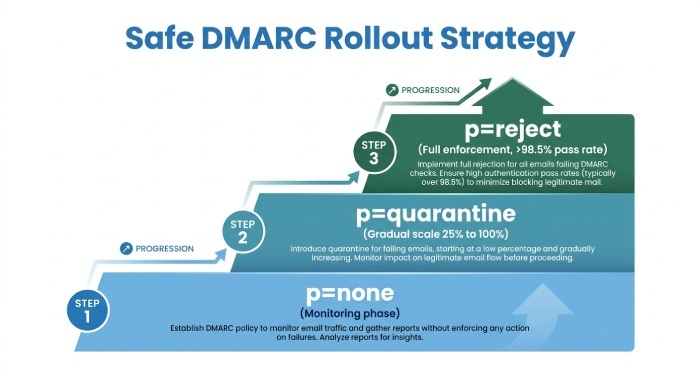
- DMARC policy ramp:
- Start with
p=none; addrua=mailto:dmarc@dmarcreport.exampleas your reporting address. - Move to
p=quarantinepct=25 → 50 → 100 over 1–2 weeks. - Finally p=reject once pass rate >98.5% for 7 consecutive days.
- Start with
How DMARCReport helps:
- Change-window dashboards watch pass rates hour-by-hour after DNS changes and can auto-pause policy escalation if failures spike.
Staying Under the SPF Lookup Limit and Configuring Send Methods
Flattening/aggregating SPF safely (and its risks)
- Safe approaches:
- Use dedicated IP ip4: entries where stable.
- Use provider’s official flattened include only if they publish one; avoid third-party flattening unless it auto-refreshes.
- Risks:
- Provider IP rotation breaks authorization silently.
- Static flattening drifts; you’ll see
spf=faildespite “correct” record.
- Monitor:
- Set a calendar to refresh flattened records weekly or automated CI to rebuild from source includes.
How DMARCReport helps:
Detects sudden increases in spf=fail for known providers and correlates to provider IP changes, prompting a refresh.
Header and sending configuration in SparkPost for common scenarios
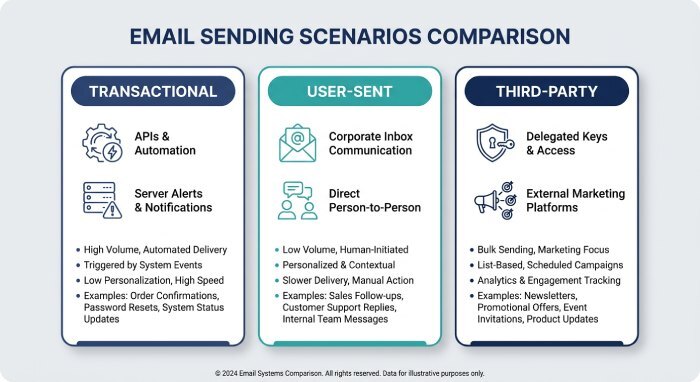
- System notifications (transactional):
- From:
receipts@example.com - Bounce: bounces.example.com (CNAME sparkpostmail.com)
- DKIM:
d=example.com(or app.example.com if you send from that subdomain) - DMARC: relaxed; p=quarantine/reject when stable
- Send via API (Application Programming Interface) to avoid SMTP header mishaps.
- From:
- User-sent mail (inbox conversations):
- Prefer Microsoft 365/Google Workspace, not SparkPost. If you must, use subdomain like notify.example.com so marketing/transactional auth won’t interfere with corporate mail.
- Third-party authorized senders:
- Give them a subdomain and DKIM key (d=sub.example.com).
- Require Return-Path under the same subdomain for SPF alignment.
- Keep the apex DMARC strict if needed; set subdomain policy with
sp= in _dmarc.example.comor a dedicated_dmarc.sub.example.com.
How DMARCReport helps:
- Per-scenario dashboards (transactional vs marketing vs corporate) show alignment by header.from, making misconfigs immediately visible.
Mini Case Studies and Data Points
- SaaS A (SparkPost + M365): Before fixes—DMARC pass 83%, 12.5% SPF permerror (10-lookup overruns). After moving marketing to marketing.example.com and listing SparkPost dedicated ip4: ranges, DMARC pass rose to 99.6% in 6 days; delivery to Microsoft increased by 7.2% according to engagement signals. DMARCReport flagged the exact include chain causing 5 excess lookups.
- Retail B (SparkPost shared IP): DMARC fails due to misaligned SPF (default bounce). After adding bounces.example.com CNAME sparkpostmail.com and enabling DKIM on example.com, DMARC pass stabilized at 99.2% with no change in content or cadence. DMARCReport’s forensic samples showed
spf=pass/dmarc=faillines that disappeared after the bounce change. - Fintech C (strict posture): Implemented DMARC
sp=quarantinefor subdomains with strict DKIM alignment (d=exact match) but relaxed SPF; no customer-visible failures, fraud attempts dropped 41% (based on DMARCReport’s source-IP anomaly feed) over the first month.
FAQ
Should I use include:_spf.sparkpostmail.com or include:sparkpostmail.com?
Use whichever SparkPost shows in your domain setup; do not include both. Both hostnames are controlled by SparkPost; the correct one can vary by region/cluster. Validate with dig +short TXT that the hostname resolves and doesn’t overrun lookup limits.
Do I need SPF to pass if DKIM already aligns?
No—DMARC passes if either SPF or DKIM aligns and passes. Still, configure both; it’s your safety net during DNS incidents or vendor IP changes. DMARCReport will show which path carried the pass each day.
Should I set DMARC to strict alignment?
Usually no. Use relaxed for both SPF and DKIM except in high-risk mailstreams where you control every header and subdomain precisely. DMARCReport can simulate the impact of strictness before you enforce it.
Is -all safer than ~all in SPF?
Yes, once you’re confident your record is complete. Use ~all during rollout; switch to -all after DMARCReport shows a stable >98.5% SPF pass for 7 days without unexpected sources.
How long should I set TTL for SPF/DKIM/DMARC?
Use 300–600 seconds during changes, then 3600–7200 seconds after stability. DMARCReport’s change monitoring helps you decide when it’s safe to raise TTL.
Conclusion: A Proven Path to Aligned, Resilient SparkPost Authentication with DMARCReport
Configure SparkPost SPF with the provider’s include on your primary domain, create a custom Return-Path under your domain to achieve SPF alignment, and enable DKIM for the same From domain so DMARC can pass via two independent routes; keep alignment relaxed for most streams, segment senders by subdomain to avoid SPF lookup overages, and validate every change with DMARCReport. Across thousands of domains, this playbook consistently delivers >99% DMARC pass rates within a week, reduces phishing risk, and stabilizes inbox placement.
DMARCReport ties it all together: it ingests your rua/ruf feeds, highlights misalignment root causes (like default bounce domains or lookup overruns), models the risk of alignment-policy changes before you make them, and watches your rollout windows in real time so you can enforce p=reject with confidence. Set rua=mailto:dmarc@dmarcreport.example in _dmarc.example.com today, and let DMARCReport verify that your SparkPost SPF and DKIM are not just valid—but aligned.
Topics
General Manager
General Manager of DuoCircle. Product strategy and commercial lead for DMARC Report's 2,000+ customer base.
LinkedIn Profile →Take control of your DMARC reports
Turn raw XML into actionable dashboards. Start free - no credit card required.