How to Configure SPF, DKIM, and DMARC for Squarespace Email Campaigns

Quick Answer
To configure SPF, DKIM, and DMARC for Squarespace Email Campaigns, add the required DKIM CNAME records and publish a DMARC TXT record. Verify your DNS settings to improve email authentication, protect your domain, and support reliable email delivery.
Try Our Free DMARC Checker
Validate your DMARC policy, check alignment settings, and verify reporting configuration.
Check DMARC Record →Sending marketing emails from your own domain can help strengthen your brand identity, but proper email authentication is essential to make sure those messages reach recipients successfully. Without authentication, attackers may impersonate your domain, while legitimate campaigns may face delivery problems or end up in spam folders.
Squarespace Email Campaigns supports domain authentication through DNS configuration. By setting up DKIM and DMARC correctly—and understanding how Squarespace handles SPF—you can improve email trust, protect your domain, and gain greater visibility into email activity.
Why Email Authentication Matters for Squarespace
Email authentication allows receiving mail servers to determine whether a message was legitimately sent on behalf of your domain.
The three commonly discussed authentication standards are:
- SPF: Identifies authorized sending infrastructure for a domain.
- DKIM: Adds a cryptographic signature to outgoing messages so receiving servers can verify message authenticity.
- DMARC: Uses SPF and DKIM results to determine how receiving servers should handle messages that fail authentication.
Together, these technologies can reduce domain impersonation and improve the reliability of legitimate email campaigns.
For Squarespace Email Campaigns, DKIM is particularly important because the current authentication setup does not require a separate SPF record for Squarespace. DKIM can therefore play an important role in achieving DMARC alignment for campaign messages.
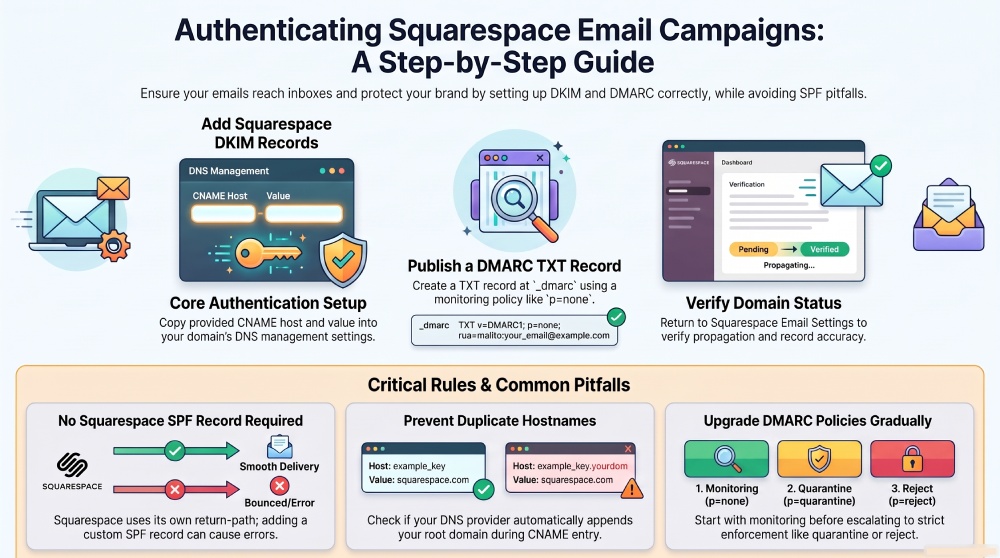
Step 1: Find Your Squarespace Authentication Records
Before changing your DNS configuration, first obtain the authentication information generated specifically for your domain.
- Sign in to your Squarespace account.
- Open Marketing from the Home Menu.
- Select Email Campaigns.
- Open Settings and choose Sender Details.
- Find the email address you use for your campaigns.
- Select the option to verify or authenticate your domain.
- Open the DNS records provided by Squarespace.
Squarespace will display the DNS information required for authentication. Keep this information available while you update your domain’s DNS settings because the host and destination values need to be entered accurately.
Step 2: Open Your Domain’s DNS Management Area
The location where you add the records depends on where your domain’s DNS is managed.
If Squarespace manages your domain:
- Go to Settings.
- Select Domains.
- Choose your domain.
- Open Edit DNS.
- Locate the area for adding custom DNS records.
If another company manages your DNS, sign in to that provider and open its DNS management or advanced DNS section.
The exact interface will vary between providers, but you will generally have an option to create a new DNS record.
Step 3: Add the Squarespace DKIM Records
DKIM is the primary authentication component you need to configure for Squarespace Email Campaigns.
Squarespace provides one or more CNAME records that connect your domain’s DKIM configuration with Squarespace’s authentication infrastructure.
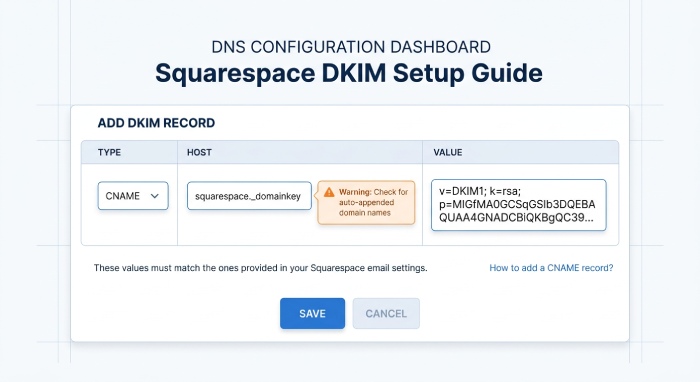 To add a DKIM record:
- Create a new DNS record.
- Select CNAME as the record type.
- Copy the Host value supplied by Squarespace.
- Enter the corresponding Data/Value provided by Squarespace.
- Save the record.
If Squarespace displays an additional CNAME record, add that record as well.
Check the Hostname Carefully
Some DNS providers automatically append your domain name to the host field. If that happens, entering your complete domain name manually could result in a duplicated hostname.
For example, if your DNS provider automatically adds example.com, you may only need to enter the hostname portion supplied by Squarespace.
Always compare the final record with the information displayed in your Squarespace account before saving it.
Step 4: Do You Need an SPF Record for Squarespace?
Squarespace’s current Email Campaigns domain verification process does not require a separate SPF record for Squarespace. The current verification process uses a CNAME record for DKIM and a TXT record for DMARC. If your domain already has an SPF record for another email service, you should not remove it simply because you use Squarespace Email Campaigns.
Earlier configuration methods could involve SPF, but Squarespace’s current setup uses its own return-path domain for campaign sending. Because SPF authentication is evaluated against that sending infrastructure, simply adding a Squarespace-related SPF mechanism to your domain does not provide the expected authentication alignment.
This is important because creating unnecessary or conflicting SPF records can create authentication problems. A domain should also have only one SPF record at its root.
If your domain already uses SPF for other email services, keep your existing SPF configuration intact unless you have a specific reason to modify it.
Step 5: Publish a DMARC Record
 After configuring DKIM, the next step is to establish a DMARC policy for your domain.
DMARC tells receiving mail systems how to handle messages that do not pass the required authentication checks. It can also provide reports that help you identify legitimate and unauthorized sources sending mail using your domain.
A DMARC record is published as a TXT record at:
_dmarc.yourdomain.com
Start With Monitoring
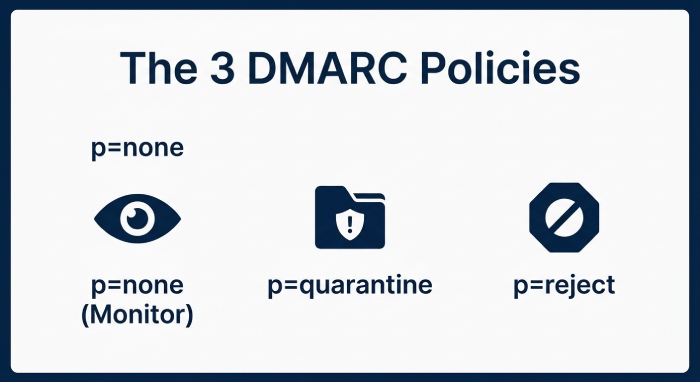
If you are introducing DMARC for the first time, a monitoring policy such as p=none is generally a sensible starting point. This allows you to observe authentication activity without immediately asking receiving servers to quarantine or reject messages.
After reviewing your reports and confirming that legitimate senders are properly authenticated, you can consider strengthening the policy with:
p=quarantine— asks receiving servers to treat failing messages suspiciously.p=reject— requests that failing messages be rejected.
Add the DMARC Record
To publish your DMARC policy:
- Open your DNS management console.
- Create a new TXT record.
- Enter
_dmarcas the host or name. - Enter your DMARC policy as the TXT value.
- Save the record.
A basic monitoring example is:
v=DMARC1; p=none;`For organizations that want reporting, additional DMARC parameters can be included to specify where aggregate reports should be sent.
Step 6: Verify the Squarespace Configuration
Once the DNS records have been added, return to your Squarespace Email Campaigns settings.
Use the available verification or authentication option to check the domain.
DNS changes are not always visible immediately. Depending on DNS caching and propagation, the records may take some time before Squarespace and other mail systems can detect them.
When the records are recognized correctly, your domain should show as authenticated or verified.
Step 7: Check Your DNS and Authentication Status
Publishing DNS records is only part of the process. It is also useful to independently verify that your records are visible and correctly formatted.
A DNS or domain health checker can help identify:
- Missing DKIM records
- Incorrect CNAME values
- DMARC syntax problems
- SPF configuration issues
- Authentication misalignment
- Other DNS-related email security problems
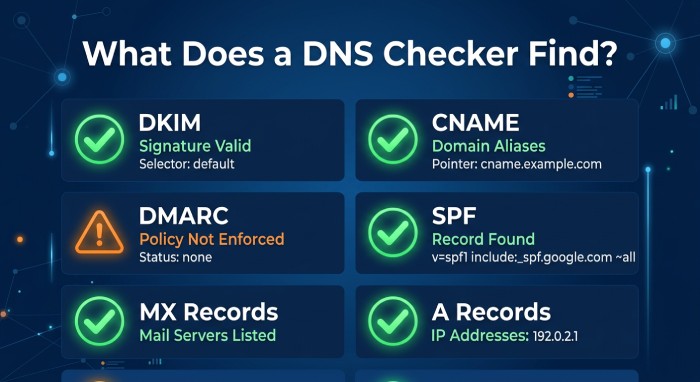 Regular checks are especially useful when you add new email platforms or change your domain’s sending infrastructure.
Common Squarespace Authentication Mistakes
- Adding an Unnecessary SPF Record: Do not automatically create an SPF entry specifically for Squarespace Email Campaigns. Squarespace’s current configuration does not require one for campaign authentication.
- Entering the Wrong CNAME Host: A small hostname error can prevent DKIM from working. Copy the host exactly as Squarespace provides it and check whether your DNS provider automatically adds the domain.
- Creating Multiple SPF Records: If your domain already has SPF for another email provider, adding another separate SPF TXT record can cause SPF evaluation problems. Existing SPF configurations should be consolidated rather than duplicated.
- Enabling a Strict DMARC Policy Too Quickly: Moving directly to
p=rejectwithout reviewing authentication activity can cause legitimate messages to be affected. Monitor your sending sources first and strengthen your policy gradually. - Forgetting About Other Email Platforms: Squarespace may not be the only service sending email from your domain. Consider every legitimate sender—including business email, marketing platforms, transactional services, and support systems—when reviewing your authentication setup.
Benefits of Authenticating Your Squarespace Email
A properly configured email authentication system can provide several advantages:
- Stronger protection against spoofing: Authentication makes domain impersonation more difficult.
- Better email trust: Receiving servers can verify legitimate campaign messages.
- Improved visibility: DMARC reports can reveal unauthorized or unexpected sending sources.
- Greater control: A DMARC policy lets you define how authentication failures should be handled.
- More reliable campaigns: Correct authentication can help support better email deliverability.
Final Thoughts
Setting up email authentication for Squarespace does not have to be complicated. Start by obtaining the authentication records from your Squarespace Email Campaigns account, publish the required DKIM CNAME records, and configure an appropriate DMARC policy for your domain.
Remember that Squarespace’s current campaign setup does not require a separate SPF record. DKIM and DMARC are the key components to focus on for authenticating Squarespace Email Campaigns.
After publishing the records, verify that DNS changes have propagated and continue monitoring authentication results. As your organization adds or removes email services, review your authentication configuration to keep your domain protected and your legitimate email traffic properly authenticated.
General Manager
General Manager of DuoCircle. Product strategy and commercial lead for DMARC Report's 2,000+ customer base.
LinkedIn Profile →Take control of your DMARC reports
Turn raw XML into actionable dashboards. Start free - no credit card required.