SiteGround SPF Record: How to Configure & Verify Email Authentication

Quick Answer
A SiteGround SPF record is a DNS setting that authorizes specific mail servers to send emails on your domain’s behalf. Configuring and verifying it helps prevent email spoofing, improves email authentication, and increases the chances of your messages reaching recipients' inboxes.
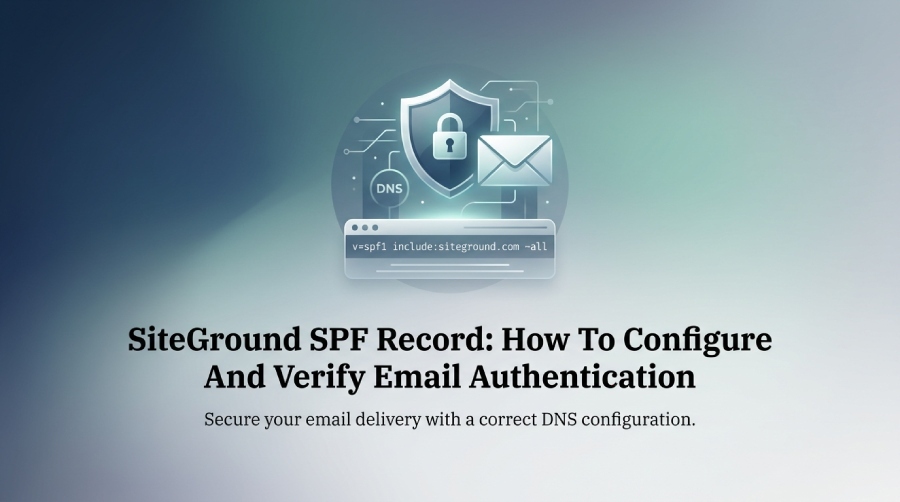
Try Our Free SPF Checker
Instantly analyze any domain's SPF record - check syntax, count DNS lookups, and flag errors.
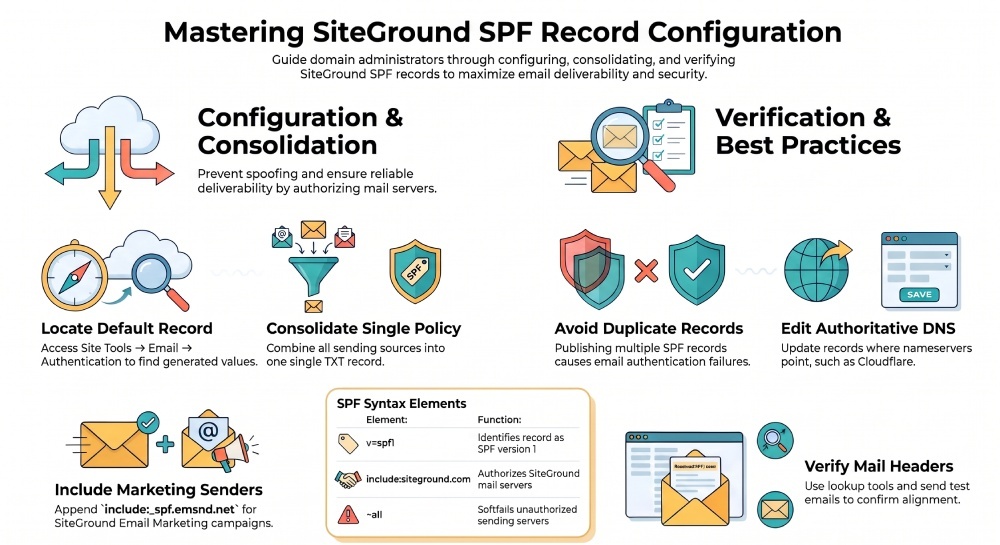
Check SPF Record →To configure an SPF record for SiteGround, access your domain’s Site Tools and navigate to Email → Authentication → SPF. SiteGround provides a generated SPF record based on your domain’s approved sending sources. Review the generated value before making changes, especially if your domain also sends email through third-party services.
An SPF (Sender Policy Framework) record is a DNS TXT record that identifies which servers are authorized to send emails on behalf of your domain. Proper SPF configuration helps receiving mail servers evaluate legitimate messages and detect unauthorized sending sources.
If you use multiple email platforms, consolidate their authorized sending mechanisms into one SPF policy rather than publishing separate SPF records. After making changes, verify the record through an SPF lookup and monitor authentication results.
For ongoing visibility into SPF, DKIM, and DMARC authentication, DMARCReport helps domain administrators review sending sources, investigate authentication failures, and identify potential email spoofing activity.
TL;DR: SiteGround SPF Setup in 60 Seconds
A SiteGround SPF record tells receiving mail servers which systems are allowed to send outgoing email for your domain. In most SiteGround-only cases, the correct SPF setup is a TXT record using this SPF syntax:
v=spf 1 include:siteground.com ~allThis works because SPF, short for sender policy framework, is an email authentication method that helps prevent email spoofing by verifying that messages come from authorized senders. For businesses using email marketing, siteground email, or transactional mail, a correct SPF configuration supports email deliverability, email security, and mail protection.
In practical DNS audits, one of the most common issues is not the absence of SPF, but duplicate or fragmented records. A domain should usually have one SPF record, not multiple competing TXT record entries. If you use third-party email services such as Google Workspace, AWS SES, Stripe, RudderStack, Typeform, or marketing platforms, you must merge those senders into a single SPF policy instead of adding SPF separately for each provider.
For reporting and monitoring across SPF, DKIM, and DMARC, tools like DMARCReport can help identify SPF failure, unauthorized sources, and authentication gaps that affect email marketing performance.
What an SPF Record Is and Why It Matters for SiteGround Email
SPF, Sender Policy Framework, and Email Authentication
An SPF (Sender Policy Framework) record is a DNS TXT record that identifies the mail servers authorized to send emails on behalf of a domain. It helps receiving mail servers verify whether an email originates from an approved sending source.
For SiteGround users, SPF configuration is important because domains may send emails through SiteGround email hosting, WordPress notifications, WooCommerce messages, and other connected email services. If a sending server is not authorized by the domain’s SPF policy, receiving servers may return an SPF failure, potentially affecting email delivery and authentication.
SiteGround provides a generated SPF record based on the email configuration and approved sending sources associated with your domain. You can review this value through Site Tools → Email → Authentication → SPF.
A typical SPF record uses the following syntax:
v=spf 1 [authorized sending mechanisms] ~allThe exact mechanisms depend on your email infrastructure. Avoid copying a generic SPF value without verifying that it matches your SiteGround configuration.
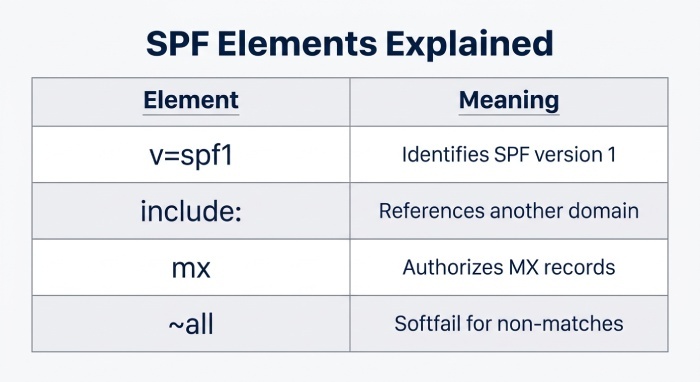
Here is what the main SPF components mean:
| SPF Element | Meaning |
|---|---|
| v=spf 1 | Identifies the record as SPF version 1 |
| ip4: | Authorizes a specific IPv4 address or range |
| ip6: | Authorizes a specific IPv6 address or range |
| include: | References another domain’s SPF policy |
| a | Authorizes IP addresses associated with the domain’s A or AAAA records |
| mx | Authorizes IP addresses associated with the domain’s MX records |
| ~all | Returns a softfail for sending sources that do not match the policy |
| -all | Returns a fail for sending sources that do not match the policy |
Each mechanism should be included only when it is appropriate for your domain’s actual email-sending configuration.
SPF is an important part of email spoofing protection because it allows receiving mail servers to evaluate whether the sending IP address is authorized by the domain’s published SPF policy. When combined with DKIM and DMARC, it provides an additional layer of email authentication and helps domain administrators identify unauthorized sending activity.
Configuring SPF for SiteGround Email Marketing
If you use SiteGround Email Marketing to send campaigns, your domain may require an additional SPF include directive.
SiteGround specifies the following value for its Email Marketing service:
include:_spf.emsnd.net
To configure it:
- Open your existing SPF configuration.
- Locate the Include List in SiteGround’s Email Authentication settings.
- Add _spf.emsnd.net alongside the existing automatically generated value.
- Save your changes.
- Verify that the published SPF record contains the required include directive.
Do not replace your existing SPF configuration with this directive. If you already have an SPF record managed by another DNS provider, merge the required directive into that existing policy instead of creating another SPF record.
This configuration helps SiteGround Email Marketing authenticate your sending domain.
Finding and Adding the Correct SiteGround SPF Record
Finding the Correct SiteGround SPF Record for Your Domain
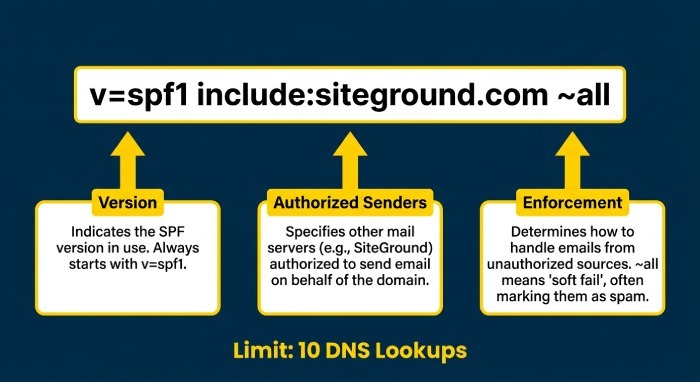
The correct SiteGround SPF record depends on how your domain sends email. If you only send mail through SiteGround, the common record is:
v=spf 1 include:siteground.com ~allIf you also use third-party email services, you need to combine them into one SPF record. For example, a domain using SiteGround and Google Workspace may require both sources in one TXT record. The exact syntax depends on the provider’s documentation, but the principle is always the same: configure SPF once, in a single consolidated record.
Check Your Current DNS and Mail Routing
Before adding SPF, inspect your existing DNS records, especially:
- TXT record entries containing
v=spf 1 - MX records that show where inbound mail is routed
- Existing Google, AWS, or platform verification records
- Whether DNS is hosted at SiteGround, Cloudflare, or another provider
If your nameservers point to Cloudflare, you must edit DNS in Cloudflare, not SiteGround. If nameservers point to SiteGround, use the DNS zone editor inside SiteGround’s dashboard. Some legacy accounts may reference cPanel, but modern SiteGround DNS management typically happens through Site Tools.
Example: When Not to Add a Domain to an SPF Record
Do not add every domain or service connected to your website to your SPF record. Website scripts, analytics platforms, tracking tools, payment gateways, and security services do not automatically send emails on behalf of your domain.
For example, services such as hCaptcha, Cookiebot, Vimeo, LinkedIn, Pinterest, Stripe, and Typeform should only be included in your SPF configuration if they actually send emails using your domain.
Before adding an SPF include mechanism, confirm that the service sends email on your behalf and provides an official SPF configuration. Adding unnecessary mechanisms can increase NS lookup usage and make your SPF record more difficult to manage.
How to Add or Update the SPF Record in SiteGround DNS Zone Editor
To configure SPF in SiteGround, open your domain’s DNS zone editor, add or update the TXT record, and save the new SPF setup.
Typical steps:
- Log in to SiteGround.
- Go to Websites and choose the correct domain.
- Open Site Tools.
- Navigate to Domain → DNS Zone Editor.
- Find an existing TXT record beginning with
v=spf 1. - If one exists, update it; if none exists, create a new TXT record.
- Enter your SPF value, such as
v=spf 1 include:siteground.com ~all. - Save and allow records propagation.
SPF Syntax Rules to Follow
A valid SPF syntax should follow these rules:
- Start with
v=spf 1 - Include only legitimate authorized senders
- Use the spf include directive carefully
- End with an enforcement qualifier such as ~all or -all
- Keep the policy under the SPF lookup limit of 10 DNS lookups
If you operate regional domains such as siteground.co.uk, siteground.es, or siteground.com, confirm which domain actually hosts your DNS and email services before you update DNS. The visible website domain and the DNS authority are not always the same.
Common SPF Mistakes, Verification, and Troubleshooting
Common SPF Configuration Mistakes and How to Avoid Them
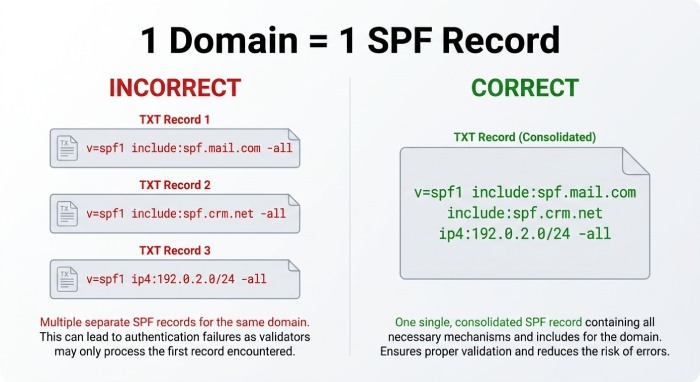
The most common SPF configuration mistake is publishing more than one SPF record. Since SPF expects a single policy, duplicate records can cause SPF validation to fail even if each individual TXT record looks correct.
Other common mistakes include:
- Adding include:siteground.com as a separate record instead of merging it
- Forgetting a third-party sender used for email marketing
- Adding non-email services to the SPF policy
- Exceeding the SPF lookup limit
- Using a malformed SPF mechanism
- Updating MX records but forgetting SPF
- Editing the wrong DNS provider, such as changing SiteGround when the domain uses Cloudflare
SPF Best Practices for SiteGround Domains
Follow these SPF best practices:
- Keep one SPF record per domain
- Use
include:siteground.comfor SiteGround sending - Add only verified mail servers
- Recheck SPF after changing email platforms
- Run SPF testing before major email marketing campaigns
- Monitor for SPF failure after DNS changes
This is directly tied to the SiteGround SPF Record topic because a clean SPF setup reduces authentication errors for SiteGround-hosted mail and improves trust with receiving providers.
Edge Case: Multiple Email Senders
If your business uses SiteGround, Google Workspace, AWS SES, and a marketing platform, do not create four SPF records. Instead, consolidate the includes into one TXT record. This is where SPF troubleshooting often starts: identify every real sender, remove unrelated services, and rebuild one valid SPF policy.
How to Verify Your SiteGround SPF Record and Troubleshoot Authentication Issues
After you configure SPF, verify the SPF record with an SPF lookup tool. Enter your domain and confirm that the tool finds one valid TXT record beginning with v=spf 1 and containing include:siteground.com if SiteGround sends mail for you.
Use this verification checklist:
- Run an SPF check for your root domain
- Confirm only one SPF record exists
- Verify the TXT record includes all authorized senders
- Send a test email to Gmail and inspect “Show original”
- Check whether SPF passes, soft-fails, or fails
- Allow time for records propagation, often from minutes to several hours
If you see an SPF error, compare the sending IP or hostname with your SPF setup. An SPF failure means the message came from a source not authorized by your sender policy framework rules.
Troubleshooting Domain Verification Failures
If domain verification fails after you configure SPF, check whether you edited the correct DNS management system. Many domains hosted on SiteGround use external DNS through Cloudflare, a registrar, or enterprise DNS. In that case, the DNS zone editor inside SiteGround will not control the live records.
Frequently Asked Questions
1. What is the correct SPF record for SiteGround?
SiteGround generates an SPF record based on your domain’s approved sending sources. You can find the exact value under Site Tools → Email → Authentication → SPF. Always use the generated record rather than copying an unverified generic SPF value.
2. How do I add an SPF record in SiteGround?
Log in to SiteGround, open Site Tools for your domain, and navigate to Email → Authentication → SPF. Review the approved sending sources, adjust the configuration if necessary, and save your changes.
3. Does SiteGround automatically create an SPF record?
Yes. SiteGround enables a default SPF record for domains using its email services provider. You can review and manage the configuration through the Email Authentication section in Site Tools.
4. Can I use SiteGround SPF with Google Workspace or Microsoft 365?
Yes. If you use multiple email providers, their authorized sending mechanisms must be consolidated into one SPF policy. Follow each provider’s official configuration instructions and verify the resulting record.
5. How do I fix a SiteGround SPF authentication failure?
Check whether the sending source is authorized, whether your SPF record contains the correct mechanisms, and whether multiple SPF policies exist. Also verify that you edited the DNS zone managed by your authoritative DNS provider.
6. How can I monitor SiteGround SPF authentication using DMARC reports?
DMARC aggregate reports help identify sending IP addresses, SPF authentication results, alignment failures, and unauthorized sending sources. DMARCReport can help administrators review these results and investigate email authentication problems.
General Manager
General Manager of DuoCircle. Product strategy and commercial lead for DMARC Report's 2,000+ customer base.
LinkedIn Profile →Take control of your DMARC reports
Turn raw XML into actionable dashboards. Start free - no credit card required.