Why Google Workspace SPF Authentication Fails and Fixes

Quick Answer
Google Workspace SPF authentication fails due to missing or incorrect DNS records, duplicate SPF entries, unauthorized senders, or exceeding the 10 DNS lookup limit. Fix these issues by updating your SPF record, authorizing legitimate senders, and verifying DNS settings.

Google Workspace SPF authentication fails when your domain’s SPF record is missing, misconfigured, duplicated, exceeds the DNS lookup limit, or does not authorize the actual email sender; you fix it by publishing one valid DNS TXT record that includes Google’s SPF mechanism, authorizes all legitimate senders, and follows correct SPF syntax.
TL;DR: The Fast Answer
SPF authentication in Google Workspace verifies whether a sending mail server is authorized to send email for your domain under the Sender Policy Framework. If the recipient server cannot confirm authorization, the SPF result may be SPF fail, softfail, neutral, permerror, or temperror, which can lead to poor email delivery, placement in the spam folder, or even email rejection.
For most Google Workspace domains, the baseline SPF record should include Google’s sender infrastructure:
v=spf1 include:_spf.google.com ~allHowever, many organizations also use third-party senders such as Salesforce, Microsoft services, a Contact Form plugin, CRM platforms, cloud hosting platforms, or transactional mail tools. In those cases, the SPF record must authorize every legitimate email sender without breaking the SPF record limit of 10 DNS lookups.
A strong fix usually involves:
- Checking DNS at your DNS provider or domain host
- Reviewing the SPF header and Authentication-Results
- Using Google Admin Toolbox, Check MX, and Email Log Search
- Performing an SPF record update
- Removing duplicates and using SPF record consolidation
- Monitoring results with Workspace reporting tools and platforms such as DMARCReport
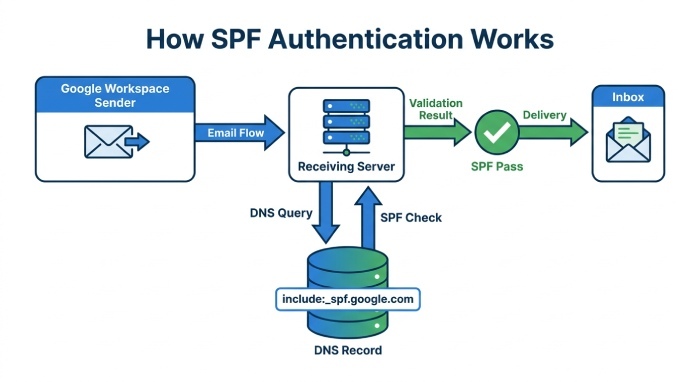
What SPF Authentication Means for Google Workspace Email Delivery
How Sender Policy Framework Works
Sender Policy Framework is an email authentication standard that lets a domain owner publish an SPF record in DNS to identify which servers are allowed to send mail for that domain. When Gmail, Microsoft, or another recipient receives a message, it performs an SPF validation by comparing the sending IP address against the domain’s published policy.
For Google Workspace, the key authorization is usually the include mechanism for Google:
include:_spf.google.comThis tells receiving systems that Google’s infrastructure is a valid email sender for your domain.
If the DNS lookup confirms that the sending server is authorized, the message receives an SPF pass. If it is not authorized, the receiving server may treat it as suspicious, affecting email delivery.
Why SPF Matters for Gmail and Workspace Admins
SPF authentication helps Gmail and other mailbox providers distinguish legitimate outgoing messages from spoofed or forged mail. This matters because modern Spam filter systems evaluate SPF, DKIM, DMARC, reputation, and message behavior together.
For a workspace admin, SPF is not just a technical checkbox. It directly affects:
- Inbox placement for Google Workspace mail
- Domain reputation with Gmail and Microsoft
- Email rejection risk
- Alignment with Google’s Email sender guidelines
- Trust signals visible in headers and the email message header
Because Google Workspace SPF issues often begin in DNS, strong DNS management is essential for reliable email delivery.
Common Reasons Google Workspace SPF Checks Fail
Missing or Incorrect SPF Record
The most common cause of SPF fail is a missing, outdated, or incorrectly published SPF record. If your domain host does not contain a valid DNS TXT record, recipient servers have no reliable way to confirm that Google Workspace is authorized.
A valid Google Workspace SPF record commonly looks like this:
v=spf1 include:_spf.google.com ~allIncorrect records often include broken SPF syntax, misplaced spaces, unsupported characters, or old G Suite references copied from outdated documentation on forums rather than from support.google.com.
Duplicate SPF Records
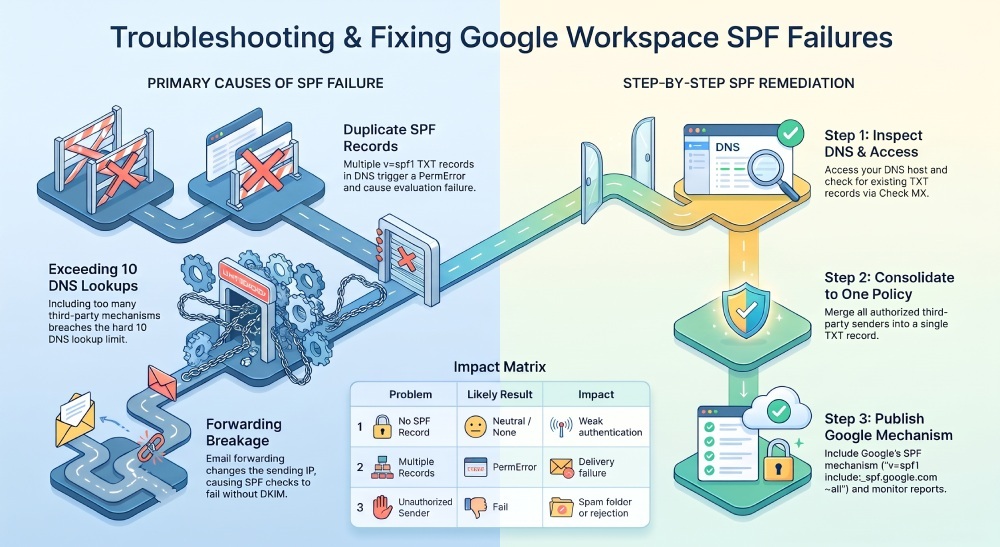
A domain should have one SPF record, not multiple records. If DNS contains two separate TXT entries that both start with v=spf1, receivers may return a permerror because the Sender Policy Framework specification expects a single policy.
| Problem | Likely SPF Result | Impact |
|---|---|---|
| No SPF record | neutral or none | Weak authentication |
| Multiple SPF records | permerror | Possible delivery failure |
| Unauthorized sender | SPF fail | Spam or rejection |
| Temporary DNS outage | temperror | Delayed or uncertain delivery |
To resolve this type of SPF error, you must consolidate SPF records into one clean policy.
Too Many DNS Lookups
SPF allows a maximum of 10 DNS-querying terms during a single evaluation. These include the mechanisms include, a, mx, ptr, and exists, as well as the redirect modifier. Nested lookups also count toward this limit. Exceeding the limit can result in a PermError, preventing successful SPF evaluation.
Why Nested Lookups Break SPF
Nested lookups are risky because an innocent-looking SPF mechanism can expand into several additional DNS queries. For example, adding Google Workspace, Salesforce, Microsoft, cloud computing platforms, and marketing tools may exceed the limit.
Edge Case: Forwarded Messages
Email forwarding can cause SPF authentication failures because the forwarding server may use its own IP address to deliver the original message. The recipient’s mail server checks this forwarding IP against the original sender’s SPF policy, which may not authorize it. As a result, SPF can fail even when the original sender was legitimate. DKIM can provide an additional authentication method if the original message’s signature remains valid after forwarding.
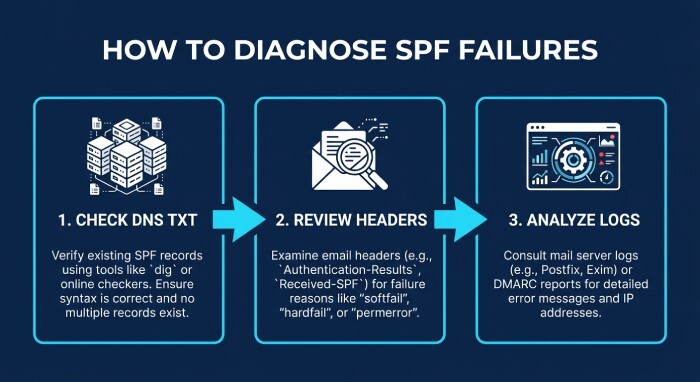
How to Diagnose SPF Failures in DNS Records and Email Headers
Check DNS TXT Records First
Start SPF troubleshooting by reviewing your DNS TXT record at your DNS provider or domain host. Your goal is to confirm that exactly one SPF record exists and that it uses valid SPF syntax.
You can inspect your SPF configuration with:
- Google Admin Toolbox
- Check MX tool
- DNS lookup utilities
- Command-line tools such as dig TXT example.com
- Google’s Check MX diagnostics
A correct DNS lookup should return one SPF policy. If the lookup returns multiple SPF policies, no policy, or malformed text, your DNS management needs correction.
Review Authentication-Results in Headers
Next, open the original email message in Gmail and select Show Original to inspect its authentication results. Locate the Authentication-Results header and review the SPF result.
Common outcomes include pass, fail, softfail, neutral, none, permerror, and temperror. These results help identify whether the sending IP is authorized, the SPF policy is missing or misconfigured, or a temporary DNS problem prevented evaluation.
A typical SPF header may look like:
Authentication-Results: mx.google.com;
spf=pass smtp.mailfrom=example.com
If the SPF result shows failure, compare the sending IP address with the authorized sources in the SPF record.
Edge Case: MX and PTR Mechanisms
Some older SPF configurations rely on MX record or PTR mechanisms. These can increase DNS lookup usage and introduce instability, so modern SPF best practices usually favor explicit includes or IP ranges.
Use Google Workspace Logs and Reports
A workspace admin can use Email Log Search, also called ELS, to investigate outgoing messages and delivery events. Workspace reporting tools can reveal whether messages were accepted, delayed, classified by a Spam filter, or rejected.
Step-by-Step Fixes for Google Workspace SPF Issues
Step 1: Verify Domain and DNS Access
Before changing SPF, confirm domain verification and access to the authoritative DNS management console. Your domain host controls where the DNS TXT record must be published.
If your organization recently migrated from G Suite to Google Workspace, check that old SPF entries were not left behind.
Step 2: Publish Google’s SPF Record
For a domain that sends only through Google Workspace, publish this SPF record:
v=spf1 include:_spf.google.com ~allThe include:_spf.google.com value is the key include mechanism that authorizes Google’s mail infrastructure. The ~all qualifier means softfail, which tells receivers that unauthorized sources are suspicious but not always rejected.
Understanding SPF Qualifiers
SPF qualifiers define how strict the final policy is:
- +all = pass everything, rarely appropriate
- ~all = softfail, commonly used during rollout
- -all = hard fail, stricter enforcement
- ?all = neutral, no clear policy
Edge Case: When to Use -all
Use -all only after confirming every legitimate email sender is authorized. If you move too quickly, legitimate email delivery from a CRM, cloud hosting app, or Contact Form may fail.
Step 3: Add Third-Party Senders Carefully
If you send through Salesforce, Microsoft, a marketing platform, or a web application, add the vendor’s approved SPF mechanism to the same SPF record. Do not create another SPF record.
Example:
v=spf1 include:_spf.google.com include:_spf.salesforce.com ~allThis is where IP address authorization becomes important. Some providers offer an include domain; others require explicit ip4 or ip6 values.
Step 4: Consolidate SPF Records
If multiple records exist, consolidate SPF records into a single policy. This SPF record consolidation prevents permerror and improves SPF validation.
Bad:
v=spf1 include:_spf.google.com ~all
v=spf1 include:spf.salesforce.com ~all
Better:
v=spf1 include:_spf.google.com include:spf.salesforce.com ~allAfter updating an SPF record, perform a fresh DNS lookup to verify the changes. DNS propagation depends on the provider’s TTL and caching behavior. Google notes that SPF authentication changes can take up to 48 hours to take effect globally.
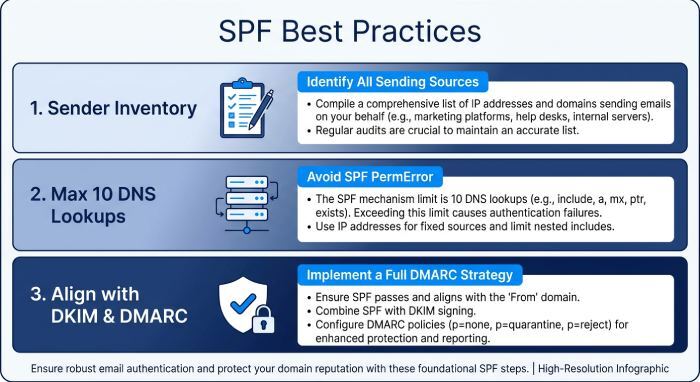
Best Practices to Prevent Future SPF Authentication Problems
Maintain a Sender Inventory
Create a live inventory of every email sender allowed to send for your domain. Include Google Workspace, Salesforce, Microsoft, website forms, help desk systems, marketing platforms, and cloud hosting services.
This prevents future SPF issues because every new tool must pass an SPF review before it sends production mail.
Keep DNS Lookup Count Below 10
Regularly audit your SPF record for excessive DNS lookup usage. Avoid unnecessary mx, ptr, and deeply chained includes. If needed, ask vendors for flatter SPF options or dedicated sending IPs.
Strong DNS management keeps your Sender Policy Framework implementation reliable and prevents temperror or permerror conditions.
Align SPF With Broader Email Authentication
SPF authentication works best with DKIM and DMARC. SPF alone does not solve every email forwarding or spoofing scenario, especially with forwarded messages where the visible sender path changes.
For better email authentication, monitor:
- Authentication-Results
- Gmail delivery behavior
- DMARC aggregate reports
- Workspace reporting tools
- Bounce patterns and email rejection events
Edge Case: SPF Pass but Still in Spam
An SPF pass does not guarantee inbox placement. Gmail may still send mail to the spam folder if content, reputation, complaint rate, DKIM, or DMARC alignment is weak.
FAQ About Google Workspace SPF Authentication
Q1. Why does Google Workspace show SPF PermError?
Google Workspace SPF PermError usually occurs when a domain has multiple SPF records, invalid SPF syntax, or exceeds the 10 DNS lookup limit. Review your DNS TXT records, consolidate duplicate SPF policies, and check nested lookup mechanisms.
Q2. Can SPF pass while DMARC fails in Google Workspace?
Yes. SPF can pass authentication but fail DMARC if the authenticated MAIL FROM domain does not align with the visible From domain. DKIM alignment can provide another way to achieve DMARC authentication.
Q3. How many SPF records should a Google Workspace domain have?
A domain should publish only one SPF record. If Google Workspace and third-party services send email, authorize all legitimate senders within the same SPF policy.
Q4. Does Google Workspace SPF protect against email spoofing?
SPF helps prevent unauthorized servers from sending email using your domain, but it does not provide complete spoofing protection by itself. Combining SPF with DKIM and DMARC provides stronger email authentication.
Q5. How long does it take for Google Workspace SPF changes to propagate?
DNS changes become visible according to the DNS provider’s ttl (time to live) and caching behavior. Some changes appear quickly, while others take longer to reach different DNS resolvers.
General Manager
General Manager of DuoCircle. Product strategy and commercial lead for DMARC Report's 2,000+ customer base.
LinkedIn Profile →Take control of your DMARC reports
Turn raw XML into actionable dashboards. Start free - no credit card required.