How to Set Up SPF Records for Ontramail and Ontraport

Quick Answer
To set up SPF records for Ontramail and Ontraport, add the required SPF TXT record to your domain’s DNS settings. This authenticates your email sources, helps prevent spoofing, and improves email deliverability by reducing the chances of messages landing in spam.
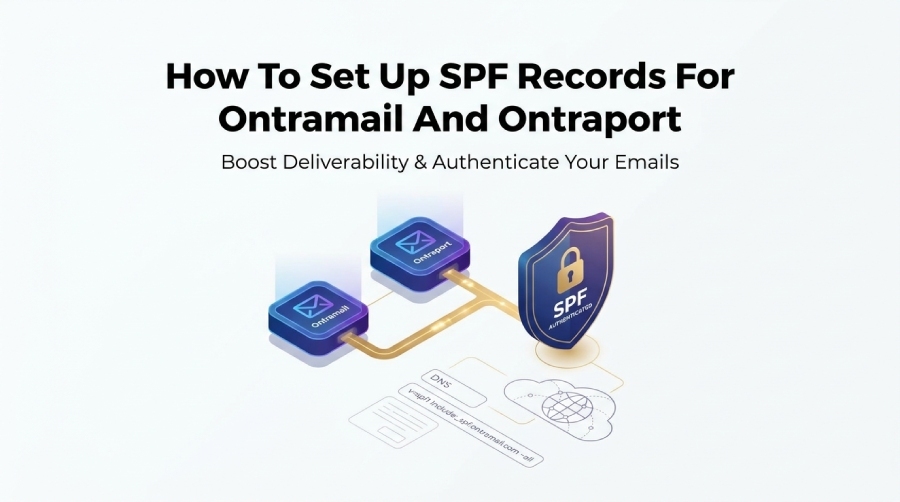
Setting up SPF records for Ontraport helps receiving mail servers verify whether authorized servers can send emails using your domain. Proper SPF configuration supports email authentication, reduces unauthorized sending, and contributes to reliable email delivery. In this guide, you’ll learn how to identify Ontraport’s SPF requirements, update your DNS records, verify your configuration, and troubleshoot common authentication issues.
What SPF Records Are and Why They Matter for Ontramail Deliverability
SPF, or Sender Policy Framework, is an email authentication protocol that identifies which mail servers are authorized to send messages using a domain’s envelope sender identity. If you use Ontraport for email campaigns and automated communications, an appropriately configured SPF record helps receiving mail servers verify whether the sending server is authorized to use your domain.
When SPF is missing or misconfigured, your emails may land in spam, fail authentication checks, or be rejected entirely. That can hurt email deliverability, campaign performance, real-time statistics, tracking and attribution, and the overall reliability of your campaign builder workflows.
Why SPF matters for Ontraport users
Ontraport combines email marketing, CRM functionality, and marketing automation. Businesses using these features to communicate with customers should configure email authentication correctly. SPF helps receiving servers identify authorized sending sources, while DKIM and DMARC provide additional protection against email spoofing and domain impersonation.
For example, SPF can affect emails sent from:
- The Ontraport campaign builder
- Automation sequences and workflow automation
- Lead scoring and customer segmentation rules
- Dynamic groups and contact filters
- Sales workflows and team member assignment alerts
- Order forms, upsells, order bumps, and decline recovery messages
- Membership Sites and Customer Center notifications
- Personalized content using Dynamic Content
- Referral Tracking messages and CRM follow-ups
SPF and brand trust
When SPF is configured correctly, receiving mail servers can verify whether an authorized sending server is permitted to send messages using your domain. However, SPF passing does not guarantee inbox placement. Combining SPF with DKIM and DMARC provides a stronger email authentication framework and helps protect your domain against unauthorized use.
SPF is also part of a broader authentication stack that includes DKIM and DMARC. Together, these protocols protect your brand identity, support email deliverability, and improve customer confidence.
Prerequisites: Accessing Your Domain DNS and Confirming Ontraport Sending Settings
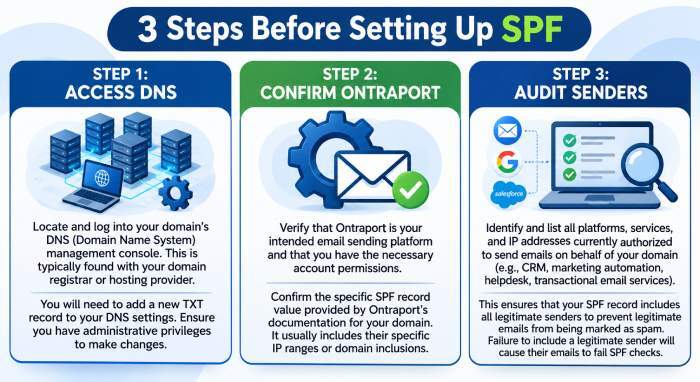
Before creating or editing an SPF record, confirm where your DNS is hosted and how Ontraport expects your sending domain to be configured.
1. Access your DNS provider
Before configuring SPF, make sure you have access to the DNS zone for the domain used in your email configuration. Your DNS records may be managed through providers such as GoDaddy, Cloudflare, Namecheap, Squarespace Domains, Bluehost, or SiteGround. If your organization manages DNS centrally, contact your IT administrator.
If your website uses integration with WordPress, remember that your DNS may not be managed inside WordPress itself. WordPress can host your site, landing pages, custom themes and templates, or membership sites, but DNS is usually managed separately.
2. Confirm your Ontraport sender domain settings
Before changing DNS records, review the custom sending domain configuration in your Ontraport account. Check the authentication instructions provided for your domain, including the required SPF and DKIM settings.
Published Ontraport SPF configuration references the following include mechanisms:
- include:
_spf-moon-ray.ontramail.com - include:
_spf-ontramail.ontramail.com
Confirm which mechanisms currently apply to your account using Ontraport’s official instructions or support team. Do not assume that an older or third-party SPF example is still valid.
3. Audit existing email services
Many businesses send mail from several platforms, including ActiveCampaign, SendinBlue, MailChimp, Salesforce, Eloqua, Google Workspace, Microsoft 365, or transactional email systems. Your SPF record must include all authorized senders.
This is especially important if your tech stack includes:
- Ontraport email marketing and marketing automation
- Salesforce or other CRM software
- Google Analytics integration and UTMs for attribution
- Facebook Custom Audiences and Facebook lead workflows
- Payment gateways for secure payment processing
- Offline transactions synced into the CRM
- Database integration with external apps
Step-by-Step SPF Setup for Ontramail and Ontraport
Follow these steps to authorize Ontramail and Ontraport to send email on behalf of your domain.
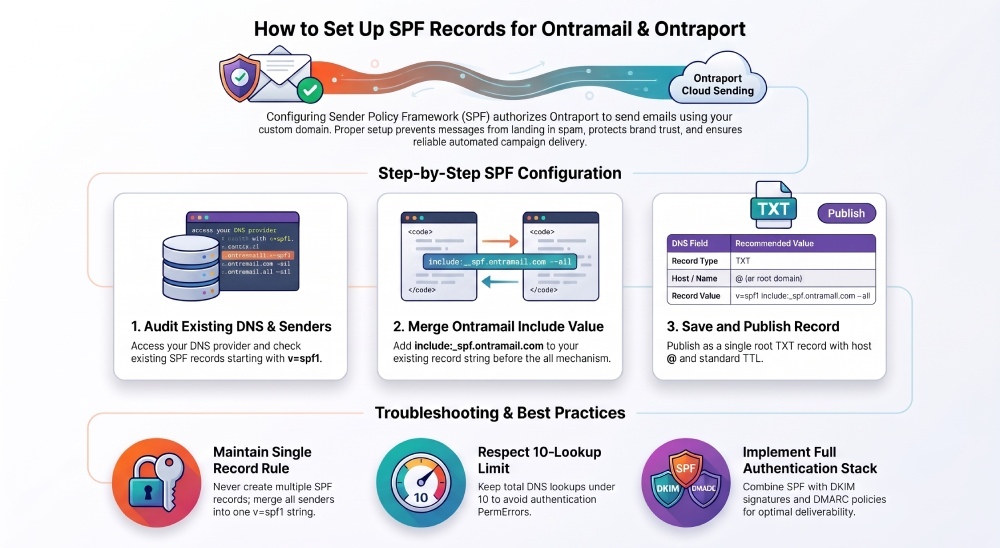
Step 1: Find your current SPF record
Log in to your DNS provider and look for a TXT record at the root domain, usually represented by:
@
or your full domain, such as:
example.com
An SPF record begins with:
v=spf1
You should only have one SPF TXT record per domain. Multiple SPF records can cause SPF failure.
Example existing SPF record
v=spf1 include:_spf.google.com ~allThis example authorizes Google Workspace only.
Step 2: Add the Ontramail include mechanism
If Ontraport provides the include value include:_spf.ontramail.com, you would merge it into your existing SPF record like this:
v=spf1 include:_spf.google.com include:_spf.ontramail.com ~allIf you do not already have an SPF record, create a new TXT record:
v=spf1 include:_spf.ontramail.com ~allAgain, use the exact Ontraport-provided value if it differs.
Step 3: Save the TXT record
Create or update the TXT record using these settings:
| DNS Field | Recommended Value |
|---|---|
| Type | TXT |
| Host/Name | @ or your root domain |
| Value | v=spf1 include:_spf.ontramail.com ~all |
| TTL | Auto, default, or 300–3600 seconds |
After saving, DNS propagation may take a few minutes to several hours.
How to Verify Your SPF Record and Troubleshoot Common DNS Issues
After publishing your SPF record, perform a DNS lookup to confirm that the record is publicly available, correctly formatted, and contains the required sending mechanisms. You should also test an actual email sent through Ontraport to check its SPF authentication result.
Use SPF lookup tools
Keep the lookup tools, but I recommend changing the tools list to:
- Google Admin Toolbox
- DNSChecker
- EasyDMARC SPF Checker
- MXToolbox SPF Lookup
Example command:
dig TXT example.comYou should see one SPF record beginning with v=spf1.
Check SPF inside Ontraport
Return to Ontraport and refresh the domain authentication status. If the record is detected, Ontraport should show that SPF is valid or authenticated.
This helps protect email marketing campaigns created in the drag and drop editor, campaign builder, and automation sequences that rely on CRM data, contact management, dynamic content, custom objects, and sales automation.
Common SPF issues and fixes
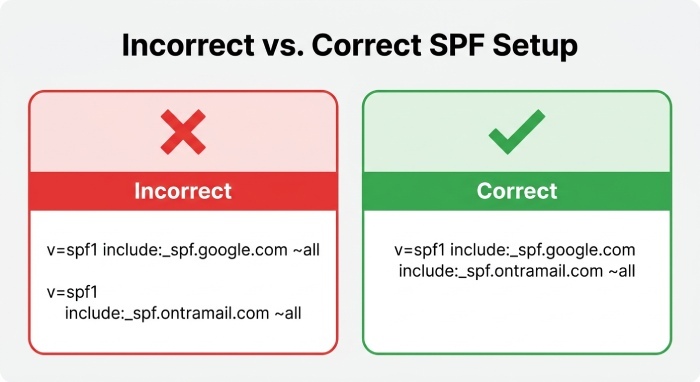
Issue: Multiple SPF records
Incorrect:
v=spf1 include:_spf.google.com ~all
v=spf1 include:_spf.ontramail.com ~all
Correct:
v=spf1 include:_spf.google.com include:_spf.ontramail.com ~allA domain can have only one SPF record.
Issue: Wrong host value
Some DNS providers require @, while others require the full domain. If you accidentally place the SPF record on a subdomain, Ontraport may not detect it.
Issue: Missing include value
If you send through Ontraport but only authorize Google, MailChimp, ActiveCampaign, SendinBlue, Salesforce, or Eloqua, Ontramail messages may fail SPF.
Issue: Too many DNS lookups
SPF permits a maximum of 10 DNS-query-causing terms during evaluation. Exceeding this limit can result in a PermError. Review nested includes, remove unused sending services, and optimize your SPF configuration without removing mechanisms required by active email platforms.
Issue: DNS propagation delay
If you just updated the record, wait and retest. Time to live (TTL) settings, registrar caching, and DNS propagation can delay verification.
Check real-world sending performance
After verifying SPF, monitor email authentication results, bounce rates, and delivery reports. Review messages sent through Ontraport and other authorized platforms to identify authentication failures. Regular monitoring helps detect DNS configuration problems before they affect ongoing email communications.
Best Practices for Maintaining SPF, DKIM, and DMARC Authentication
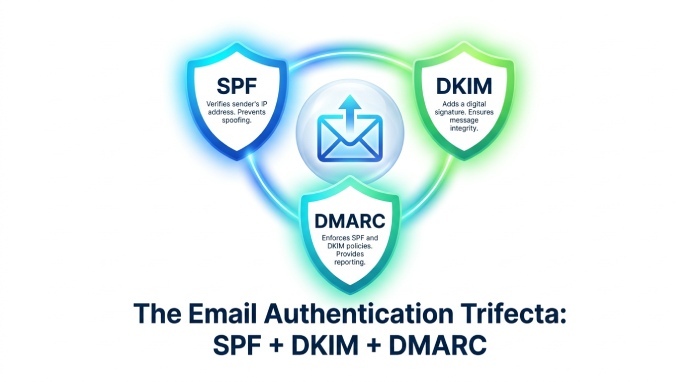
SPF is important, but it should not be the only authentication method you maintain. For strong email deliverability, configure SPF, DKIM, and DMARC together.
Keep SPF clean and current
Review your SPF record whenever you add or remove sending tools. If you stop using a platform, remove its SPF include.
This is especially important for businesses using Ontraport as their central CRM, marketing automation, contact management, and sales automation platform while also connecting external tools for database integration, landing pages, SMS messaging, Facebook, Google Analytics, or payment gateways.
Enable DKIM for Ontraport
DKIM adds a cryptographic signature to your messages. While SPF validates the sending server, DKIM verifies that the message was not altered in transit.
DKIM is highly recommended for:
- Email marketing broadcasts
- Campaign builder automations
- Dynamic content personalization
- Drag and drop editor templates
- Custom objects-based messages
- Membership sites notifications
- Contact management and CRM follow-ups
Publish a DMARC policy
DMARC tells mailbox providers what to do when SPF or DKIM checks fail. Start with a monitoring policy:
v=DMARC1; p=none; rua=mailto:dmarc@example.comThen gradually move toward stricter policies such as quarantine or reject once you confirm legitimate mail is passing authentication.
Final SPF Setup Checklist
Use this quick checklist before considering your Ontramail SPF setup complete:
- Confirm the correct sending domain in Ontraport
- Locate the existing SPF TXT record in DNS
- Merge the Ontramail include value into the existing SPF record
- Keep only one SPF record per domain
- Check the SPF 10-lookup limit
- Save the TXT record with the correct host value
- Wait for DNS propagation
- Verify SPF with an external lookup tool
- Refresh authentication status inside Ontraport
- Test real messages from your most important automations
- Review DKIM and DMARC alignment
- Document all approved senders for future maintenance
Once this checklist is complete, your domain is better prepared to support Ontraport email marketing, CRM communications, sales automation, eCommerce notifications, and long-term deliverability. SPF will not guarantee inbox placement by itself, but it gives mailbox providers a clear signal that Ontramail is authorized to send on behalf of your brand.
General Manager
General Manager of DuoCircle. Product strategy and commercial lead for DMARC Report's 2,000+ customer base.
LinkedIn Profile →Take control of your DMARC reports
Turn raw XML into actionable dashboards. Start free - no credit card required.