Sending Secure And Encrypted Emails In Outlook: Here’s What It Takes

Quick Answer
When you send out an email, you are under the assumption that only the recipient will be able to read it. But that’s not really what happens; your outgoing email does not just go from one server to another. In reality, before reaching the recipient, it passes through multiple servers, inbox filters, and other third-party platforms.
Related: Free DMARC Checker ·How to Create an SPF Record ·SPF Record Format
When you send out an email, you are under the assumption that only the recipient will be able to read it. But that’s not really what happens; your outgoing email does not just go from one server to another. In reality, before reaching the recipient, it passes through multiple servers, inbox filters, and other third-party platforms. This means that at each stage, there is an added risk of interception, unauthorized access, or accidental exposure.
This might not be a problem for emails containing everyday conversations or updates, but if you are sending contracts, payment details, customer information, financial records, or other confidential business data, even a minor security lapse could become a major problem.
Although platforms like Outlook offer built-in security features that ensure your sensitive information does not fall into the wrong hands, it is not as simple as turning on the “Encrypt” toggle and hoping everything is protected.
Understanding how to encrypt and secure your emails in Outlook and which best practices to follow can help you protect not only your business but also your customers, employees, and reputation. Let’s see how you can make it happen.
How to ensure that your outgoing emails are secure?
While Outlook comes with native security features, not all of them offer the same level of security. In fact, not all your emails need the same type of security. The right approach depends on the kind of information you are sending and who you are sending it to.
Here are some ways you can send secure emails in Outlook:
Encrypt with Outlook’s built-in encryption
If you simply want to protect your outgoing emails without getting into the hassle of setup, Outlook’s native encryption method is usually the easiest option.
Here’s how to go about it:
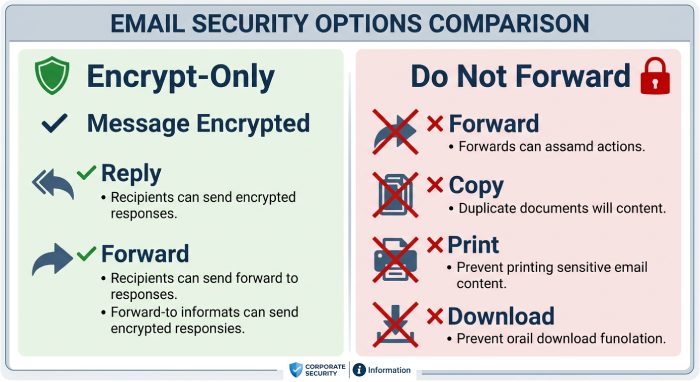
- While writing an email, click on “Options” and select “Encrypt”. Depending on your Outlook version or settings, you might either see options like “Encrypt-Only” or “Do Not Forward.”
- If you select “Encrypt-Only”, it scrambles your message in a way that only the intended recipient will be able to read. However, they can still reply to the email and forward it to someone else.
- As for the “Do Not Forward” Option, it gives you more control over what the recipient can do with the email. This option not only protects the email but also adds a restriction that can stop the recipient from forwarding, copying, printing, or downloading it.
When your recipient receives the encrypted email, they might not be able to read it as is, especially if they are using an email provider other than Outlook or another Microsoft email service; they will have to follow a set of instructions to open it securely.
Apart from this, there is no major setup involved. You do not need certificates, additional software, or complicated configuration steps. For most businesses, this method is usually enough to protect contracts, payment details, customer information, financial records, and other sensitive communications.
Add sensitivity labels for classification
If your organization sends sensitive data, it is important that your emails are properly classified based on the type of information they contain. After all, an internal update might not need the same level of attention and protection as a financial report or a legal document.
With sensitivity labels, you can classify your emails based on how sensitive the information is and let Outlook automatically apply the right security settings. This means you don’t have to wonder if an email needs encryption; all you have to do is classify the content type and let the label handle the security details.
To turn on these labels, click on the “Sensitivity” button while writing the email. Depending on your organization’s settings, you might see options like “Public,” “Internal,” “Confidential,” or “Highly Confidential,” all of which come with their own level of protection.
For instance, a “Confidential” label encrypts the message while adding a watermark, while the “Highly Confidential” label prevents the recipient from forwarding it and adds expiration dates to the message.
Configure S/MIME encryption
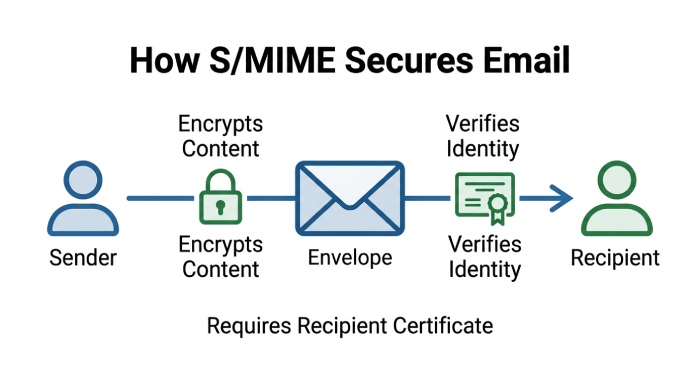
If you need stronger protection than Outlook’s built-in encryption, S/MIME is the most secure option.
While the basic encryption methods protect the contents of the email, S/MIME also adds a digital signature to it. This digital signature proves that the email really came from you and that it was not changed before reaching the recipient.
To enable this encryption method, you first need a digital certificate from your IT team or a trusted certificate provider.
Once you have the certificate, head over to File > Options > Trust Center > Trust Center Settings > Email Security, and add it to Outlook.
By following these steps, you can either enable S/MIME encryption for all your outgoing emails or even choose specific ones.
The only problem with this encryption method is that the recipient also needs to have the right certificate configured. This is what makes S/MIME a more complex but more secure encryption method.
Encryption protects the message body, but domain authentication protects your sender identity — our Microsoft 365 DMARC setup guide covers that side for Outlook users.
What else should you know about sending encrypted emails in Outlook 365?
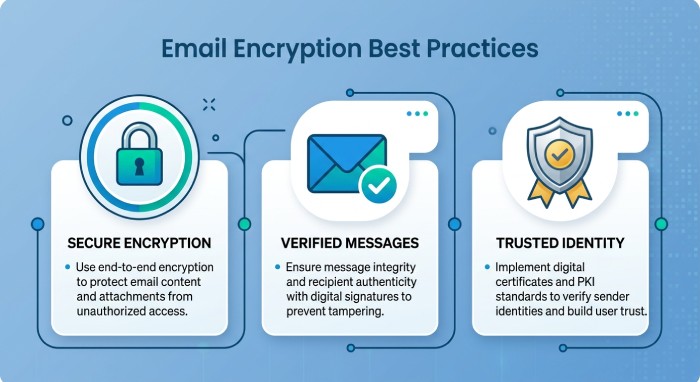
- You don’t have to encrypt every message you send. Use encryption only when the email contains sensitive information like contracts, payment details, customer records, or legal documents.
- Keep the subject lines simple and avoid using words like “confidential” or sharing sensitive details in them.
- Before sending encrypted emails to someone for the first time, it is a good idea to send a test email first and make sure they are able to open it properly.
- Always double-check the recipient’s email address before sending an encrypted email, as you won’t be able to recall it.
- Keep your certificates up-to-date, especially if you are using S/MIME encryption
- Set up automatic encryption rules so that emails containing certain keywords, such as “confidential” or “financial,” are encrypted automatically.
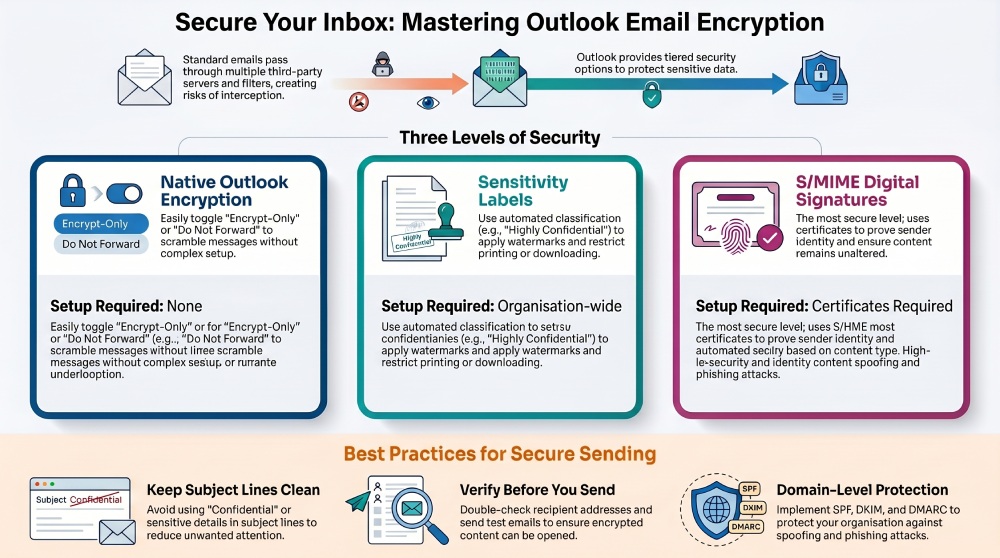
There are tools to send secure emails in Outlook, but protection does not stop at encryption. You need domain-level protection with SPF, DKIM, and DMARC to ensure your emails are not only secure but also trusted by recipients and protected against spoofing and phishing attacks. Publishing the DMARC record tells receiving servers exactly how to handle any message that fails these checks. To get started with your email authentication journey, contact us!
Topics
General Manager
General Manager of DuoCircle. Product strategy and commercial lead for DMARC Report's 2,000+ customer base.
LinkedIn Profile →Take control of your DMARC reports
Turn raw XML into actionable dashboards. Start free - no credit card required.