Pobox SPF Setup: How To Verify Records And Troubleshoot Authentication Failures

Quick Answer
Pobox SPF setup requires a correctly configured DNS record to authorize email senders. Verify your SPF record, fix syntax errors and DNS lookup issues, and resolve authentication failures to improve email deliverability and protect your domain from spoofing.
Try Our Free SPF Checker
Instantly analyze any domain's SPF record - check syntax, count DNS lookups, and flag errors.
Check SPF Record →Setting up Pobox SPF correctly is essential for improving email authentication and reducing delivery issues. By verifying your SPF records and troubleshooting common configuration errors, you can ensure that authorized mail servers are recognized and legitimate messages are less likely to be flagged as spam. This guide explains how to check your Pobox SPF setup, identify authentication failures, and maintain reliable email delivery with SPF, DKIM, and DMARC.
Understanding Pobox SPF and Why It Matters for Email Authentication
Pobox SPF is part of a broader email authentication strategy that helps receiving mail systems determine whether messages using your domain are authorized. SPF, or Sender Policy Framework, checks the sending IP address against the SPF record published in DNS for the envelope sender domain. If the sending mail source is not listed, the recipient system may treat the message as suspicious, route it to spam, or reject it with a bounce.
For Pobox users, SPF is especially important because many accounts use email forwarding, personal domains, or multiple sending identities. If you send through Pobox SMTP servers, check Pobox’s current documentation for the correct SPF configuration and add the verified authorization mechanism to your domain’s existing SPF record.
A correct SPF setup also helps create consistency across your domain’s DNS, sending tools, and authentication policies. When the SPF record accurately reflects how your mail is sent, mailbox providers have a clearer signal that your messages are legitimate. This is especially useful for domains that have been used for a long time, domains that forward mail, or domains where multiple email applications are configured across desktop and mobile devices.
How SPF Works with Pobox
When you are sending mail through Pobox, the receiving mail server looks up your domain’s DNS and evaluates the SPF record. A correct Pobox SPF entry tells ISPs, corporate gateways, Gmail, Yahoo Mail, Outlook Mail, and other mailbox providers that Pobox SMTP servers are allowed to send on behalf of your domain.
A typical SPF record for a domain that sends only through Pobox may look like this:
v=spf1 include:pobox.com ~allThe include:pobox.com mechanism tells the recipient server to also trust the SPF policies published by Pobox. This is the key value most users need when they set up SPF for Pobox.
In practical terms, the SPF check happens during the SMTP conversation before the recipient ever sees the message in an inbox. The receiving system compares the connecting mail server with the authorized sources in your SPF TXT record. If the connecting source matches Pobox or another approved sender, SPF can pass. If it does not match, the result may be fail, softfail, neutral, or permerror depending on the policy and record structure.
Why SPF Alone Is Not Enough
SPF is essential, but it is only one layer of email authentication. For stronger protection, combine SPF with DKIM and DMARC. DKIM signs the message content, while SPF validates the SMTP servers and envelope sender. Together, they improve account security, reduce spoofing, and help protect business email from impersonation.
SPF is particularly useful for identifying unauthorized infrastructure, but it does not prove that the message content was unchanged after sending. That is why DKIM is valuable. DMARC then checks whether SPF or DKIM aligns with the visible From domain and gives domain owners a way to request monitoring, quarantine, or rejection of suspicious mail. For a personal domain, this can reduce spoofing. For a business domain, it can protect customers, vendors, and employees from messages that appear to come from your brand.
SPF and the Envelope Sender
SPF does not authenticate the visible “From” address directly. It evaluates the envelope sender used during the smtp transaction. This distinction matters because forwarded messages, email marketing provider platforms, and help desk tools may use a different envelope sender than the address visible to the recipient.
For example, a message may appear to be from you@example.com, but the actual return path may be controlled by an email marketing provider or forwarding service. SPF evaluates that return-path domain, not necessarily the human-readable From address. This is one reason a message can show a visible address from your domain but still fail SPF alignment under DMARC if the authenticated envelope sender belongs to another domain.
Creating or Updating Your Pobox SPF DNS Record Correctly
To set up SPF, you publish a TXT record in DNS for the domain you use when sending mail. This is usually done at your DNS host, registrar, or web hosting control panel. If you are unsure where to edit records, identify who controls your host DNS or domain’s DNS before making changes.
Before editing, confirm whether your DNS is hosted with your registrar, a website hosting company, a dedicated DNS provider, or a service such as a CDN (Content Delivery Network). Many domain owners register a domain in one place but manage the domain’s DNS somewhere else. Editing records in the wrong dashboard is a common reason SPF changes appear correct in one control panel but never show up in public DNS lookups.
Basic Pobox SPF Record Syntax
For a simple setup where Pobox is the only service sending mail for your domain, use:
v=spf1 include:pobox.com ~allThis SPF record authorizes Pobox SMTP servers and tells receiving systems to treat unauthorized senders as suspicious rather than reject them outright. If you prefer stricter enforcement later, you can change ~all to -all, but only after verification confirms every legitimate sender is included.
The record must be published as a TXT record at the correct hostname. For a root domain such as example.com, many DNS panels use @ as the host or name field. For a subdomain such as mail.example.com, you would publish the SPF TXT record at that subdomain instead. Always match the SPF record location to the domain that appears in the envelope sender or the domain you are authenticating.
Recommended Starting Policy
For most personal domains and new Pobox configurations, ~all is safer during initial setup because it reduces the risk of accidental bounce messages while you verify all sending sources.
Once you are confident that all legitimate senders are included and that your test messages pass authentication, you can consider a stricter policy. However, moving to -all too quickly can cause valid mail to fail if you overlooked a website contact form, billing tool, scanner, help desk system, or older email client. A gradual approach is usually safer.
Adding Other Senders Safely
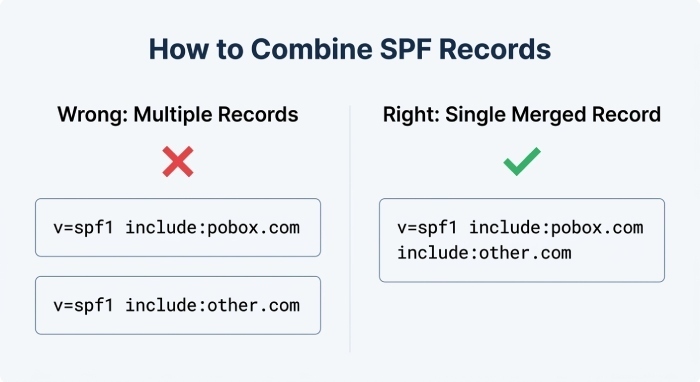
If your domain also sends through an email marketing provider such as Constant Contact, a Customer Relationship Management (CRM), Postfix server, or a static IP address, you must include those sources in the same SPF record. A domain must not have multiple SPF records. Instead, combine all authorized senders into one TXT record.
Example:
v=spf1 include:pobox.com include:spf.constantcontact.com ip4:203.0.113.10 ~allThis example authorizes Pobox, an email marketing provider, and a static IP address. If you later add domain sending from another email provider, update the same SPF record rather than creating a second one.
When combining senders, use the exact SPF include or IP mechanism recommended by each provider. Do not guess the include value from a provider’s domain name unless their documentation confirms it. Some services use dedicated SPF hostnames that are different from the website or login domain. Incorrect include values can cause SPF failures or unnecessary DNS lookups.
Avoiding Multiple SPF Records
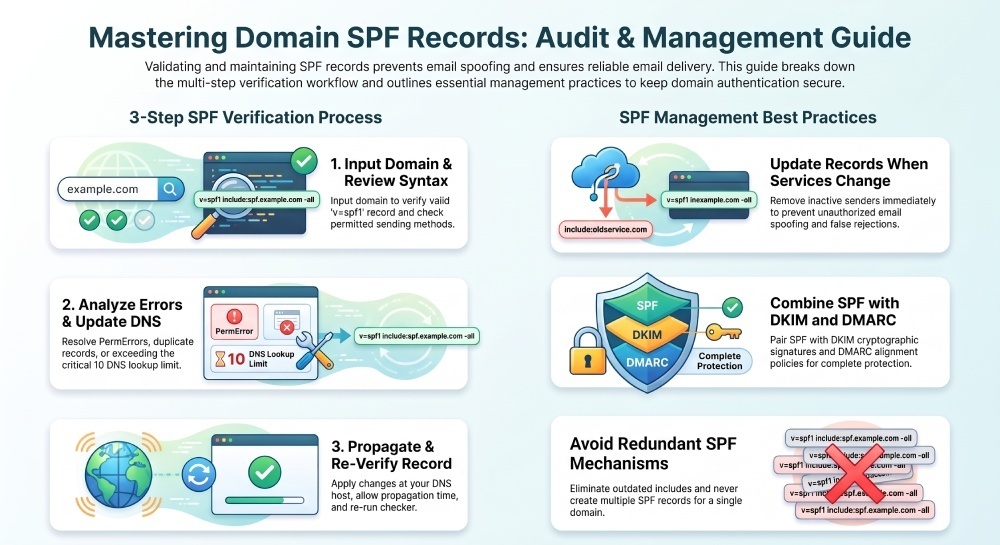
One of the most common mistakes when editing SPF record values is publishing two separate TXT records that both begin with v=spf1. This causes a permanent error and can break email authentication.
If you discover multiple SPF records, merge them into one. For example, do not publish one TXT record for Pobox and another TXT record for an email marketing provider. Instead, create a single SPF policy containing both authorized sources. After saving the merged record, wait for DNS propagation and confirm the public result with a TXT lookup.
SPF and MX Records
SPF records are separate from MX records. MX records control where incoming mail is delivered, while SPF controls which SMTP servers may send mail for the domain. Changing MX records for Mailstore, Pobox Basic, or Pobox Plus does not automatically set up SPF.
This separation can be confusing because both record types affect email, but they serve different purposes. MX records tell other servers where to deliver messages addressed to your domain. SPF tells other servers whether a message claiming to use your domain was sent from an authorized source. You may receive mail through one provider and send mail through another, so both settings must be reviewed independently.
How to Verify Pobox SPF Records Using DNS Lookup Tools
After publishing the SPF record, use DNS lookup tools to confirm that the record is visible globally. DNS changes can take minutes or hours depending on Time-To-Live(TTL), caching, and your DNS host.
If your DNS host allows you to set TTL values, shorter TTLs can make planned changes easier to test. However, once a record has already been cached, some resolvers may continue showing the older value until the previous TTL expires. This is why a record may look correct in your DNS panel but still fail from an external lookup tool for a short period of time.
Using a DNS TXT Lookup
A DNS TXT lookup should return a single SPF record similar to:
v=spf1 include:pobox.com ~allWhen reviewing headers, compare the smtp.mailfrom or Return-Path domain with the domain you expected to authenticate. If the return path belongs to Pobox, a forwarding system, or a third-party provider, SPF may pass for that provider’s domain while not aligning with your visible From domain. That distinction is especially important when troubleshooting DMARC failures.
Common Pobox SPF Authentication Failures and What They Mean
SPF failures usually come from missing senders, malformed DNS, forwarding behavior, or mismatched envelope sender domains.
A good troubleshooting process starts by identifying the exact SPF result and the domain that was checked. “SPF failed” is not always enough information by itself. You need to know whether the failure was caused by an unauthorized IP address, a syntax problem, multiple SPF records, too many DNS lookups, or alignment issues under DMARC.
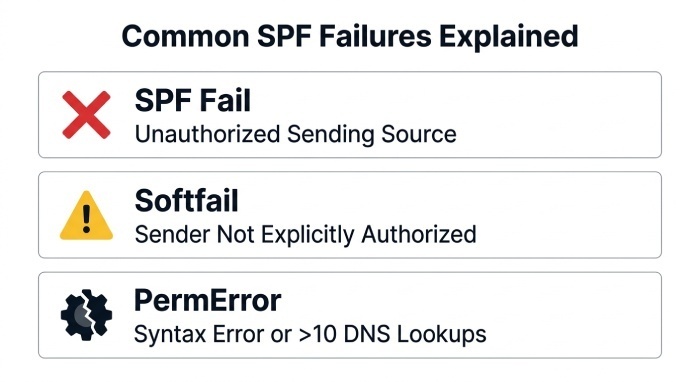
SPF Fail: Unauthorized Sending Source
An SPF fail means the mail server that sent the message is not authorized by the domain’s SPF record. This often happens when a user sends from an email application through non-Pobox SMTP servers while using a Pobox address as the visible From address.
For example, sending mail from Outlook 2016, Outlook 2013, Outlook 2007, Thunderbird, Mac Mail, Windows 10 Mail, Mailbird, Airmail 3, Entourage, Mutt, Outlook Express, Windows Mail, Windows Live Mail, Android 5.0, Samsung Mobile Email, Blackberry, or iPhone/iPad must use authorized SMTP servers. If the client uses an ISP relay or another smtp server, SPF may fail.
This can happen after an email client update, a password change, or an account migration. Some clients try to auto-detect outgoing server settings and may choose an ISP SMTP server or a previously saved account configuration. If the visible From address is your personal domain but the message leaves through an unauthorized server, recipient systems may see the message as spoofed.
SPF Softfail or Neutral
A softfail usually means the SPF record ends in ~all, and the sender is not clearly authorized. The recipient may still accept the message but classify it as spam. Neutral results can occur when the SPF record uses ?all or when the domain has not defined a strong policy.
Softfail can be useful during setup because it gives you visibility without immediately rejecting mail. However, if you see softfail results for mail that should be legitimate, treat that as a warning. It means the message is not matching an authorized source, and some recipient systems may still reduce trust even if the message is delivered.
SPF PermError
A permanent error often indicates invalid syntax, multiple SPF records, or too many DNS lookups. SPF has a 10-DNS-lookup limit. If you include Pobox, an email marketing provider, Web Service Providers, and several other platforms, the SPF record can become too complex.
Common syntax problems include missing spaces between mechanisms, extra quotation marks copied into the value, unsupported mechanisms, or accidental line breaks inserted by a DNS control panel. While long TXT records can be split internally by DNS, the published result must still resolve as one logical SPF string.
Too Many Includes
Each include may trigger more DNS lookups. Keep the SPF record lean by removing unused services and consolidating senders where possible.
If you are close to the lookup limit, review whether every platform still sends mail for the domain. Old trial accounts, retired email marketing tools, previous CRMs, and abandoned help desk systems often remain in SPF records long after they are needed. Removing obsolete senders reduces risk and makes authentication easier to maintain.
Advanced Pobox SPF Best Practices for Complex Domains
For simple personal use, a single SPF record with include:pobox.com may be enough. More complex domains need a more deliberate plan, especially when Pobox is used alongside forwarding, aliases, web forms, newsletters, transactional mail, and third-party applications. A little documentation can prevent future authentication failures when someone changes providers, launches a new campaign, or migrates DNS.
Start by creating a short inventory of every tool that sends mail using your domain. Include the service name, purpose, envelope sender, visible From address, SPF requirement, DKIM status, and owner. This inventory does not need to be complicated, but it should be accurate. If you ever need to audit your domain’s DNS, troubleshoot a bounce, or respond to a spoofing incident, this list can save significant time.
Plan SPF Around Real Sending Paths
SPF should describe the actual servers that send mail, not the services you think might be involved. If all user mail is sent through Pobox SMTP, then Pobox belongs in the record. If a website sends password resets through a transactional provider, that provider must be included. If a CRM sends sales mail using your domain, its SPF and DKIM instructions should be reviewed before messages are sent.
Avoid adding unnecessary includes “just in case.” Every include can increase DNS lookup count and expand the set of infrastructure authorized to send for your domain. A smaller, accurate SPF record is better than a broad record that authorizes services you do not use.
Use Subdomains for Separate Mail Streams
If you send very different types of mail, consider using subdomains. For example, personal or direct mail might use example.com, newsletters might use news.example.com, and transactional notices might use notify.example.com. Each subdomain can have its own SPF, DKIM, and DMARC configuration.
This approach reduces complexity in the root domain’s SPF record and makes troubleshooting easier. If a newsletter platform has a problem, it affects the newsletter subdomain rather than every message from the main domain. Subdomains also make reporting and reputation management cleaner because mailbox providers can evaluate mail streams separately.
Review Forwarding and SRS Behavior
Forwarding can complicate SPF because the forwarding server becomes the server that delivers the message to the final recipient. If that forwarding server is not authorized by the original sender’s SPF record, the final recipient may see an SPF failure. This is not unique to Pobox; it is a general limitation of SPF.
Some forwarding systems use SRS, or Sender Rewriting Scheme, to rewrite the envelope sender so SPF can survive forwarding. If you rely heavily on forwarding, review how your forwarding path handles envelope senders and whether DKIM and DMARC are passing. In many forwarded-message scenarios, DKIM becomes especially important because it can remain valid even when SPF does not align.
Keep DNS Changes Controlled
Whenever possible, avoid making several email DNS changes at once. If you change MX records, SPF, DKIM, and DMARC all in the same hour, it can be difficult to identify which change caused a problem. For important domains, make one change, verify it, send test messages, and then continue.
Keep a copy of the previous SPF record before editing. If delivery unexpectedly breaks, you can compare the old and new versions or temporarily roll back while you investigate. This is especially important if multiple administrators have access to the domain’s DNS control panel.
Pair SPF Checks with DMARC Reports
DMARC aggregate reports can show which sources are sending mail for your domain and whether SPF or DKIM passes alignment. Even if you do not enforce a strict DMARC policy immediately, monitoring reports can reveal forgotten systems, unauthorized senders, and configuration gaps.
For Pobox users with personal domains, DMARC reports may feel technical at first, but they are helpful when deciding whether it is safe to move from ~all to -all or from a monitoring DMARC policy to quarantine or reject. The goal is to avoid blocking legitimate mail while reducing unauthorized use of the domain.
Troubleshooting and Maintaining SPF Alignment for Reliable Delivery
Maintaining SPF is not a one-time task. Any time you change an email provider, add a mail server, update webmail settings, or move a domain, review the SPF record.
A domain that was correctly configured last year may not be correct today. Providers change infrastructure, companies adopt new tools, users add mobile devices, and website plugins may begin sending mail from the domain. Regular review keeps SPF aligned with reality and helps prevent sudden delivery problems.
Confirm How You Are Sending Mail
Start by identifying every system sending mail for the domain:
- Pobox SMTP servers
- Pobox webmail
- Mailstore accounts
- Gmail or Outlook connected accounts
- Email marketing provider platforms
- Business email suites
- Website forms or Postfix servers
- CRM, billing, or ticketing systems
Each authorized source must be represented in DNS. If you set up SPF once but later add another email marketing provider, your SPF record may become outdated.
It is also important to identify systems that send mail indirectly. A contact form may send through your web host, a billing platform may send invoices through its own mail infrastructure, and a help desk may send replies using a custom return path. These tools may require more than SPF; many also require DKIM CNAME records, domain verification records, or bounce handling setup.
Maintain Alignment with the Envelope Sender
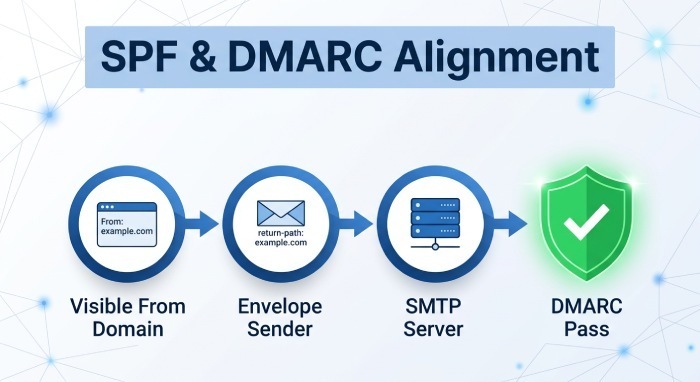
Reliable email authentication depends on alignment between the visible From domain, the envelope sender, and the authenticated SMTP servers. If the envelope sender belongs to a third-party service, that service may need its own SPF and DKIM configuration. This is common with Constant Contact and other email marketing provider tools.
Alignment is especially important when DMARC is enabled. A message can technically pass SPF for a third-party envelope sender while still failing DMARC if that envelope sender domain does not align with the visible From domain. To avoid this, configure custom return-path or bounce domains when your provider supports them, and enable provider-specific DKIM signing for your domain.
Review Pobox Documentation and Historical Clients
Pobox, founded by Meng Weng Wong, has long supported flexible email identities, forwarding, and client access. Because users may connect many clients—such as Mailbird, Thunderbird, Mac Mail, Blackberry, Windows 10 Mail, and Outlook—delivery issues often come from mixed sending paths rather than from Pobox itself.
If you rely on pobox.com settings, confirm that the setup instructions in MyPobox match the current configuration in your email application. Older clients such as Outlook Express, Entourage, Windows Mail, and Mutt may require manual server entries, while newer clients may auto-detect settings but still choose the wrong SMTP servers.
For best results, verify the outgoing server, port, encryption method, and authentication username in each client. A device that receives mail correctly may still be sending through the wrong outgoing server. If only one device produces SPF failures, compare its SMTP settings with a device that sends successfully.
When to Contact Pobox Support
Open a support ticket when:
- DNS lookup tools show the correct SPF record, but Pobox verification fails.
- You see SPF permerror or multiple SPF records.
- Messages sent through Pobox SMTP servers fail email authentication.
- Forwarded messages consistently bounce or land in spam.
- You are unsure whether to set up SPF for a root domain, subdomain, or personal domains.
Include the domain, current SPF record, message headers, sending mail path, and whether you use DKIM, email forwarding, Mailstore, Pobox Basic, or Pobox Plus. This gives support enough context to identify whether the issue is DNS, envelope sender alignment, SMTP servers, or another email authentication problem.
You should also mention when the issue began, whether any DNS or hosting changes were made recently, and which mailbox providers are rejecting or filtering the messages. A complete support request reduces back-and-forth and helps isolate whether the problem is caused by propagation, syntax, account settings, reputation, forwarding, or an overlooked sender.
Before closing the issue, send fresh test messages and review headers again. Confirm that SPF passes, DKIM passes where expected, and DMARC produces the intended result. Once the authentication path is stable, document the final SPF record and keep it with your domain administration notes for future reference.
General Manager
General Manager of DuoCircle. Product strategy and commercial lead for DMARC Report's 2,000+ customer base.
LinkedIn Profile →Take control of your DMARC reports
Turn raw XML into actionable dashboards. Start free - no credit card required.