How To Fix “A Null DNS Lookup Was Found For Include” In SPF

Quick Answer
Fix the SPF null DNS lookup error by checking invalid or outdated include records, verifying included domains have valid SPF records, removing incorrect entries, and updating your DNS settings to ensure proper email authentication and deliverability.
An SPF record helps receiving mail servers verify whether a sending server is authorized to send emails on behalf of a domain. However, an incorrectly configured SPF record can trigger DNS lookup errors and interfere with SPF evaluation.
One warning you may encounter during an SPF check is “A Null DNS Lookup Was Found for Include.” This message usually indicates that an SPF include mechanism points to a hostname that does not return the expected DNS information.
To resolve this issue, identify the problematic include, check its DNS response, and correct the SPF configuration without exceeding lookup limits.
This guide explains what the warning means, its common causes, and how to fix it.
What Does “A Null DNS Lookup Was Found to Include” Mean?
An SPF include mechanism allows a domain owner to authorize another domain’s SPF policy as part of their own record. Businesses commonly use it when sending emails through third-party services, such as marketing platforms and cloud email providers.
For example:
v=spf1 include:_spf.example.com -allThe receiving server checks the SPF policy published by _spf.example.com when evaluating the sending domain.
A void DNS lookup generally occurs when a DNS query returns NXDOMAIN or NOERROR without an answer, as described in RFC 7208.
The warning “A Null DNS Lookup Was Found for Include” is a diagnostic message used by some SPF testing tools. It is not a formal SPF result defined by the RFC.
If an included domain does not publish a valid SPF policy, its evaluation may return permerror, affecting the parent domain’s SPF evaluation.
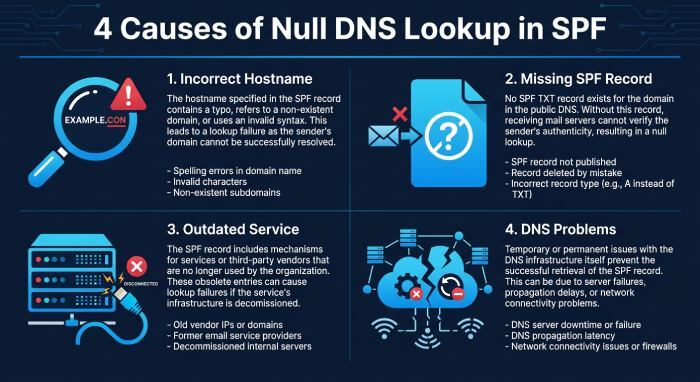
Common Causes of a Null DNS Lookup in SPF
Several DNS and configuration problems can trigger this warning.
1. Incorrect Include Hostname
A spelling mistake or incorrect hostname can direct a DNS query to a domain that does not exist.
For example:
v=spf1 include:_spf.exmaple.com -all
If the intended hostname is different, the DNS query may return NXDOMAIN. Always copy the exact SPF include value from your email provider’s official documentation.
2. Missing SPF Record
An included hostname must publish an SPF policy for the mechanism to work correctly. If the hostname does not return a valid SPF record, the include cannot be evaluated successfully.
This may happen when a provider changes its DNS configuration or removes an older SPF hostname.
3. Outdated Email Service Configuration
Businesses sometimes retain SPF includes for email services they no longer use. If a provider retires or changes its sending infrastructure, an old include may stop returning the expected DNS information.
Review your SPF record whenever you change email providers or discontinue a sending service.
4. DNS Configuration Problems
Missing DNS entries, incorrect records, or temporary resolution problems may prevent an included hostname from returning the expected information. Check whether the issue occurs consistently before treating it as a permanent SPF configuration problem.
How to Identify the Problematic SPF Include
Before editing your SPF record, identify which include is causing the warning. Removing the wrong entry could affect legitimate email services.
Step 1: Find Your Current SPF Record
Use a DNS lookup tool or command-line utility to retrieve your domain’s TXT records.
With dig: dig TXT example.com
With nslookup: nslookup -type=TXT example.com
Replace example.com with your actual domain. Find the TXT record beginning with v=spf1.
If multiple SPF records exist at the same DNS name, that is a separate configuration problem that should also be corrected.
Step 2: List Every Include Mechanism
Review your SPF record and identify all entries beginning with include:.
For example:
v=spf1 include:_spf.google.com include:spf.example.net -allThis record contains two include mechanisms. Confirm which email services your organization currently uses before changing either entry.
Step 3: Query Each Included Domain
Check the DNS response for every included hostname.
dig TXT _spf.example.com Or: nslookup -type=TXT _spf.example.com
Look for a valid SPF policy beginning with v=spf1.
If the hostname returns NXDOMAIN, it does not exist in DNS. If it returns NOERROR without an answer, the requested TXT record may be missing. These responses require investigation before changing your SPF configuration.
Step 4: Check the Provider’s Documentation
If an included hostname does not return the expected SPF policy, consult your email provider’s official documentation.
For example, Google Workspace documents this SPF include:
include:_spf.google.com
Use the exact value recommended for your service. Do not guess a replacement hostname.
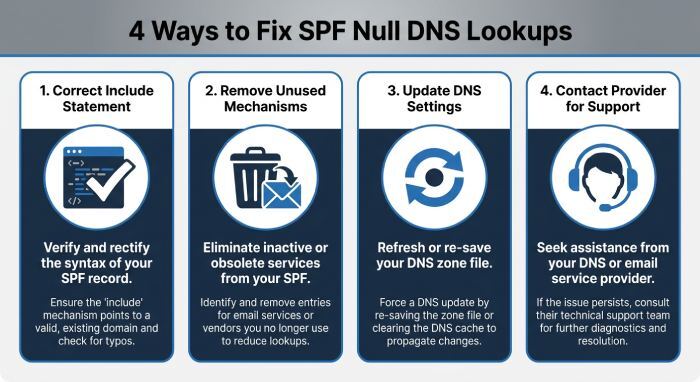
How to Fix a Null DNS Lookup in an SPF Include
After identifying the problematic hostname, apply the correction that matches the underlying issue.
1. Correct an Incorrect Include
If the hostname contains a spelling mistake or is outdated, replace it with the exact value provided by your email service.
Do not make changes based only on a similar-looking domain. Verify the correct hostname through official documentation or provider support.
2. Remove an Unused Include
If your organization no longer sends emails through a service, determine whether its include can safely be removed.
For example, if you have confirmed that old-service.example is no longer required, you may remove it from:
v=spf1 include:_spf.google.com include:old-service.example -all
The revised record could be:
v=spf1 include:_spf.google.com -all
This is an illustrative example. Before removing an entry, check whether websites, applications, or marketing platforms still use that service to send emails.
3. Update Outdated Provider Settings
Some email providers change their DNS requirements. If a provider has replaced an older SPF hostname, follow its current setup instructions.
Update the include mechanism and verify that the new hostname returns a valid SPF policy. Avoid creating multiple SPF TXT records while making changes.
4. Contact the Provider
If the official include hostname consistently returns no valid SPF policy, contact the provider’s support team.
Ask whether the hostname is still active, whether its DNS configuration has changed, and which SPF value you should use.
Avoid replacing provider includes with guessed IP addresses. Email service providers may use changing sending infrastructure, making incomplete IP lists unreliable.
Understand SPF DNS Lookup and Void Lookup Limits
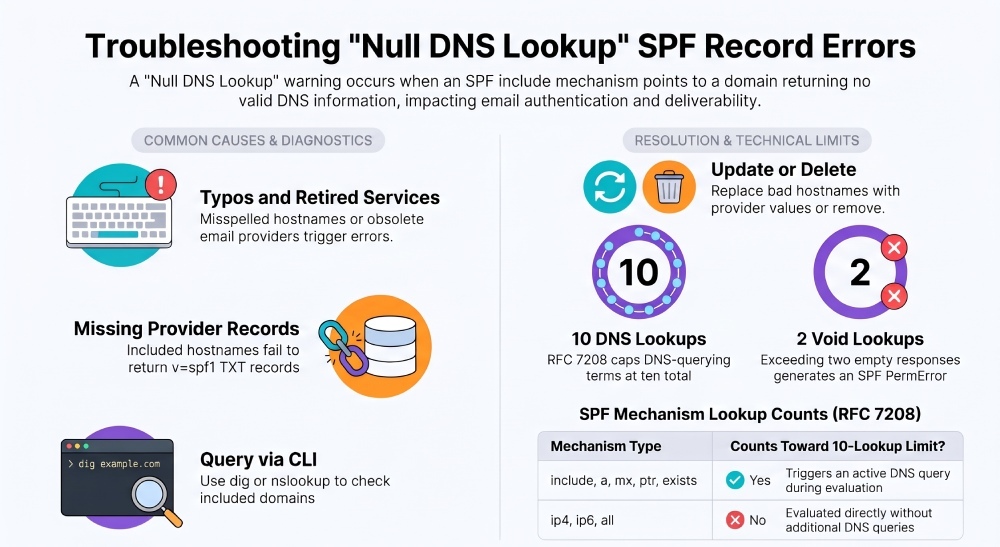
RFC 7208 limits SPF evaluation to 10 DNS-querying terms. These include:
- include
- a
- mx
- ptr
- exists
- Redirect
The ip4 and ip6 mechanisms do not count toward this DNS-query limit. SPF also has a separate concept called a void lookup. RFC 7208 recommends that implementations limit void lookups to two. Exceeding an implementation’s configured void lookup limit can produce permerror.
These issues are related but different:
- Void lookup: A DNS query returns NXDOMAIN or NOERROR without an answer.
- DNS lookup limit: SPF evaluation exceeds the permitted number of DNS-querying terms.
- SPF PermError: SPF evaluation cannot be completed because of a permanent configuration or evaluation error.
Remove unnecessary includes and investigate DNS references that return empty responses to help prevent these problems.
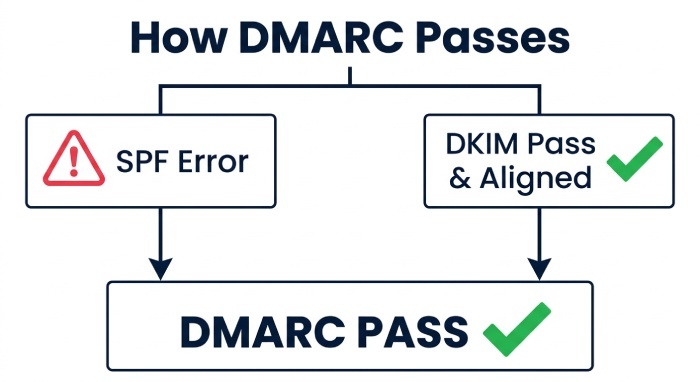
Does a Null DNS Lookup Affect DMARC Authentication?
A problematic SPF include can cause SPF evaluation to return permerror. However, this does not automatically mean DMARC authentication will fail.
DMARC passes when at least one of these conditions is met:
- SPF passes and the authenticated SPF domain aligns with the visible From domain.
- DKIM passes and the signing domain aligns with the visible From domain.
Therefore, an aligned DKIM signature may allow DMARC to pass even when SPF encounters an error.
However, you should still correct the SPF configuration. Review DMARC aggregate reports to understand how different sending services perform authentication.
Best Practices to Prevent SPF Include Errors
Follow these practices to maintain a reliable SPF configuration:
- Verify provider hostnames: Use current SPF values from official documentation.
- Review DNS records: Check for missing, outdated, or incorrect include mechanisms.
- Remove unused services: Eliminate obsolete SPF references after confirming they are unnecessary.
- Monitor lookup limits: Keep SPF evaluation within the 10-term limit.
- Check void lookups: Investigate include
General Manager
General Manager of DuoCircle. Product strategy and commercial lead for DMARC Report's 2,000+ customer base.
LinkedIn Profile →Take control of your DMARC reports
Turn raw XML into actionable dashboards. Start free - no credit card required.