How To Set Up SPF, DKIM, And DMARC For Your Domain?

Quick Answer
Cyberattacks have become so frequent and sophisticated that it is nearly impossible to completely evade them. But that does not mean you cannot protect your domain at all, or that all your security efforts will be deemed futile. What you can do is make it difficult for the attackers to misuse your domain for malicious purposes, such as sending phishing.
Related: Free DMARC Checker ·How to Create an SPF Record ·SPF Record Format

Try Our Free DMARC Checker
Validate your DMARC policy, check alignment settings, and verify reporting configuration.
Check DMARC Record →
Cyberattacks have become so frequent and sophisticated that it is nearly impossible to completely evade them. But that does not mean you cannot protect your domain at all, or that all your security efforts will be deemed futile. Understanding what is DMARC is a good place to start. What you can do is make it difficult for the attackers to misuse your domain for malicious purposes, such as sending phishing emails or impersonating your business.
One of the best ways to ensure your email ecosystem is secure and that your outgoing emails reach their recipients securely is to implement SPF, DKIM, and DMARC for your domain. These email authentication protocols work together to verify whether the email was actually sent by you or an authorized sender. If not, the receiving server can either flag the message or reject it, depending on the policy you have configured.
In this article, we will understand what these email authentication protocols do and how to configure them to create a more secure email environment, improve email deliverability, and reduce the risk of phishing and spoofing attacks.
What is SPF and how can you set it up?
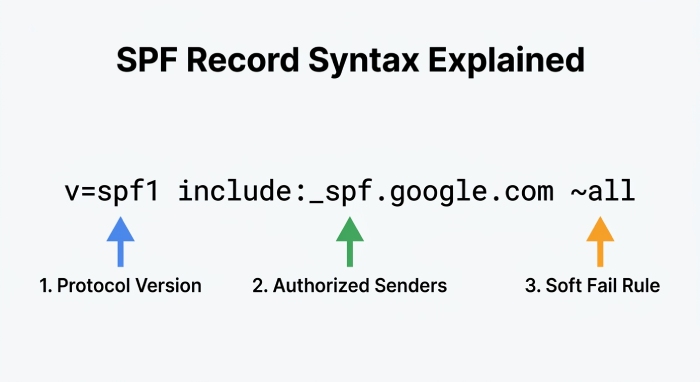
Sender Policy Framework (SPF) is the first line of defence in your email authentication setup. This authentication standard allows you to define which sending servers and addresses are authorized to send emails on your behalf. This helps the receiving server verify that the incoming email is from an authorized source. For how each protocol differs, see the difference between SPF, DKIM, and DMARC.
To set up SPF, you first need to publish a TXT record in your domain’s DNS. This record should contain all your authorized sending sources that send emails on behalf of your domain.
A basic SPF record should look like:
v=spf1 include:_spf.google.com ~allHere, “include:_spf.google.com” specifies that Google’s mail servers are authorized to send emails on your behalf, while ~all tells receiving servers to treat emails from any unauthorized sender as suspicious.
It might seem like SPF is only about listing all the authorized sources and publishing them in the DNS, but that’s only one part of the process. While you’re listing your legitimate servers, make sure that you include every email service or third-party platform. Missing out on even a single sender might cause your legitimate emails to fail SPF checks and get sent to spam or rejected completely. At the same time, adding too many services without properly managing your SPF record can exceed DNS lookup limits, leading to SPF failures.
If your SPF record is running into errors or your emails are failing SPF checks, you can use DMARCReport’s SPF record lookup tool to identify missing senders, syntax issues, or DNS lookup limit problems.
What is DKIM and how can you set it up?
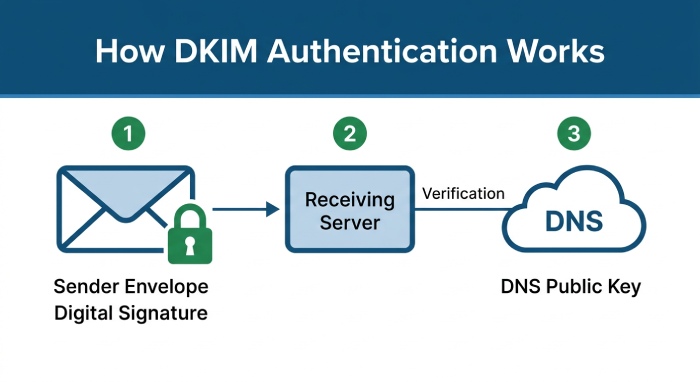
DKIM, or DomainKeys Identified Mail, is an authentication protocol that adds a digital signature to youroutgoing emails to prove to the receiving server that the email sent from your domain is indeed authentic and hasn’t been tampered with along the way.
So, when the email reaches the receiving server, it compares the DKIM signature in the email header with the public key published in your DNS. If the two match, the email passes the DKIM check.
To set up DKIM for your domain, first head over to your email service provider’s admin console, where you can generate the public key. Once you have the selector name and public key provided by the ESP, add them to your domain’s DNS as a TXT record. After the DNS record is published, go back to your email provider’s admin console and enable DKIM signing for your domain. From that point on, all your emails will be signed with DKIM.
However, if your emails are failing DKIM checks or your DKIM record is not configured correctly, you can run your DKIM record through DMARCReport’s DKIM Record Lookup tool to identify syntax issues, missing selectors, or invalid public keys.
What is DMARC and how can you set it up?
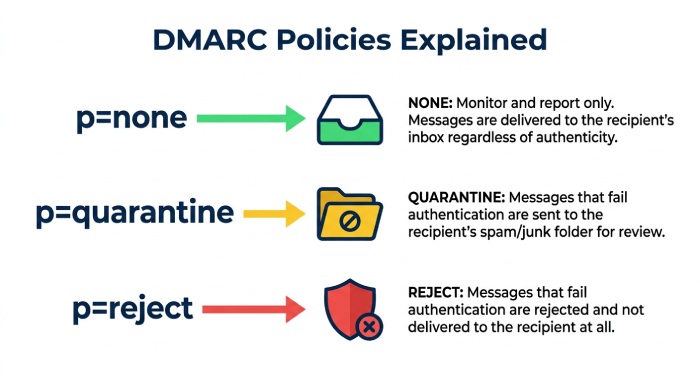
DMARC (Domain-based Message Authentication, Reporting and Conformance) builds on SPF and DKIM by telling the receiving servers how they should tackle the emails that fail authentication checks. In other words, it allows you to decide what to do with the emails that fail both SPF and DKIM checks. You can either get them delivered as is, send them to spam, or reject them altogether.
To configure DMARC, you need to publish a TXT record in your domain’s DNS. This record defines your DMARC policy and tells receiving servers how to handle emails that fail authentication checks. Use our generator to create your DMARC record in a couple of minutes.
Here’s what a DMARC record looks like:
“v=DMARC1; p=none; rua=mailto:reports@example.com”Here, “p=none” is the policy you define that determines what happens to the unauthenticated emails.
In this case, ‘none’ means the emails will still be delivered, but you will receive DMARC reports about them.
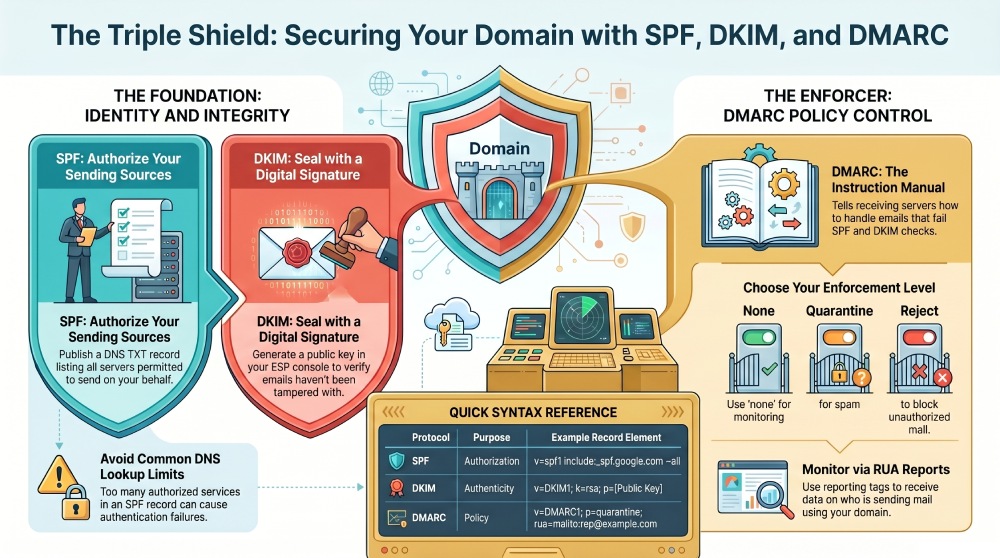
Once you are confident that all your legitimate senders are properly configured for SPF and DKIM, you can change the policy to quarantine, which sends suspicious emails to spam, or reject, which blocks them completely.
If your DMARC record is not working as expected, you can use DMARCReport’s DMARC Record Checker to check alignment settings, verify reporting configuration, and detect duplicate records or missing authorization.
While configuring email authentication protocols is not as complicated as it seems, even a small mistake in SPF, DKIM, or DMARC records can affect your email deliverability and leave your domain exposed to phishing or spoofing attacks. For example, a quick DKIM lookup shows whether your selector’s public key is live in DNS. This is why it is important to regularly monitor your records and leverage the right tools that help you identify the gaps before they become a major problem.
You can rely on DMARCReport’s suite of email authentication tools to monitor your SPF, DKIM, and DMARC records, spot any configuration issues, and protect your domain against email-based attacks. To know more about our tools, get in touch with us!
Topics
General Manager
General Manager of DuoCircle. Product strategy and commercial lead for DMARC Report's 2,000+ customer base.
LinkedIn Profile →Take control of your DMARC reports
Turn raw XML into actionable dashboards. Start free - no credit card required.