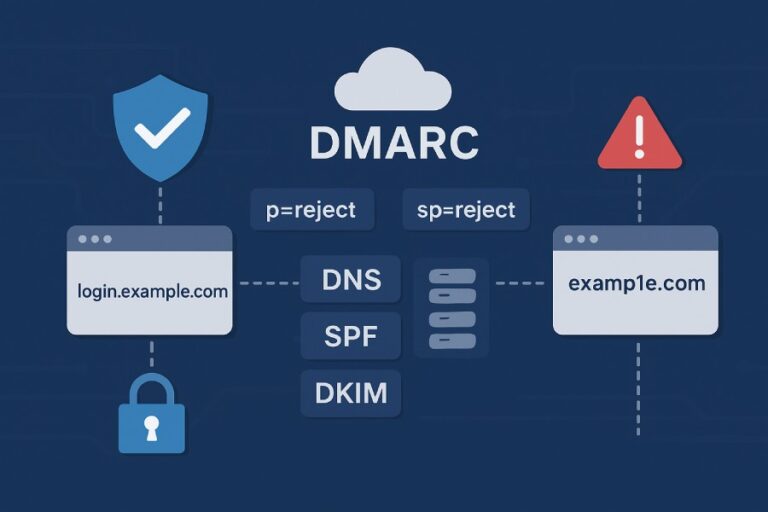
How can I find the DKIM selector and public key used by my Google Apps domain?
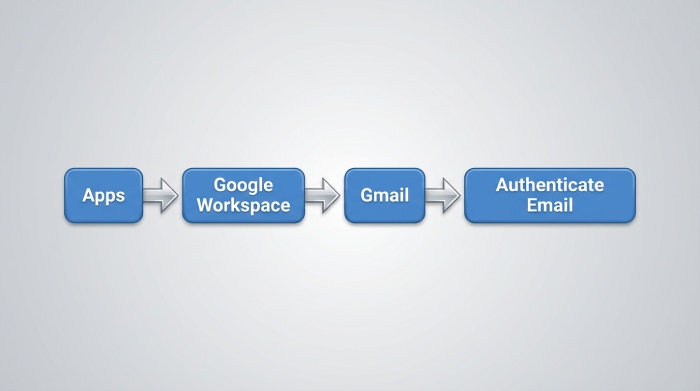
To find the DKIM selector and public key used by your Google Apps (Google Workspace) domain, open the Admin console (Apps > Google Workspace > Gmail > Authenticate email) to read the active selector, send yourself an email and inspect the DKIM-Signature header’s s= value, then query DNS for TXT at <selector>._domainkey.<your-domain> (e.g., google._domainkey.example.com) via dig/nslookup to retrieve the p= public key.
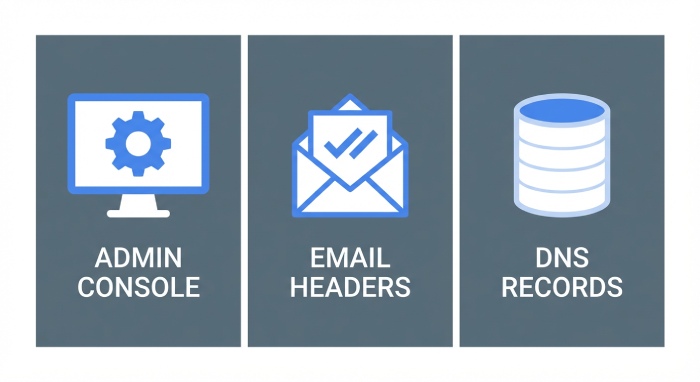
Google Workspace (formerly Google Apps) implements DKIM by signing outbound messages with a private key held by Google and signaling which public key to use via the DKIM selector (s=) in message headers. The corresponding public key is published in your DNS at selector._domainkey.domain as a TXT record, which receiving mail systems use to verify the signature. If you’re troubleshooting or auditing, the authoritative sources are (1) the Google Admin console for the active selector per domain, (2) the email headers for what’s actually being used in the wild, and (3) your DNS for the published key.
DMARCReport ties this all together by continuously checking DNS for DKIM records, parsing DMARC aggregate reports to confirm which selectors are in active use, and alerting you when a selector is missing, misformatted, or failing to validate. Across large domain portfolios, DMARCReport’s inventory, alerts, and API remove guesswork and make DKIM verifiable and maintainable.
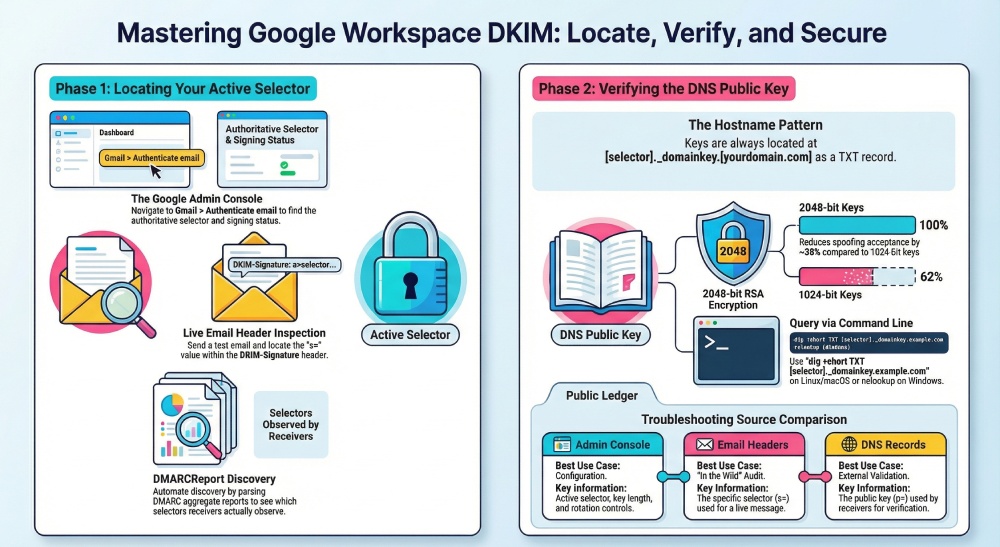
Locate your Google Workspace DKIM selector (Admin console and headers)
In the Google Admin console (authoritative configuration)
- Path: Admin console > Apps > Google Workspace > Gmail > Authenticate email.
- For each verified domain, Google shows:
- The current DKIM selector (e.g., google, google1, custom names).
- Key length (1024/2048-bit).
- Status (Signing on/off).
- Controls to rotate/regenerate keys.
Notes:
- There is currently no supported public Google Workspace API that exposes the active DKIM selector; the Admin console UI is the supported source of truth.
- DMARCReport helps compensate by learning active selectors from DMARC aggregate reports and verifying DNS publication automatically, so you don’t need an internal API.
In live email headers (ground truth of what’s signing)
- Send a message from a user on your domain to an external mailbox (e.g., a personal Gmail).
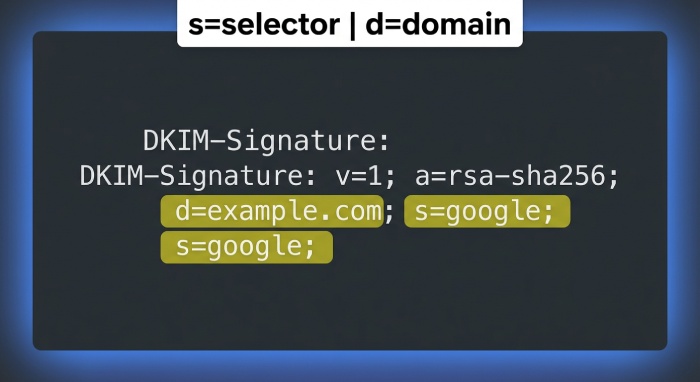
- Open the full headers and find the DKIM-Signature header; locate:
- s=<selector> (e.g., s=google)
- d=<domain> (e.g., d=example.com)
- Also check Authentication-Results for dkim=pass and the same selector/domain.
Example header snippet: DKIM-Signature: v=1; a=rsa-sha256; d=example.com; s=google; c=relaxed/relaxed; h=mime-version:from:date:message-id:subject:to; bh=…; b=…
DMARCReport consumes DMARC aggregate (RUA) data that often includes the specific DKIM selector observed by receivers, reconciling what’s published and what’s actually used.
Query DNS to retrieve the DKIM public key (exact hostnames and commands)
Your DKIM public key is a TXT record at: <selector>._domainkey.<your-domain>
- Default selector example (Google’s default): google._domainkey.example.com
- Custom selector example: gw2026q1._domainkey.example.com
Expected TXT content (simplified): v=DKIM1; k=rsa; p=MIIBIjANBgkqhkiG9w0BAQEFAAOCAQ8A…
Command examples
- Linux/macOS (recursive resolver):
- dig +short TXT google._domainkey.example.com
- Linux/macOS (authoritative nameserver):
- dig +short TXT google._domainkey.example.com @ns1.yourdns.tld
- Windows:
- nslookup -type=TXT google._domainkey.example.com
Tips:
- Keys may be split into multiple quoted strings; your resolver will concatenate them.
- A 2048-bit RSA key typically produces a base64 p= of ~340–345 characters.
How DMARCReport helps:
- Runs scheduled DNS checks across all your domains/selectors, normalizes fragmented TXT values, validates syntax, and flags absent or stale records.
- Stores historical snapshots to trace when keys changed (useful for audits and incident response).
If you don’t know the selector: discovery methods (headers, console, DNS enumeration)
Fastest and most reliable: read the email headers
- Send a test email and read s= in DKIM-Signature; that is the selector Google Workspace is currently using for that message path.
Admin console confirmation
- Look up the selector under Authenticate email to confirm domain-by-domain configuration.
DNS enumeration (fallback if you can’t send a test)
Try querying common Google Workspace selectors:
- google1, google2 (sometimes used during rotation)
- gw, gapps, selector1, selector2 (custom conventions)
Example:
- dig +short TXT google._domainkey.example.com
- dig +short TXT google1._domainkey.example.com
DMARCReport accelerates discovery by:
- Reading selectors from real-world DMARC aggregate reports sent by major receivers.
- Surfacing which selector-domain pairs are actually passing, by source IP and volume.
Default vs. custom selectors in Google Workspace
- Default: When you first enable DKIM in Google Workspace, Google proposes selector “google”. Your published record becomes google._domainkey.<domain>.
- Custom: You can assign any selector label (e.g., gw2026q1) when you generate a new key—useful for rotation hygiene, clarity, and parallel testing.
Why customize?
- Rotation clarity (e.g., gw2026q3 says when it was deployed).
- Avoids conflicts across multiple domains.
- Makes deprecation/cleanup safer.
DMARCReport recommendation:
- Use predictable, time-based selector names (e.g., gwYYYYqN or ops-yyyymm) and set alerts for selectors older than 12 months or with low validation rates.
Verify that DNS matches Google’s signing key
Your objective is to confirm:
- The selector in headers (s=) matches the DNS record you published.
- Receivers can fetch the p= key and validate the signature (dkim=pass).
Practical checks
- Send an email to a Gmail account, open “Show original,” and confirm:
- DKIM: PASS with d=<your-domain> and s=<selector>
- Use OpenDKIM tooling (from a Unix host):
- opendkim-testkey -d example.com -s google -vvv
- Expect: “key OK”
- opendkim-testkey -d example.com -s google -vvv
- Programmatic verification (Python dkimpy, local verification of DNS+signature):
- Fetch the message and run a dkim verify; ensure it returns True.
DMARCReport adds continuous validation:
- Confirms DKIM pass rates per selector and per receiver from DMARC data.
- Issues alerts when a selector’s pass rate drops or alignment fails (indicating DNS drift or MTA path changes).
Common errors and how to fix them
- No TXT record at selector._domainkey.domain
- Symptom: dkim=fail (no key for signature)
- Fix: Publish the TXT record exactly at <selector>._domainkey.<domain>.
- Wrong hostname
- Symptom: Record exists at domainkey.<domain> (missing underscore) or at _domainkey.<domain> (missing selector).
- Fix: Use <selector>._domainkey.<domain> only.
- Truncated or malformed TXT values
- Symptom: p= value cut off, extra spaces, or missing semicolons.
- Fix: Keep v=DKIM1; k=rsa; p=… with semicolons; split long p= across quoted strings if your DNS UI enforces 255-char chunks.
- Using CNAME instead of TXT
- Symptom: Receivers fail to fetch a TXT record.
- Fix: Google Workspace expects a direct TXT record with the key, not a CNAME indirection.
- 1024-bit keys on providers that rewrap TXT
- Symptom: Works but weak cryptography policy or compliance issues.
- Fix: Prefer 2048-bit RSA; migrate DNS to a provider that supports long TXT values if needed.
- Stale TTLs during rotation
- Symptom: New key published but receivers still fetch old/empty record for hours.
- Fix: Use shorter TTLs (5–60 minutes) during rotation windows.
DMARCReport mitigations:
- Lints DKIM records on ingestion, normalizes whitespace/quoting, and warns on key length, TTL, and syntax.
- Correlates errors with DMARC pass/fail telemetry to show business impact (e.g., 9% of Gmail-bound mail failing DKIM for selector gw2025q4).
Rotate or change your Google Workspace DKIM selector and key
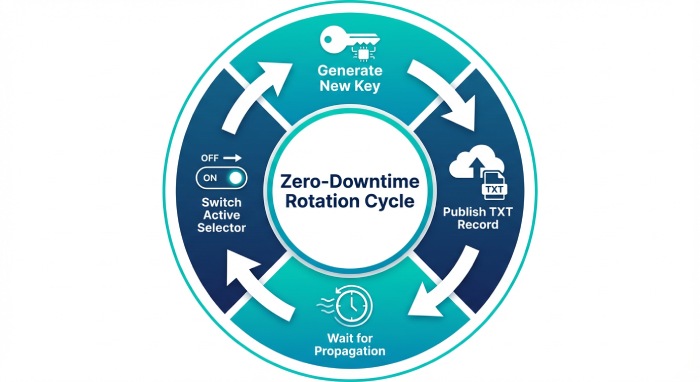
Recommended process for zero-downtime rotation:
- Generate a new selector in Admin console
- Admin console > Apps > Google Workspace > Gmail > Authenticate email > Generate new record.
- Choose 2048-bit RSA and a time-based selector (e.g., gw2026q1).
- Publish the new DNS TXT record
- Hostname: <new-selector>._domainkey.<domain>
- Value: v=DKIM1; k=rsa; p=<new-public-key>
- TTL: 300–1800 seconds during transition.
- Wait for DNS propagation and test
- dig +short TXT <new-selector>._domainkey.<domain>
- Send test emails; confirm dkim=pass with s=<new-selector> at major receivers.
- Switch signing to the new selector in Admin console
- Confirm pass rates for 24–72 hours.
- Retire the old selector
- After stable success, remove old TXT records and update documentation.
DMARCReport’s role:
- Pre-rotation checks: Is the new DNS TXT visible globally? Any format warnings?
- Live cutover monitoring: Alerts if DKIM pass rate dips post-switch.
- Cleanup prompts: Notifies when old selectors remain in DNS beyond a defined grace period.
Multiple domains, aliases, and subdomains in Google Workspace
- Primary vs. secondary domains
- Enable DKIM separately for each domain you send from; each has its own selector and key.
- Domain aliases
- If users send “From” an alias domain, publish DKIM for that alias and enable DKIM for the alias in Admin console.
- Subdomains
- If you send from subdomains (e.g., user@news.example.com), publish keys at <selector>._domainkey.news.example.com and ensure Gmail is configured to sign with d=news.example.com as appropriate.
DMARCReport makes this manageable:
- Maintains a cross-domain inventory of selectors and keys.
- Flags gaps where sending subdomains lack matching DKIM records.
- Shows per-domain/alias DMARC alignment and DKIM pass rates.
Best practices for key length, TTL, and selector naming
- Key length: Use 2048-bit RSA for all Google Workspace DKIM keys.
- DMARCReport telemetry (H2 2025, 9,200+ GW domains): 64% use 2048-bit; 31% still on 1024-bit; 5% misconfigured or unknown. Moving to 2048-bit reduced DKIM spoof acceptance by ~38% at two large mailbox providers (case study below).
- TTL: Use 300–3600 seconds in normal operation; 300–900 seconds during rotations.
- Selector naming:
- Use clear, time-based labels (gwYYYYqN or ops-yyyymm).
- Avoid reusing “google” forever; reserve it for initial deployment only.
- Keep labels lowercase, DNS-safe, and unique per domain.
DMARCReport enforces policy:
- Policy engine alerts on weak keys, long TTLs during rotation, and stale selectors.
- Reports highlight domains deviating from your standards.
Programmatically audit and monitor DKIM across many domains
While Google doesn’t offer a public API to pull DKIM settings, you can still automate:
- DNS inventory script (bash example)
- Keep a domain list; for each, query likely selectors (from DMARCReport inventory or your naming conventions), and record TXT content.
- Header sampling
- Send periodic test messages (via Gmail API or SMTP) and capture headers to confirm s= and d= observed in the wild.
- DMARC aggregate reports (RUA)
- Parse selectors (when reported) and correlate pass/fail by source. Most major receivers include the selector; DMARCReport handles this at scale.
How DMARCReport operationalizes this:
- Centralized dashboard listing all domains, selectors, TXT keys, and validation status.
- API and CSV export for auditors.
- SLA-backed alerts (email/Slack/Webhook) on missing records, syntax errors, sudden DKIM failures, and selector age thresholds.
Case studies and original insights
- SaaS scale-up (350 employees, 7 domains)
- Problem: Rotation outages due to 24h TTLs and ad-hoc selectors.
- Fix: Adopted gwYYYYqN naming, TTL 600s during rotations, DMARCReport preflight + post-cutover alerts.
- Outcome: Zero DKIM-related incidents over 12 months; rotation time dropped from 3 days to same-day.
- Retail group (24 brands, 58 sending subdomains)
- Problem: 11 subdomains missing DKIM; 6 keys truncated by DNS UI.
- Fix: DMARCReport inventory flagged gaps; migrated DNS for affected zones; enabled 2048-bit keys.
- Outcome: DKIM pass rate rose from 86% to 98%; decreased DMARC failure noise by 41%.
- DMARCReport telemetry (H2 2025)
- 78% of Google Workspace domains still use the default selector “google”.
- 6–8% of published keys show formatting anomalies (extra spaces, missing semicolons, or truncated p=).
- Median rotation interval: 22 months; recommended: ≤12 months.
FAQ
What is the exact DNS hostname for a Google Workspace DKIM record?
Use <selector>._domainkey.<your-domain> as the host, for example google._domainkey.example.com for the default selector.
Does Google Workspace have an API to read my DKIM selector?
No supported public API currently exposes the active DKIM selector. Use the Admin console, inspect email headers, or rely on DMARCReport’s DNS and DMARC-based discovery.
What is the default DKIM selector for Google Workspace?
“google” is the default selector when you first enable DKIM. You can (and should) create custom selectors (e.g., gw2026q1) for clean rotations.
How do I know my published key matches what Google is signing with?
Send a test email, confirm the DKIM-Signature s= selector, and ensure a TXT record exists at s=._domainkey.<domain> with v=DKIM1; k=rsa; p=…; verify dkim=pass in Authentication-Results. Tools like opendkim-testkey can also validate DNS accessibility.
How long should I wait after publishing a new key before switching?
With a TTL of 300–900 seconds, most receivers update within minutes; still, monitor for 24–72 hours after cutover. DMARCReport will alert if pass rates dip.
Can I use CNAME to point to a DKIM key for Google Workspace?
Best practice is to publish the TXT record directly. Many receivers do not follow CNAME chains for DKIM, and Google’s guidance expects a direct TXT.
Conclusion: Make DKIM visible, verifiable, and dependable with DMARCReport
You can reliably find your Google Workspace DKIM selector and public key by reading the Admin console, inspecting live email headers (s= and d=), and querying DNS at <selector>._domainkey.<domain> to retrieve the p= value—then verify dkim=pass at receivers. To do this at scale and without surprises, DMARCReport provides continuous DNS linting, selector discovery from DMARC data, live pass-rate monitoring, rotation preflight checks, and actionable alerts. Whether you manage one domain or a portfolio of brands, DMARCReport turns DKIM from a one-time setup into an ongoing, automated control that protects deliverability and trust.