How to Secure Your iCloud Email with DMARC
Email spoofing remains one of the common tricks used to impersonate trusted senders, targeting iCloud users. In a situation where custom domains connected to Apple Mail remain unauthenticated, an attacker can send a fraudulent message that appears legitimate at the same time as a user’s authenticated session. This poses a risk of data exposure, combined with phishing, and potential damage to the brand.
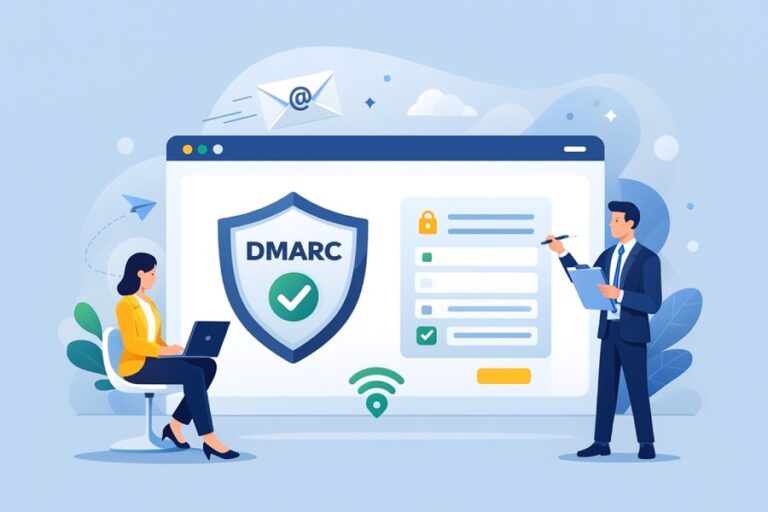
iCloud DMARC configuration ensures that messages from your domain pass both SPF and DKIM checks. When properly configured, it blocks unauthorized email, protects recipients, and provides reporting insight to see who is sending mail using your domain. For iCloud custom domains, DMARC adds an essential layer of control. Your Apple email becomes much more secure against spoofing.
Before You Start: Confirming Your Apple Device Status
Most iCloud domain users also have ownership and support information for their Apple devices. So, check Mac warranty to display your AppleCare status and its expiration date, ensuring the device remains eligible for updates that enhance email protection. This is one quick activity that ensures everything stays intact before making any changes to DNS records or enabling authentication.
Knowing the status of your device gives you confidence as you navigate the journey toward enhanced email security. With your hardware checked and up to date, there will be no interruptions or uncertainty when setting up SPF, DKIM, and DMARC, hence allowing complete focus on the configurations.
This is the final, ultimate iCloud email security step you need to take before proceeding with the steps below. After that, ensure all is well before you get down to every other detail.
Setting Up SPF for iCloud Custom Domains
SPF stands for Sender Policy Framework. Essentially, it allows the receiving mail servers to verify and validate that messages sent from your domain are indeed originating from an approved source. This reduces the likelihood of spoofed emails appearing to originate from your iCloud address.
Log in to your DNS host and create a TXT record for your domain with the following value recommended for iCloud Mail:
v=spf1 include:icloud.com ~all
Save the change and let it propagate. SPF will work in conjunction with DKIM and DMARC to verify the legitimacy of emails and filter unauthorized senders once SPF is active.
Enabling DKIM Signing for iCloud Mail
DKIM adds a cryptographic signature to every message, allowing receiving servers to verify that the message originated from your domain and was not altered in transit, thereby enabling email authentication. With phishing still primarily driven by email and over 90% of top domains exposed to spoofing without strong authentication, DKIM is now a baseline control.
You add the CNAMEs that Apple provides, and they handle DKIM signing. Usually, you set up a CNAME with host sig1._domainkey pointing to an Apple endpoint at icloudmailadmin.com, sometimes two keys (sig1, sig2) are listed in your DNS. Then Apple just starts signing outgoing mail.
To check DKIM, send yourself an email from your iCloud address to any service that displays full headers (for example, Gmail or any header-analysis tool) and look for a DKIM-Signature header and result of dkim=pass with your custom domain. Once DMARC is configured, your aggregate reports should show DKIM alignment for iCloud traffic, thereby confirming that signing works as expected.
Creating a DMARC Policy for iCloud
DMARC instructs the receiving mail servers on how to handle messages that fail SPF or DKIM checks. Therefore, you need a monitoring policy in place before moving to enforcement, just to ensure that nothing legitimate is being blocked from Apple Mail users. Add this TXT record to your DNS host:
_dmarc.yourdomain.com
_dmarc.yourdomain.com
Value: v=DMARC1; p=none; rua=mailto:dmarc@yourdomain.com
This will collect aggregate reports and still not break delivery.
After monitoring the reports for some time, you can move to enforcement by changing the policy to p=quarantine and later to p=reject once all legitimate emails have passed authentication.
Monitoring Authentication Results
DMARC provides reports that can be used to monitor whether the authentication messages of iCloud are accurate, and also check for any unauthorized sources pretending to send mail on your domain. Your DMARC generates a report that summarizes, per IP, volume, and alignment result grouping, whether SPF and DKIM have passed or failed for messages supposedly sent from your domain. If trusted services are failing, ensure they are using the correct SPF include or enabling DKIM.

If you encounter any alignment issues, ensure the DNS records match your sending setup. This can include a tweak in your SPF record by removing unused services or making sure DKIM is signing under your domain. Regular checks will help ensure the policy remains accurate as changes occur to the email environment.
Conclusion
SPF, DKIM, and DMARC stop spoofing. They protect your identity and ensure your emails are delivered. Monitoring first, then moving to enforcement, ensures that all legitimate messages are passing while blocking unauthorized use. With regular report reviews and minor tweaks, iCloud remains accurate as services evolve.
Strong authentication reduces the risk of phishing. It also ensures that all senders and recipients connecting to your domain are strongly authenticated, secure, and reliable.