How to set up SPF and DKIM for Autotask


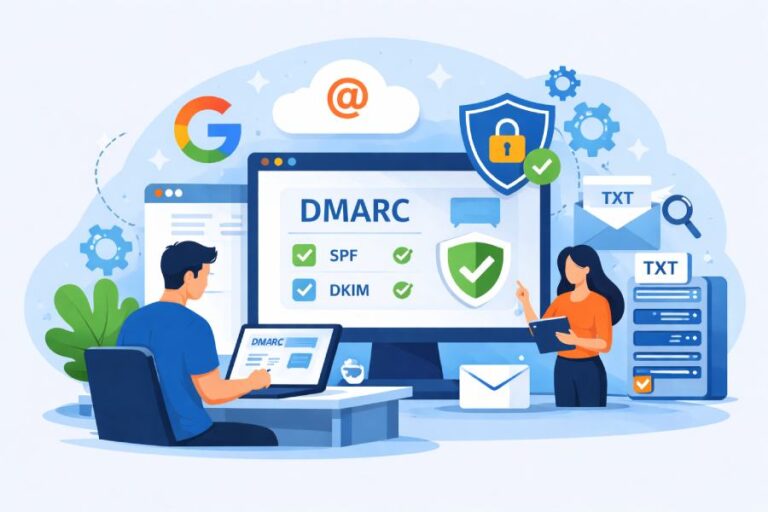
Companies rely on Autotask for sending emails about ticket updates, workflow alerts, invoices, system notifications, and more. Many of these emails are time and response-sensitive, which is why it’s important that domain owners integrate SPF, DKIM, and DMARC for their Autotask accounts. When these emails are not authenticated, receiving mailbox providers may treat them as suspicious or send them straight to spam.
When you create an SPF record for Autotaks, you establish a way to tell receiving mail servers which systems are allowed to send emails for your domain. To introduce another security layer, DKIM adds a digital signature to each message so providers can confirm the email was not altered and that it truly came from Autotask. Together, they help ISPs trust your emails and protect your domain from spoofing or impersonation.
In this guide, we will walk you through how to set up Autotask SPF and DKIM step by step. You will also learn why correct configuration matters, how it affects DMARC alignment, and what to watch out for during setup. The goal is simple: make sure your emails reach inboxes reliably, and your domain reputation stays clean.

Why SPF and DKIM matter for Autotask
Since Autotask sends emails on behalf of your domain, email providers may not fully trust those messages by default. This can create delivery and security issues. SPF and DKIM help close that trust gap in the following ways.
Better delivery for Autotask emails
When your Autotask SPF record is set up correctly, it tells receiving mail servers that Autotask is authorized to send email on your domain. This reduces the risk that ticket alerts or system notifications will be marked as spam or blocked, which is critical for time-sensitive messages.
Protection from spoofing and fake emails
Attackers often try to copy Autotask-style emails and fake the sender address. SPF helps mail servers check whether the email actually came from an approved source. DKIM adds an extra layer by signing each email so any tampering or impersonation can be detected.
Helping DMARC work properly
SPF and DKIM provide DMARC with the signals it needs to distinguish real Autotask emails from fake ones. When they are properly configured, mail servers can block spoofed emails without disrupting legitimate communication.
Setting SPF for Autotask
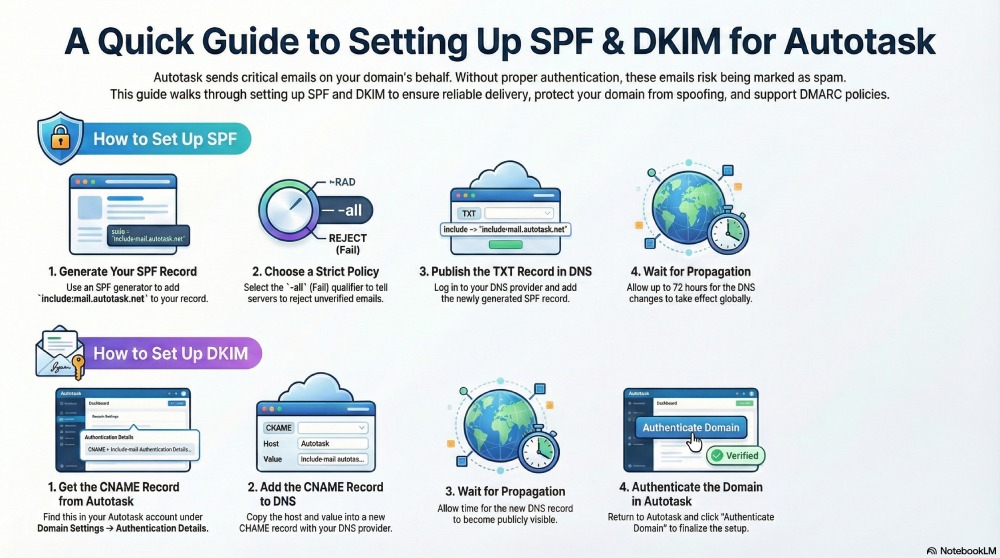
Step 1: Generate your SPF record
Open an online SPF record generator. This tool helps you create or update your SPF record correctly, without worrying about syntax errors.
In the generator, add the following include value: include:mail.autotask.net
This allows Autotask’s mail servers to send emails on behalf of your domain.
Step 2: Choose your SPF policy
Next, select how strictly you want receiving servers to handle failed emails:
- -all (Fail): Rejects emails that fail SPF (most strict)
- ~all (SoftFail): Accepts emails but marks them as suspicious
- ?all (Neutral): Not recommended, as it gives no clear instructions
Click Generate to create the SPF record.
Step 3: Publish the SPF record in DNS
Copy the generated SPF value and log in to your DNS provider, such as Cloudflare or GoDaddy. Create or update a TXT record for your domain and paste the SPF record there. Save the changes.
Step 4: Wait for DNS propagation
DNS updates can take up to 72 hours to fully propagate, though they often update sooner.
Setting DKIM for Autotask
Step 1: Get the DKIM record from Autotask
Log in to your Autotask account and go to Domain Settings → Authentication Details. Autotask uses a CNAME-based DKIM setup, which means it manages the cryptographic keys for you.
You will see a DKIM record generated for your sending domain.
Step 2: Review the DKIM record details
Your DKIM record will look like this:
- Type: CNAME
- Host: autotask._domainkey
- Value: autotask-yourdomain-com._domainkey.dkim.autotask.net
(The value is unique to each domain.)
Before publishing it, you can use a DKIM record checker to confirm the format is correct and avoid DNS mistakes.
Step 3: Add the DKIM record to DNS
Copy the CNAME host and value, then log in to your DNS provider (such as Cloudflare or GoDaddy). Create a new CNAME record and paste the details exactly as provided by Autotask. Save the record.
Step 4: Allow DNS propagation
Wait for the DNS change to propagate. This can take some time, depending on your DNS provider.
Step 5: Authenticate the domain in Autotask
Go back to Autotask and click Authenticate Domain. Autotask will check whether the DKIM record is publicly visible and set up correctly. If everything is in place, you will see a confirmation message.
If authentication fails, Autotask will show an error message explaining what needs to be fixed. Once verified, close the dialog, and your Autotask DKIM setup is complete.
Our team can also help you set the SPF and DKIM records for Autotask and other platforms. Contact us for help.