The Definitive Guide To Configuring SPF and DKIM for Salsa Labs
In today’s email ecosystem, ensuring your messages are authenticated and trusted by mail servers is no longer optional: it’s mission-critical. Misconfigured email authentication is one of the leading causes of low deliverability, placement in spam folders, and spoofing attacks. That’s where SPF and DKIM come in: two foundational email authentication protocols that help protect your brand, defend your domain against impersonation, and improve inbox placement. At DMARCReport, we’re dedicated to assisting organizations in implementing these standards correctly, starting with a step-by-step configuration guide for Salsa Labs.
In this comprehensive guide, we’ll walk you through what SPF and DKIM are, why they matter, how to implement them for Salsa Labs (including both Salsa Engage and Salsa Classic products), how to avoid common pitfalls, and how these fit into the broader email authentication landscape, including DMARC.
🧩 Why Email Authentication Matters
Before jumping into the setup steps, let’s briefly explore why SPF and DKIM are essential.
When you send an email, receiving mail servers run a series of checks to verify the message’s authenticity. Without proper authentication:
- Spam filters are more likely to flag your email as suspicious.
- Attackers can impersonate your domain in phishing campaigns.
- Your sender reputation suffers, making inbox placement worse over time.
To counteract these issues, three key email authentication standards exist:
- SPF (Sender Policy Framework): verifies which mail servers are permitted to send on behalf of your domain.
- DKIM (DomainKeys Identified Mail): uses cryptographic signatures to validate message integrity and origin.
- DMARC (Domain-based Message Authentication, Reporting & Conformance): orchestrates how SPF and DKIM work together and provides reporting.
This guide focuses specifically on SPF and DKIM configuration for Salsa Labs, but keep in mind these should be part of a complete email authentication strategy that includes DMARC.

📌 Understanding SPF
What Is SPF?
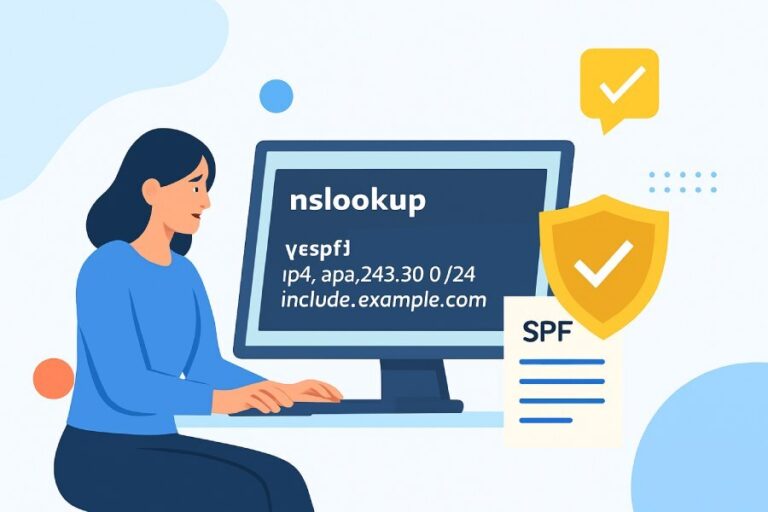
SPF is a DNS record that lists the mail servers authorized to send email for your domain. It helps receiving mail servers confirm that the email came from a server you’ve explicitly approved.
Imagine SPF as a guest list for your email domain. If a sending server isn’t on the list, the receiving server may mark the message as suspicious, or even reject it outright.
SPF in the Context of Salsa Labs
Salsa Labs offers email sending as part of their engagement platform: to authorize Salsa to send on your domain’s behalf, you must include the appropriate Salsa Labs mail servers in your SPF record.
If you’re using Salsa Engage, you would include this in your SPF record:
v=spf1 include:salsalabs.org ~all
For Salsa Classic, the include domain differs slightly:
v=spf1 include:salsalabs.net ~all
Including the correct mechanism ensures that mail servers used by Salsa Labs are recognized as authorized senders for your domain.
Step-by-Step: Adding SPF for Salsa Labs
Here’s how to add or update your SPF record:
- Log in to your DNS host: this is typically where your domain is registered (e.g., GoDaddy, Cloudflare, Route53, etc.).
- Access the DNS zone editor: look for options like DNS Management, DNS Settings, or Zone File Editor.
- Locate your SPF record: if one exists, you’ll update it. If not, you’ll create a new one as a TXT record.
- Set the DNS name to either @ or your domain name.
- Add the SPF value: for example, v=spf1 include:salsalabs.org ~all (for Engage).
- Save the record.
- Wait for propagation: DNS changes can take up to 48–72 hours to fully propagate.
⚠️ SPF Best Practices & Pitfalls
- Only one SPF record is permitted per domain. If you accidentally publish multiple, SPF will fail with a “PermError.” Consolidate all your sending sources: include all mail services in a single SPF record.
- Your SPF record has a DNS lookup limit (10 total lookups). Including too many third-party mail services can exceed this limit and cause it to fail.
Example of a combined SPF record:
v=spf1 ip4:192.168.1.1 include:salsalabs.org include:thirdparty.com ~all

🔐 Understanding DKIM
What Is DKIM?
DKIM adds a digital signature to each outgoing email using a private key stored on your mail server, and a public key you publish via DNS.
This lets receiving mail servers verify two key things:
- That the email did originate from an authorized mail server.
- That the content of the email has not been altered in transit.
Unlike SPF, DKIM doesn’t list authorized servers: it verifies the email after it’s been received using cryptographic signatures.
DKIM for Salsa Labs
Salsa Engage allows you to generate a DKIM key directly in your account settings. After generating the DKIM key in Salsa, you’ll publish it in your DNS as a TXT record.
Step-by-Step: Adding DKIM for Salsa Labs
Follow these steps:
- Log in to Salsa Engage.
- Go to your Settings (hammer and wrench icon).
- Select DKIM from the menu.
- Enter the domain you send emails from (e.g., yourdomain.com).
- Salsa will generate a DKIM key and selector string: copy it.
- Log in to your DNS provider and create a new TXT record.
- Enter the name as <selector>._domainkey (selector generated in step 5).
- Paste the DKIM key as the value.
- Save and wait for DNS propagation.
Once this is published, every email sent through Salsa Labs will be signed with your DKIM key, giving mail receivers confidence in the message’s authenticity.
📈 Putting SPF and DKIM Together with DMARC
While SPF and DKIM authenticate your mail, DMARC binds them together and gives you the ability to monitor and enforce your policy. With DMARC in place, you tell receiving mail servers what to do if an email fails authentication, such as quarantine or reject.
Even after setting SPF and DKIM, you must carefully monitor DMARC reports to ensure legitimate traffic isn’t failing. A DMARC monitoring solution (like DMARCReport) can help you:
- Identify all valid sources sending to your domain.
- Catch unauthorized or fraudulent sending activity.
- Gradually tighten your policy from none to enforcement.
For organizations using Salsa Labs, DMARC alignment means:
- SPF alignment: the domain in the return-path must match your From: domain.
- DKIM alignment: the domain in the DKIM signature must match the From: domain.
Since many ESPs now emphasize DKIM alignment, ensuring both SPF and DKIM are aligned will significantly boost your deliverability and security posture.

🛠 Validation & Testing
After publishing your SPF and DKIM records:
- Use DNS lookup tools (e.g., DMARCReport’s SPF/DKIM checkers) to verify the records are live and correct.
- Send test emails to services like Gmail or Yahoo and view the message headers to confirm SPF/DKIM pass status.
- Review DMARC aggregate reports to check how emails sent via Salsa Labs are performing.
✨ Wrapping It All Together
Configuring SPF and DKIM for Salsa Labs isn’t just a one-time task: it’s part of an ongoing strategy to secure your domain, improve email deliverability, and protect your sender reputation. With SPF authorizing servers, DKIM validating message integrity, and DMARC orchestrating policy and reporting, you’ll be in full control of your email authentication journey.
At DMARCReport, we know how critical these protocols are in safeguarding your brand’s communications. You can leverage our monitoring and analytics to:
- Gain actionable insights from your DMARC reports.
- Identify hidden and unauthorized sending sources.
- Optimize your authentication setup over time.
If you need help auditing your DNS, interpreting DMARC reports, or completing alignment testing, don’t hesitate to reach out to our team of experts.