
What Is a DNS Server and How It Works as Your Internet Gateway
A DNS server is a core part of the internet that translates human-friendly domain names into IP addresses that computers use to communicate. When you type a website URL into your browser, the DNS server quickly finds the correct IP address and connects you to the right destination. In simple terms, it acts like the internet’s directory system, ensuring your requests reach the correct servers without you needing to remember complex numbers. This is why it’s often called your internet gateway—it makes browsing fast, seamless, and user-friendly.
DNS 101: What a DNS Server Is and Why It Exists
Human-friendly addressing for a machine-driven network
The Domain Name System exists to translate human-readable names into routable numbers. When you type a domain name such as example.com, a DNS server maps that hostname to the numeric IP address of the destination web server so your device can connect across the internet. Without this translation, every website would require remembering an IP address, which is impractical at internet scale.
Where DNS servers live in the internet’s control plane
DNS is the internet’s addressing directory and a foundational DNS infrastructure component. Oversight bodies like the Internet Corporation for Assigned Names and Numbers (ICANN) and the Internet Assigned Numbers Authority (IANA) coordinate the global namespace, including the Root Servers and Top-Level Domains (TLDs). Operators such as Verisign maintain critical registries (for example, .com), while DNS providers deliver DNS service to end users and organizations. A nameserver may run software like BIND, Unbound, or PowerDNS and participates in the DNS protocol to answer a DNS query.
Two roles: looking up and answering
- A DNS resolver (recursive DNS) performs lookups on behalf of a DNS client (your device or web browser), chasing down answers.
- An authoritative DNS server is the definitive source for a DNS zone and publishes DNS records configured via DNS management tools.
Both roles are essential to DNS resolution, DNS security, and reliable hostname resolution across the network.
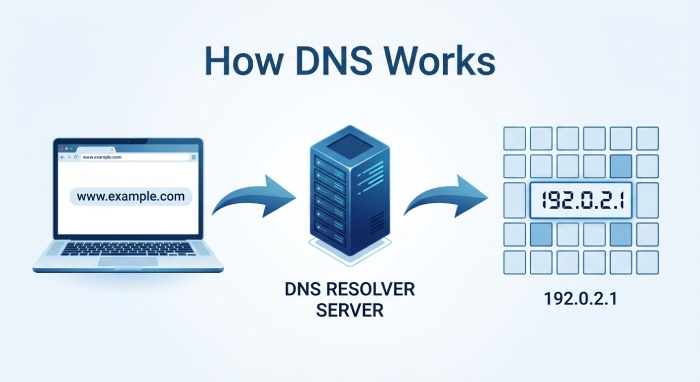
The DNS Lookup Journey: How a URL Becomes an IP Address
From browser to resolver
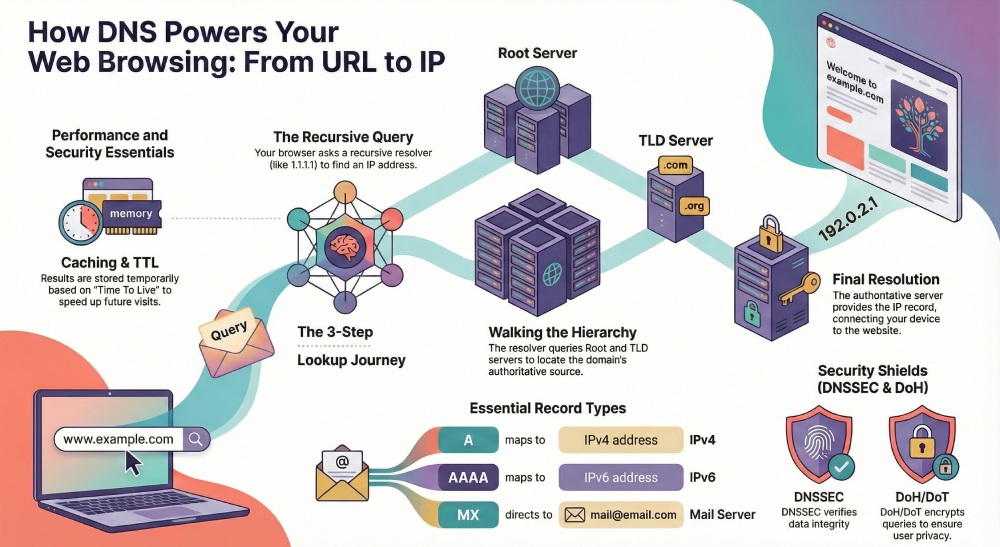
When you visit a website, your web browser (Chrome, Firefox, or Edge) triggers a DNS lookup. The local DNS client asks a configured DNS resolver—often your Internet Service Provider (ISP) or a public resolver such as Cloudflare’s 1.1.1.1, Google Public DNS, OpenDNS from Cisco, or Quad9—to find the IP address for the target hostname. This initial DNS query starts the DNS resolution process.
Walking the tree: Root, TLD, and authoritative
If the resolver lacks a cached answer, it queries up the hierarchy:
- Root server: The resolver asks a Root Server which nameservers handle the relevant TLD.
- TLD server: The TLD nameserver (for example, .com) points to the authoritative DNS server for the specific domain name.
- Authoritative nameserver: The authoritative DNS responds with the DNS record (such as an A or AAAA record) holding the IP address of the web server that serves the site.
Each step yields a DNS response that guides the next hop. Once the resolver obtains a final answer, it returns the IP address to the DNS client, and the browser connects to the destination web server.
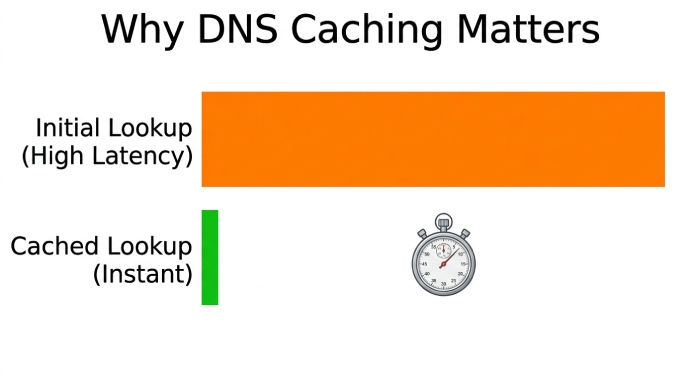
Performance gain: Cache and TTL
To reduce DNS traffic and latency, resolvers use DNS caching. Answers are stored in a cache for the Time To Live (TTL) specified by the zone’s DNS record. Subsequent DNS queries for the same hostname can be answered instantly from cache, improving network performance and speeding up access to content delivered by CDNs like Akamai.
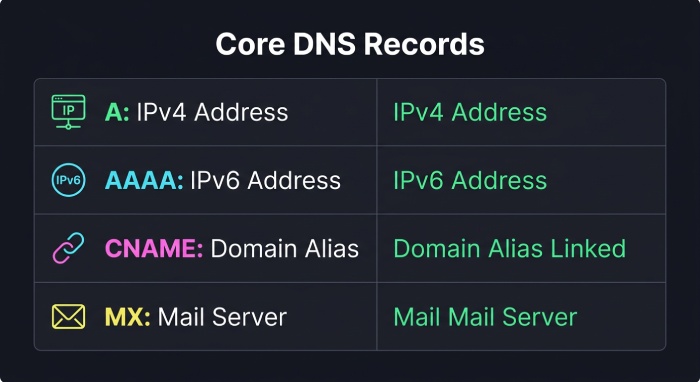
Core Components and Records: Recursive vs. Authoritative, A/AAAA, CNAME, MX, TTL
Recursive versus authoritative roles in detail
- Recursive DNS: The DNS resolver that performs the iterative work. Public options include 1.1.1.1, Google Public DNS, OpenDNS, and Quad9. Enterprises often run Unbound or BIND as their internal resolvers.
- Authoritative DNS: The server that hosts your DNS zone and DNS records. Managed DNS providers include Amazon Web Services Route 53, Dyn, UltraDNS, Verisign, GoDaddy, Namecheap, and Network Solutions. Many run PowerDNS or BIND.
Authoritative DNS directly influences DNS propagation: after changes, the new data spreads as caches expire across the internet.
Essential DNS records for hostname resolution
A and AAAA
- A: Maps a hostname to an IPv4 address.
- AAAA: Maps a hostname to an IPv6 address. These records point browsers to the correct web server.
CNAME
- Creates an alias from one hostname to another canonical name, enabling flexible DNS management and migrations without changing the underlying IP address.
MX
- Identifies mail exchangers for email delivery, distinct from the web server, and often pointing to specialized infrastructure.
Practical tip: CNAME at the apex
Some DNS providers support CNAME-like behavior at the zone apex using ANAME or ALIAS records to preserve compatibility while simplifying DNS management.
Timing that matters: TTL and updates
TTL governs how long a DNS response can stay in cache. Lower TTLs speed DNS propagation and enable faster cutovers during migrations, but increase DNS traffic. Reverse DNS (PTR records) maps an IP address back to a hostname, important for email reputation and diagnostics.
DNS as Your Internet Gateway: Performance, Routing, Filtering, and Choice of Resolver
Performance and routing effects you can feel
Your chosen DNS server acts like an internet gateway for navigation. A fast DNS resolver reduces page-load latency and can steer you to nearby Content Delivery Network (CDN) edge web servers via geo-aware DNS responses. Anycast networks operated by Cloudflare, Google, and Quad9 place resolvers close to users, trimming network distance. Accurate DNS resolution also helps pick optimal endpoints for services hosted on Amazon Web Services or behind Akamai.
Filtering, parental control, and threat defense
Many resolvers provide a DNS firewall feature, enforcing policy at the DNS layer. OpenDNS (Cisco Umbrella) and Quad9 can block malicious hostnames and thwart phishing via policy-based DNS responses. Enterprises deploy Response Policy Zones and security analytics to inspect DNS traffic and bolster DNS security, limiting the blast radius of malware that relies on domain name lookups, dynamic DNS, or command-and-control hostnames.
Choosing a resolver and setting it up
- Public resolvers: 1.1.1.1 (Cloudflare), 8.8.8.8/8.8.4.4 (Google Public DNS), OpenDNS, and Quad9 emphasize speed, privacy, and protection.
- ISP resolvers: Convenient defaults with local peering; quality varies by provider.
Configure primary DNS and secondary DNS in your router’s DNS settings or on each device. For home-lab scenarios, dynamic DNS helps expose a service on your residential network under a stable hostname, even as your ISP changes your IP address.
Enterprise considerations
- Centralized DNS management, split-horizon design, and conditional forwarding improve control.
- Logging and analytics reveal misconfigurations and suspicious hostname resolution patterns.
Security, Privacy, and Troubleshooting: DNSSEC, DoH/DoT, and Common Fixes
Authenticity and integrity with DNSSEC
DNSSEC adds cryptographic signatures so a DNS resolver can verify that a DNS response truly originated from the authoritative DNS and wasn’t altered. It defends against DNS spoofing and cache poisoning. Major TLDs are signed, and many providers—Verisign, AWS Route 53, Dyn, and UltraDNS—support zone signing. Ensure the full chain (Root Servers, TLD, zone) is properly configured.
Transport privacy: DoH and DoT
DNS-over-HTTPS (DoH) and DNS-over-TLS (DoT) encrypt the DNS protocol in transit, preventing eavesdropping on queries. Public resolvers from Cloudflare, Google, and Quad9 support both. Some browsers, like Firefox, can enable DoH to a trusted resolver. On Microsoft Windows, macOS, and many mobile OSes, you can set DoH/DoT in system DNS settings for device-wide protection.
Common troubleshooting steps
- Flush cache: Clear the OS DNS cache and the browser cache to bypass stale entries from DNS caching.
- Check propagation: After changing DNS records, allow time for DNS propagation according to TTLs.
- Validate records: Use dig or nslookup to query authoritative nameservers directly and confirm A, AAAA, CNAME, MX, and NS records.
- Inspect resolver health: Verify your recursive DNS or local DNS server (BIND, Unbound) is reachable and not rate-limited.
- Review reverse DNS: Ensure PTR records match hostnames for mail servers and diagnostics.
- Watch for hijacking: Mismatched IP addresses, unexpected DNS responses, or certificate errors may indicate DNS spoofing or a malicious DNS provider.
- Network path: If a site resolves but won’t load, the web server or upstream route—not DNS—may be at fault; test reachability to the resolved IP address.
When in doubt, temporarily switch your DNS resolver to a well-known DNS provider like 1.1.1.1 or Google Public DNS to isolate whether issues stem from the current DNS service or the destination web server, while also ensuring your email authentication setup (DMARC report monitoring, DKIM signing, SPF validation) is correctly configured to maintain strong email security.